General section styling
General section styling in Local: the section heading, Section design, Custom card design, SEO heading tag and Visibility settings most sections share.
Applies to: Local 4.2.1 and later. Added in: Local 1.0.0. Last checked: 2026-10-13 against Local 4.2.1.
Most Local sections share the same groups of settings: a heading area, Section design, Custom card design, SEO and Visibility. This page explains them once. Each section page lists only what is different in that section.
Where to find it: Online Store → Themes → Customize → select any section → Heading, Section design, Custom card design, SEO or Visibility
Local has 37 sections you can add with Add section, in 45 presets. You can use them on any page, in any combination, to build your own templates. See Sections for the full list.
Section heading
The heading area sits above the section content. Every part of it is optional.
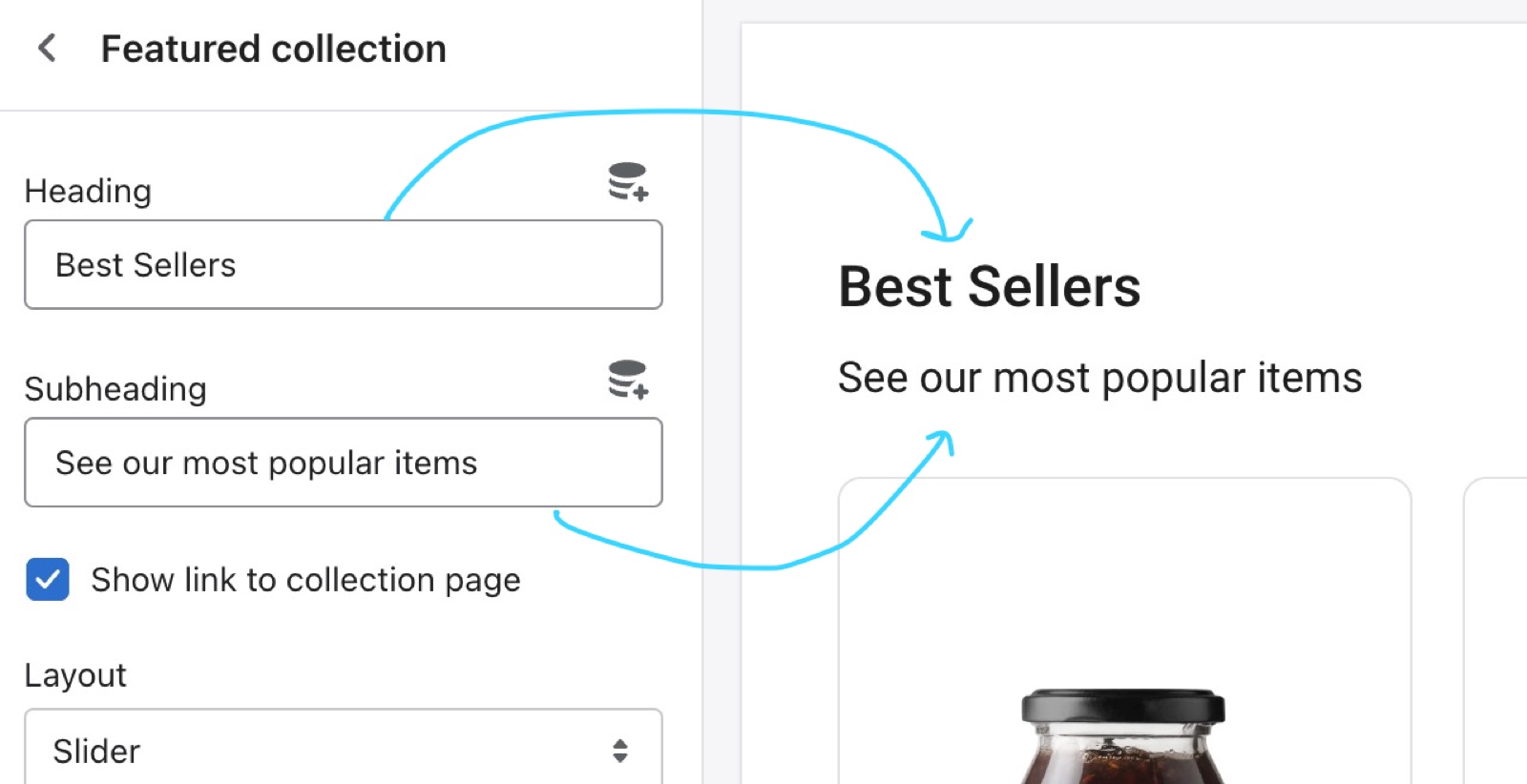
- Heading and Subheading introduce the section. Leave both empty and the heading area disappears.
- Text alignment places the heading on the left or in the center.
- Show section link adds a text link next to the heading, for example "View all". Fill Link text and Link too, or the link does not show.
- Open link in a new window opens that link in a new browser tab.
Some sections name this switch after what they link to: Show link to collection page in the Featured collection and Collection list sections, Show link to blog page in the Blog posts section.
Section design
These settings change the area around the section content, not the cards inside it.
- Background color or Background gradient colors the whole section. With a background, the section also gets space above and below its content, so the color has room to show.
- Heading text color changes the color of the text outside the cards, which is mostly the section heading.
- Descrease top margin (shown with this spelling in the editor) shrinks the space above the section to the grid gap (Theme settings → Layout → Horizontal space). Use it to bring two sections closer together.
- Remove top margin removes the space above the section completely. Only one of the two can be on at a time.
The normal space above every section is Theme settings → Layout → Vertical space between sections (50 to 150 px, default 100 px). Local uses 80 percent of it on screens up to 1280 px wide and 60 percent on screens up to 1023 px wide.
Sections with a full width option show Full width or Fullwidth here. It stretches the section background (and, in sliders and grids, the content) to the edges of the screen.
Custom card design
Sections that show cards (promotion cards, collection cards, testimonials, the rich text card and more) have a Custom card design group. Every color is transparent by default, which means "use the card colors from Theme settings → Colors → Cards".
- Background, Text, Accent, Border and Shadow override those card colors for this section only.
- Hide border and Hide shadow remove the card border or the card shadow.
The border width, corner radius and shadow size come from Theme settings → Borders and Shadows, not from this group.
SEO heading tags
The Heading tag setting (under SEO) sets the HTML tag of a heading, so search engines understand the structure of your page. It does not change how the heading looks. The options are H1, H2, H3, H4 and span; sections default to H2.
Some sections have one heading tag for the whole section. Others have one per block (cards, slides, toggles), and a few have several heading tags in the same place.
Use them carefully and keep the headings in order. This is an example of a sound structure (a starting point, not SEO advice):
- Home page:
- H1: the title of the first slide or banner, as the introduction of the page.
- H2: the headings of your sections.
- H3: headings inside a section, such as card or block titles.
- H4: rarely needed, for example for content in the footer.
- Every other page: the page title is already the H1, so use H2 to H4 in the sections.
Section visibility
Section visibility (under Visibility) shows a section on every screen or only on some:
- Show always shows it everywhere (default).
- Show only on mobile shows it on screens narrower than 768 px.
- Show only on desktop shows it on screens 768 px and wider, tablets included.
A hidden section is still on the page; it is only hidden from view.
Which heading tag should I use?
Use one H1 per page and H2 for the section headings. On the home page, give the first slideshow or banner title the H1. On other pages the page, product or collection title is already the H1, so keep the sections at H2 and their blocks at H3.
Can I hide a section on mobile?
Yes. Set Visibility → Section visibility to Show only on desktop. To show a different version on phones, add a second copy of the section and set it to Show only on mobile.
How do I remove the space above a section?
Turn on Remove top margin in the section's Section design group. For a smaller gap instead of none, turn on Descrease top margin. To change the space between all sections at once, use Theme settings → Layout → Vertical space between sections.
All General styling settings
Every setting, with its type and default.
Where to find it: Any section → Heading → Heading
Heading (text field, default: "Shoppable videos").
Subheading (text field, default: "Showcase your best products").
Text alignment (dropdown, default: Left). Options: Left, Center.
Show section link (checkbox, default: off): Adds a text link next to the section heading. Fill Link text and Link too.
Link text (text field). Shown only when Show section link is on.
Link (link). Shown only when Show section link is on and Link text is set.
Open link in a new window (checkbox, default: off). Shown only when Link is set and Show section link is on and Link text is set.
Where to find it: Any section → Section design → Section design
Background color (color, default: transparent): Colors the whole section behind the cards. With a background color the section also gets space above and below its content.
Background gradient (gradient).
Heading text color (color, default: transparent): Sets the color of the text outside the cards, mostly the section heading.
Descrease top margin (checkbox, default: off): Sets the space above the section to the grid gap of Theme settings → Layout → Horizontal space, instead of the full space between sections. Shown only when Remove top margin is off.
Remove top margin (checkbox, default: off): Removes the space above the section, so it touches the section before it. Shown only when Descrease top margin is off.
Where to find it: Any section with cards → Custom card design → Custom card design
Background (color, default: transparent): Sets the card background. Transparent uses Theme settings → Colors → Cards.
Text (color, default: transparent).
Border (color, default: transparent).
Shadow (color, default: transparent).
Hide border (checkbox, default: off): Removes the border of the cards.
Hide shadow (checkbox, default: off).
Where to find it: Any section → SEO → SEO
Heading tag (dropdown, default: H2): Sets the HTML tag of the heading for search engines. It does not change how the heading looks. Options: H1, H2, H3, H4, span.
Where to find it: Any section → Visibility → Visibility
Section visibility (dropdown, default: Show always): Shows the section on every screen, only below 768 px (mobile) or only from 768 px (desktop, tablets included). A hidden section is still in the page. Options: Show always, Show only on mobile, Show only on desktop.