Stores map section
The Stores map section of Local shows your stores on a Google map or a static map image, with details and a gallery for each store.
Applies to: Local 4.2.1 and later. Added in: Local 1.0.0. Last checked: 2026-10-13 against Local 4.2.1.
The Stores map section shows your stores on a page: a list of stores that open like an accordion, each with its details, a small photo gallery and a Get directions button, next to a Google map with one pin per store. It is for presentation only, for example on an "Our stores" page.
Where to find it: Add section → Stores map, then select the Stores map section.
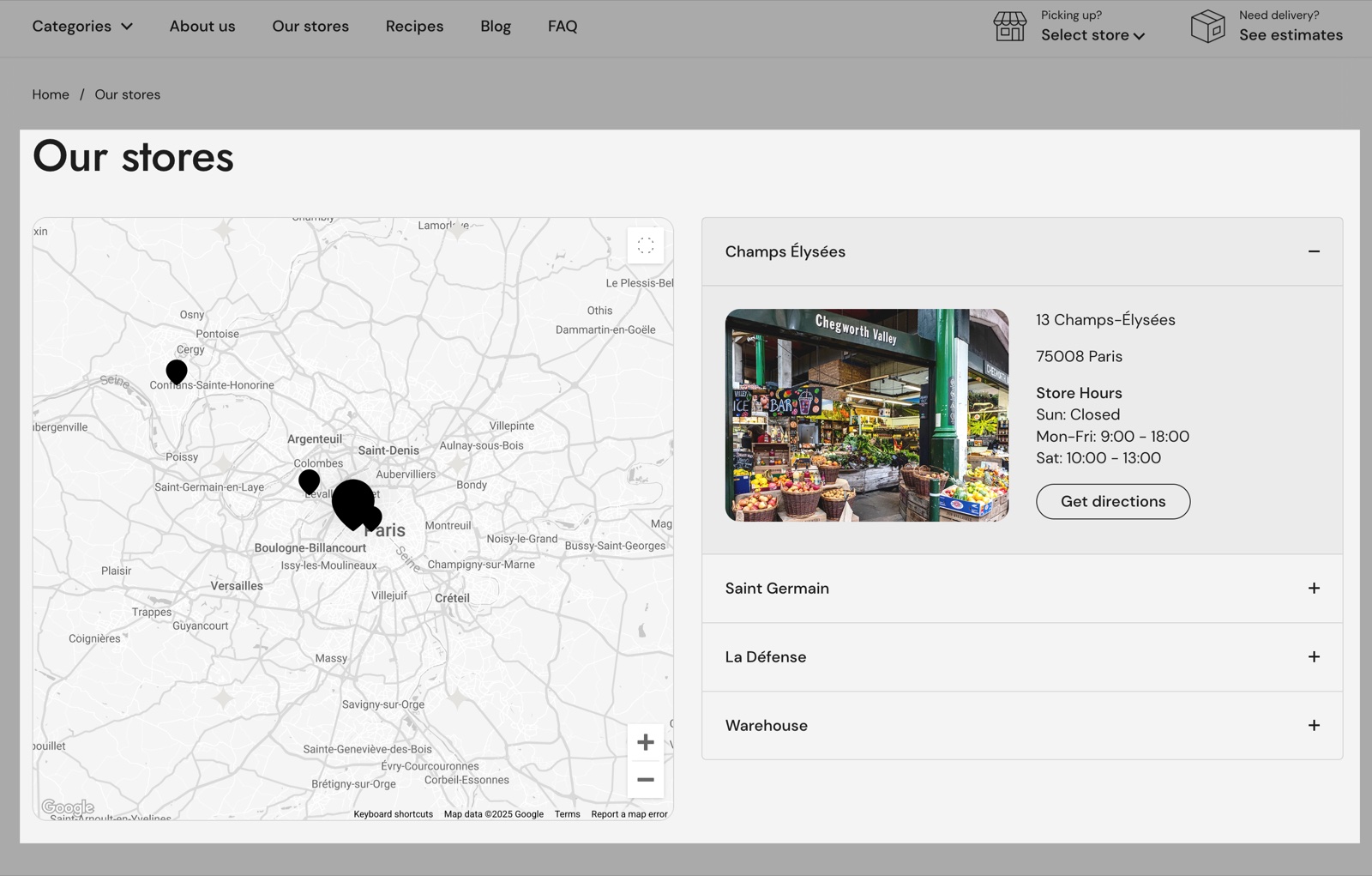
Heading
- Heading and Subheading are the title and the line under it, "Find Us" and "Check our stores on a map" by default. Text alignment puts them left or center.
- Show section link adds a link under the section, with Link text, Link and Open link in a new window.
- Heading tag (SEO) sets the HTML level of the heading, H2 by default.
Stores map
- Enable dynamic map shows an interactive Google map with your store pins. It needs a Google Maps API key in Theme settings → Maps, see Maps theme settings.
- Map zoom sets how close the map starts, from 2 (the world) to 19 (a street). Local first fits all pins, then applies this zoom around their center, so a high value can hide stores that are far apart.
- Map style chooses one of six looks: Standard, Silver, Retro, Dark, Night or Aubergine. It is hidden when you use a Google Maps Map ID.
- Tag style pin (only with a Map ID) replaces the image pins with labels showing the store names.
- Image is a static picture of a map, for stores that do not want to use Google Maps. It shows only while Enable dynamic map is off. With neither a map nor an image, the section shows a placeholder.
Opening a store in the list moves the map to its pin and highlights it.
Store blocks
Add one Store block per store.
- Name is the store name at the top of its accordion row.
- Store details is free text: address, opening hours, phone. It is shown as you type it.
- Store gallery: Image 1, Image 2 and Image 3 add up to three photos, shown as a small slider. Media aspect ratio crops them to Shorter (3:2), Short (4:3, default), Square (1:1), Tall (5:6) or Taller (2:3).
- Map pin: Latitude and Longitude place the store on the map, as decimal coordinates. With both filled, the store also shows a Get directions button to Google Maps. Custom link replaces that address with your own link, and Custom pin replaces the pin with your own 90 x 90 px transparent PNG.
New Store blocks start with example coordinates. Replace them with your store's own, or every new store gets a pin at the same place.
Google explains how to find coordinates in Get the coordinates of a place.
Setting up the stores map
Add the Google Maps API key
For a live map, create a Google Maps API key and paste it in Theme settings → Maps → Google Maps API key. The steps are on Maps theme settings. For a static map image, skip this step.
Add the section
Open the page where the map should go, for example a page template for your stores, and select Add section → Stores map.
Add one Store block per store
Select Add block → Store for each store. Type the Name and the Store details (address and opening hours).
Place each store
Type each store's Latitude and Longitude, replacing the example values. Optional: upload up to three gallery images, a Custom pin, and a Custom link for the Get directions button.
Choose the map
Turn on Enable dynamic map and set Map zoom and Map style (or Tag style pin with a Map ID). Or leave the map off and upload a static map picture in Image. Select Save.
Is the Stores map connected to the store selector?
No. The Stores map section only shows your stores. Selecting a store in it does not set the customer's preferred store, and it does not change the pickup availability lines. The stores are not linked to your Shopify locations either: you type them in the section. To let customers choose a store, set up the Store selector section.
Why are my store hours not shown in the header?
Because the Stores map section has no closing times. Its Store details is plain text that shows only in the section. The "My store" closing time in the header comes from Closing times (optional) in the Store selector section.
Does the Stores map section load Google Maps on every page?
No, only on pages that have the section with Enable dynamic map on. The map loads when the section scrolls into view, or 10 seconds after the page opens. Google charges by map loads, see Maps theme settings.
All Stores map settings
Every setting, with its type and default, including the Store block settings.
Accepts these blocks: Store.
Stores map section: Heading
Where to find it: Stores map → Heading
The Stores map section uses the standard Heading settings, listed in General section styling.
Heading (text field, default: "Find Us").
Subheading (text field, default: "Check our stores on a map").
Text alignment (dropdown, default: Left). Options: Left, Center.
Show section link (checkbox, default: off).
Link text (text field). Shown only when Show section link is on.
Link (link). Shown only when Show section link is on and Link text is set.
Open link in a new window (checkbox, default: off). Shown only when Link is set and Show section link is on and Link text is set.
These settings differ from the standard ones or exist only here:
Heading (text field, default: "Find Us").
Subheading (text field, default: "Check our stores on a map").
Stores map section: Stores map
Where to find it: Stores map → Stores map
Enable dynamic map (checkbox, default: off): Shows an interactive Google map with a pin per store. Needs Theme settings → Maps → Google Maps API key. When off, the section shows the static Image.
Map zoom (slider 2 to 19, default: 16): Sets the zoom level the map starts with, from 2 (world) to 19 (street). Local fits all pins first, then applies this zoom around their center.
Map style (dropdown, default: Standard): Sets one of six built-in map looks. Hidden when Theme settings → Maps → Google Maps Map ID is set. Options: Standard, Silver, Retro, Dark, Night, Aubergine. Shown only when Theme settings → Maps → Google Maps Map ID is empty.
Tag style pin (checkbox, default: off): Replaces the image pins with labels showing each store's name. Shown only when a Google Maps Map ID is set. Shown only when Theme settings → Maps → Google Maps Map ID is set.
Image (image): Sets a static map picture, shown only while Enable dynamic map is off. Without it, the section shows a placeholder.
Stores map section: SEO
Where to find it: Stores map → SEO
The Stores map section uses the standard SEO settings, listed in General section styling.
Heading tag (dropdown, default: H2): Specify heading level to help search engines index the structure of your page. Options: H1, H2, H3, H4, span.
Store block
Where to find it: Stores map → Add block → Store
Name (text field, default: "My Store"): Sets the store name at the top of its row. Not linked to Shopify locations or the store selector.
Store details (rich text, default: "123 John Doe Street Your Town, YT 12345 Store Hours Sun: Closed Mon-Fri: 9:00 - 17:00 Sat: 10:00 -…"): Sets the details shown when the store opens: address, opening hours, phone. Printed as typed.
Store block: Store gallery
Where to find it: Stores map → Add block → Store → Store gallery
Image 1 (image): Adds a photo to the store's gallery. With two or three images, the gallery becomes a slider.
Image 2 (image).
Image 3 (image).
Media aspect ratio (dropdown, default: Short (4:3)): Sets the crop of the gallery images. Options: Shorter (3:2), Short (4:3), Square (1:1), Tall (5:6), Taller (2:3).
Store block: Map pin
Where to find it: Stores map → Add block → Store → Map pin
If the map is enabled, you need to define a custom pin for this address. Learn how to get your address coordinates.
Latitude (text field, default: "46.7834818"): Sets the latitude of the store pin, in decimal degrees. New blocks start with an example value: replace it. With both coordinates, the store shows a Get directions button.
Longitude (text field, default: "23.5464733"): Sets the longitude of the store pin, in decimal degrees. New blocks start with an example value: replace it.
Custom pin (image): Replaces the map pin of this store with your own 90 x 90 px transparent PNG. Not used with Tag style pin.
Custom link (link): Replaces the Google Maps address of the Get directions button with your own link.
Related pages
- Maps theme settings: the Google Maps API key and Map ID.
- Store selector section: the store picker connected to your locations.
- Contact form section: a contact form for the same page.