Scrolling text section
The Scrolling text section of Local scrolls lines of text and small images across the page, for sales, news or promotions.
Applies to: Local 4.2.1 and later. Added in: Local 1.0.0. Last checked: 2026-10-13 against Local 4.2.1.
The Scrolling text section moves lines of text and small images across the page in an endless loop, like a news ticker. Use it for flash sales, news, promotions or product updates. Adjust the scroll speed to the amount of text you have.
Where to find it: Online Store → Themes → Customize → Add section → Scrolling text
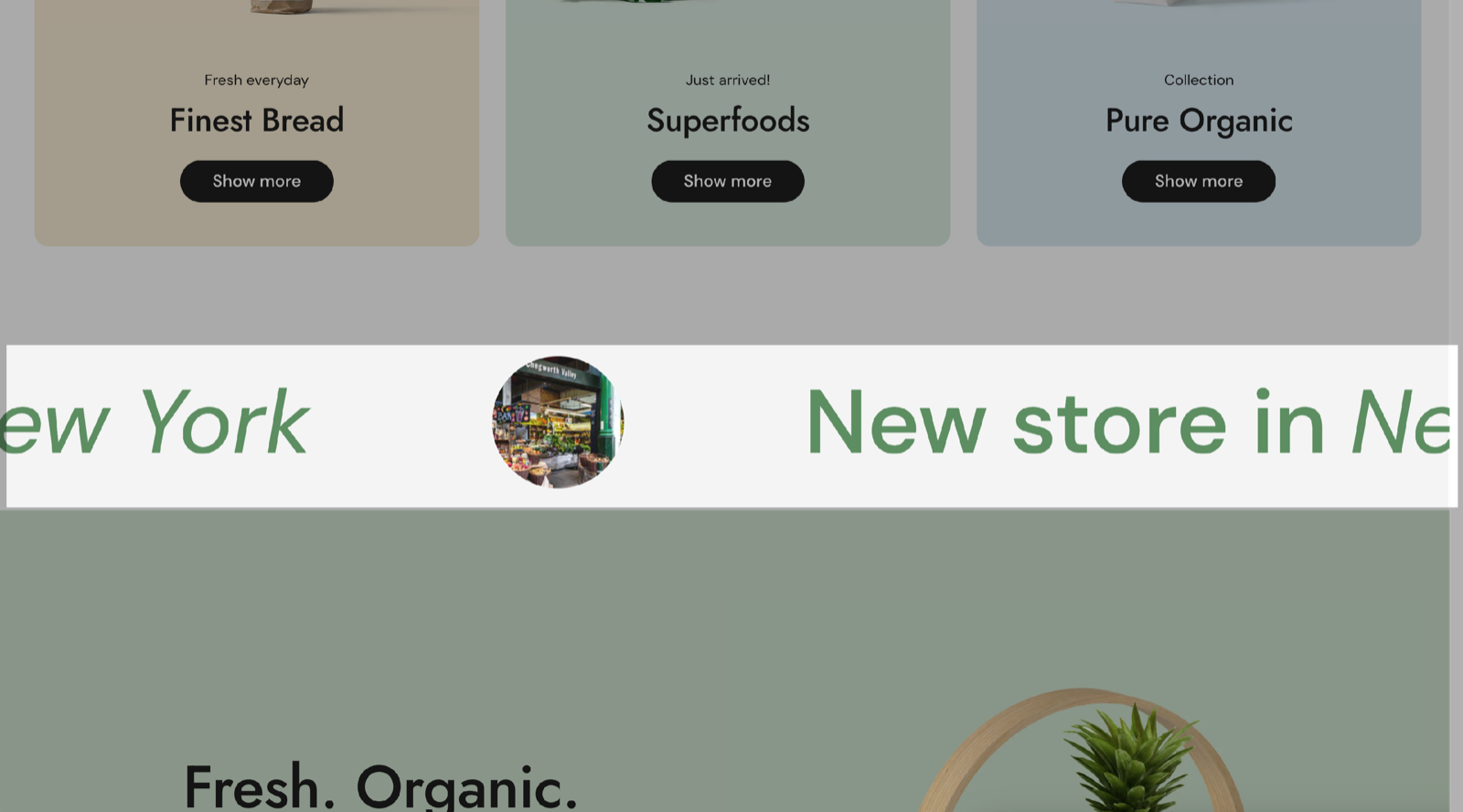
Scrolling
- Scroll direction sets where the text moves. Left (default) moves it toward the left: new text enters from the right edge. Right moves it toward the right.
- Scroll speed sets the speed, 20 to 300 (default 100), in pixels per second on desktop. Phones scroll at two thirds of that speed.
- Pause on mouseover (on by default) stops the text while the mouse is over it, so customers can read or click a link.
- Horizontal space sets the space between the repeats: Small, Regular or Large (default).
- Text size sets Small (default), Regular or Large text.
Design and spacing
- Remove top margin and Remove bottom margin remove the space above and below the band, so it can touch the header or the next section.
- Under Section design, Background (light grey by default) or Background gradient colors the band, and Text sets the text color.
- Section visibility shows it on all screens or only on desktop or mobile.
Blocks
The section repeats its blocks in order, in one line, without end.
Text
The Text block holds one line in Scrolling text (default "Free shipping on orders over $50"). Add several Text blocks for several messages.
Every Text block is shown on a single line. The field accepts bold, italic and links so you can style the text, but no paragraphs or line breaks.
Image
The Image block adds a small picture between the texts, for example a logo or a product shot. Border radius (0 to 100 px) rounds its corners; a high value makes a round image.
Why is my text on one line?
Because scrolling text is always one continuous line. Each Text block becomes one piece of that line. To show separate messages, add one Text block per message; the Horizontal space setting separates them.
How do I make the text scroll slower?
Lower Scroll speed, for example to 50. Phones already scroll at two thirds of the speed you set.
All Scrolling text settings
Every setting, with its type and default.
Accepts these blocks: Text and Image.
Scroll direction (dropdown, default: Left): Left moves the line toward the left, so new text enters from the right. Right moves it toward the right. Options: Right, Left.
Scroll speed (slider 20 to 300, step 10, default: 100): Sets the speed in pixels per second on desktop. Screens up to 768 px wide scroll at two thirds of it.
Pause on mouseover (checkbox, default: on): Stops the line while the mouse is over it.
Horizontal space (dropdown, default: Large): Sets the space between the repeated texts and images. Options: Small, Regular, Large.
Text size (dropdown, default: Small). Options: Small, Regular, Large.
Remove top margin (checkbox, default: off): Removes the space above the band.
Remove bottom margin (checkbox, default: off): Removes the space below the band.
Scrolling text section: Section design
Where to find it: Scrolling text → Section design
The Scrolling text section uses the standard Section design settings, listed in General section styling. In this section the group has only Background, Background gradient and Text.
Background (color, default: #e9e9e9).
Background gradient (gradient).
Text (color, default: transparent): Sets the color of the scrolling text and its links.
These settings differ from the standard ones or exist only here:
Background (color, default: #e9e9e9).
Text (color, default: transparent): Sets the color of the scrolling text and its links.
Scrolling text section: Visibility
Where to find it: Scrolling text → Visibility
The Scrolling text section uses the standard Visibility settings, listed in General section styling.
Section visibility (dropdown, default: Show always): Shows the section on every screen, only below 768 px (mobile) or only from 768 px (desktop, tablets included). A hidden section is still in the page. Options: Show always, Show only on mobile, Show only on desktop.
Text block
Where to find it: Scrolling text → Add block → Text
Text block: Text content
Where to find it: Scrolling text → Add block → Text → Text content
Scrolling text (formatted text, default: "Free shipping on orders over $50"): Sets one line of the band. Bold, italic and links work; line breaks do not.
Image block
Where to find it: Scrolling text → Add block → Image
Image (image).
Border radius (slider 0 to 100 px, default: 0 px): Rounds the corners of the image. A high value makes it round.