Email signup section
The Email signup section of Local adds a newsletter form that saves subscribers as customers in Shopify admin.
Applies to: Local 4.2.1 and later. Added in: Local 1.0.0. Last checked: 2026-10-13 against Local 4.2.1.
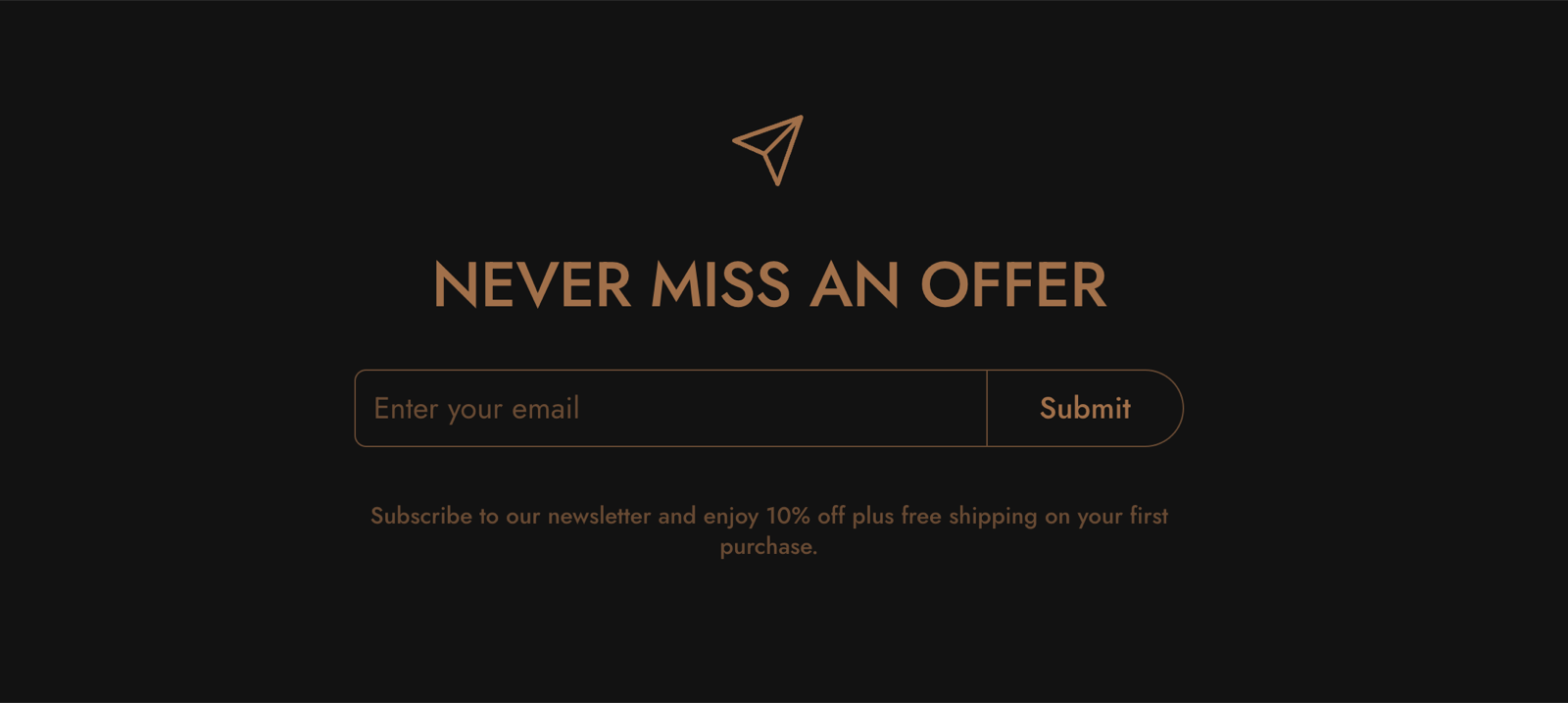
The Email signup section adds a newsletter form in a card: an optional icon, a title, a text and an email field. Every email is saved in Shopify admin → Customers as a subscriber.
Where to find it: Online Store → Themes → Customize → Add section → Email signup
Content
- Show icon shows a paper plane icon above the title, in the card text color.
- Title is the heading of the card, for example "Sign up for our newsletter". Its tag is under SEO → Heading tag.
- Text says why customers should subscribe, for example a discount or the kind of news you send. It supports bold, italic and links.
After subscribing, the customer sees a thank you message in place of the form.
Design
- Custom card design sets the colors of the card: Background, Text, Border, Shadow, with Hide border and Hide shadow.
- Section design sets the color or gradient behind the whole section, and Descrease top margin or Remove top margin to bring it closer to the section above.
- Visibility shows the section on all screens, or only on desktop or mobile.
See General section styling for these shared groups.
Where do newsletter emails go?
To Shopify admin → Customers. Each email becomes a customer with the tag newsletter who accepts email marketing. Filter the customer list by that tag, or send campaigns to them with Shopify Email or a connected email app.
Can I connect the form to Mailchimp?
Not directly in the theme: the form saves subscribers in Shopify. Connect Shopify to Mailchimp (or Klaviyo and similar) with the provider's Shopify app, which syncs the customers who accept marketing.
If you want to connect the theme's newsletter with MailChimp, see Mailchimp integration.
Why do I not see new subscribers?
Usually because the email already belonged to a customer: Shopify updates that customer instead of adding a new one. Check Shopify admin → Customers and filter by Email subscription status. Test with an email you have not used in the store before.
All Email signup settings
Every setting, with its type and default.
Show icon (checkbox, default: on): Shows a paper plane icon above the title, in the card text color.
Title (text field, default: "Your best promotion yet").
Text (rich text, default: "Use this text to share information about your brand with your customers. Describe a product, share…"): Says why customers should subscribe. Each email is saved in Shopify admin → Customers with the tag newsletter.
Email signup section: Custom card design
Where to find it: Email signup → Custom card design
The Email signup section uses the standard Custom card design settings, listed in General section styling.
Background (color, default: transparent).
Text (color, default: transparent).
Border (color, default: transparent).
Shadow (color, default: transparent).
Hide border (checkbox, default: off).
Hide shadow (checkbox, default: off).
Email signup section: Section design
Where to find it: Email signup → Section design
The Email signup section uses the standard Section design settings, listed in General section styling. Not available in this section: Heading text color.
Background color (color, default: transparent).
Background gradient (gradient).
Descrease top margin (checkbox, default: off): Sets the space above the section to the grid gap of Theme settings → Layout → Horizontal space, instead of the full space between sections. Shown only when Remove top margin is off.
Remove top margin (checkbox, default: off): Removes the space above the section, so it touches the section before it. Shown only when Descrease top margin is off.
Email signup section: SEO
Where to find it: Email signup → SEO
The Email signup section uses the standard SEO settings, listed in General section styling.
Heading tag (dropdown, default: H2): Sets the HTML tag of the heading for search engines. It does not change how the heading looks. Options: H1, H2, H3, H4, span.
Email signup section: Visibility
Where to find it: Email signup → Visibility
The Email signup section uses the standard Visibility settings, listed in General section styling.
Section visibility (dropdown, default: Show always): Shows the section on every screen, only below 768 px (mobile) or only from 768 px (desktop, tablets included). A hidden section is still in the page. Options: Show always, Show only on mobile, Show only on desktop.