Email signup section
The Email signup section of Combine shows a newsletter form that adds subscribers to your Shopify customers list.
Applies to: Combine 4.2.0 and later. Added in: Combine 1.0.0. Last checked: 2026-10-13 against Combine 4.2.0.
The Email signup section shows a newsletter form with a title and a short text. Customers who sign up are added to your Shopify customers list, tagged "newsletter" and subscribed to email marketing.
Where to find it: in the theme editor, select Add section and choose Email signup.
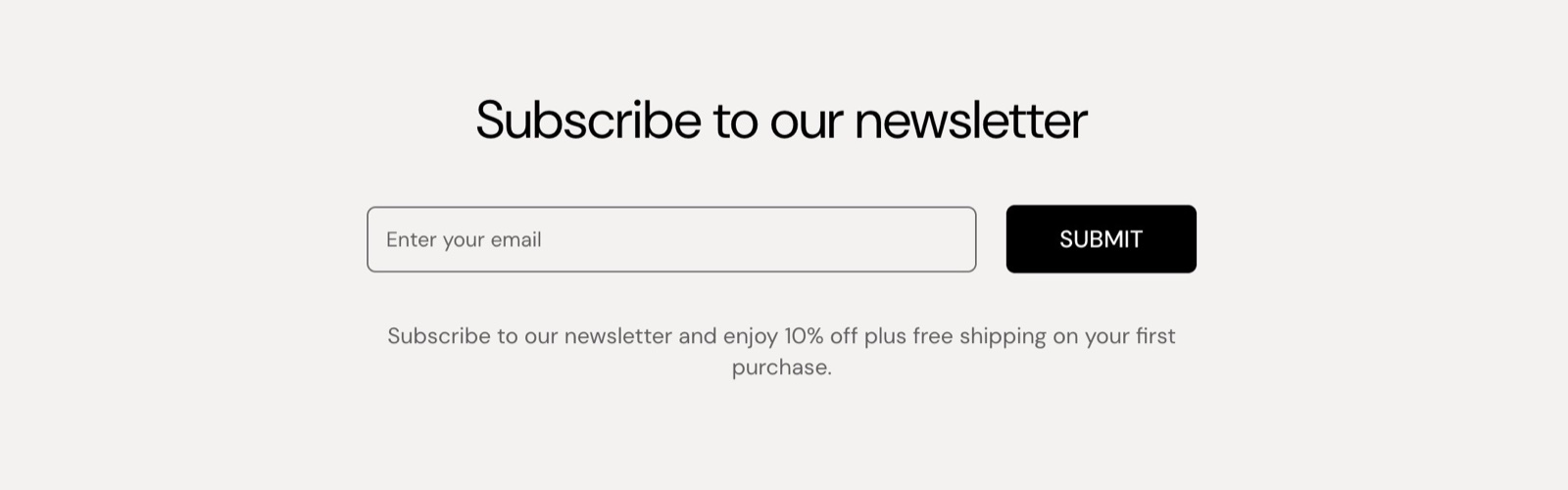
Section content
- Title is the heading of the section, for example "Sign up for our newsletter".
- Text is the line under the form: why to subscribe, a discount for new subscribers, a link to your privacy policy. It takes bold, italic and links.
- Fullwidth (on by default) stretches the section background to the edges of the screen. Turn it off to show the signup as a card within the page width.
- Heading tag under SEO sets the HTML level of the title (default H3).
Section design and gutter
- Background, Text and Border set the section's colors. The default background is a light gray.
- The border shows only when Fullwidth is off.
- Decrease top margin, Remove top margin and Remove bottom margin work as described in General section styling.
Where do the newsletter emails go?
To Shopify admin → Customers. Each email becomes a customer with the tag "newsletter" who accepts email marketing. Send campaigns to them with Shopify Email or an email marketing app.
If you want to connect the theme's newsletter with MailChimp, see Mailchimp integration.
Why does a customer get no confirmation email?
Because Shopify does not send one by default. The form adds the customer to your list and shows a thank-you message on the page. To send a welcome email, set up an automation in Shopify Email or in your email marketing app.
All Email signup settings
Every setting of this section, with its type and default.
Title (text field, default: "Your best promotion yet"): Sets the heading of the signup.
Text (rich text, default: "Use this text to share information about your brand with your customers. Describe a product, share…"): Sets the line under the form. Supports bold, italic and links.
Fullwidth (checkbox, default: on): Stretches the section background to the edges of the screen; off shows the signup as a card within the page width.
Email signup section: Section design
Where to find it: Email signup → Section design
The Email signup section uses the standard Section design settings, listed in General section styling. Not available in this section: Background color, Background gradient and Heading text color.
Background (color, default: rgba(236,239,240,1)).
Text (color, default: rgba(0,0,0,1)).
Border (color, default: transparent): Sets the color of the line around the card, shown only when Fullwidth is off.
These settings differ from the standard ones or exist only here:
Background (color, default: rgba(236,239,240,1)).
Text (color, default: rgba(0,0,0,1)).
Border (color, default: transparent): Sets the color of the line around the card, shown only when Fullwidth is off.
Email signup section: Gutter
Where to find it: Email signup → Gutter
The Email signup section uses the standard Gutter settings, listed in General section styling.
Decrease top margin (checkbox, default: off): Makes the space above the section smaller.
Remove top margin (checkbox, default: off): Removes the space above the section.
Remove bottom margin (checkbox, default: off): Pulls the next section up, so the two sections touch.
These settings differ from the standard ones or exist only here:
Remove top margin (checkbox, default: off): Removes the space above the section.
Email signup section: SEO
Where to find it: Email signup → SEO
The Email signup section uses the standard SEO settings, listed in General section styling.
Heading tag (dropdown, default: H3): Sets the HTML level of the title for search engines. Options: H1, H2, H3, H4, span.
Related pages
- Popups section: a newsletter popup.
- Footer group: the Email signup block of the footer.
- Mailchimp integration: send the signups to Mailchimp.
- General section styling: the margin and heading tag settings.
Media with text overlay
The Media with text overlay section of Combine shows image or video cards with a caption, title, subtitle and button on top.
Product comparison
The Product comparison section of Combine shows up to four products you pick side by side in a table of prices, metafields and variants.