Popups section
The Popups section of Combine shows image, cookies, newsletter, custom and product popups with their own visibility, delay, scroll trigger and frequency.
Applies to: Combine 4.2.0 and later. Added in: Combine 1.0.0. Last checked: 2026-10-13 against Combine 4.2.0.
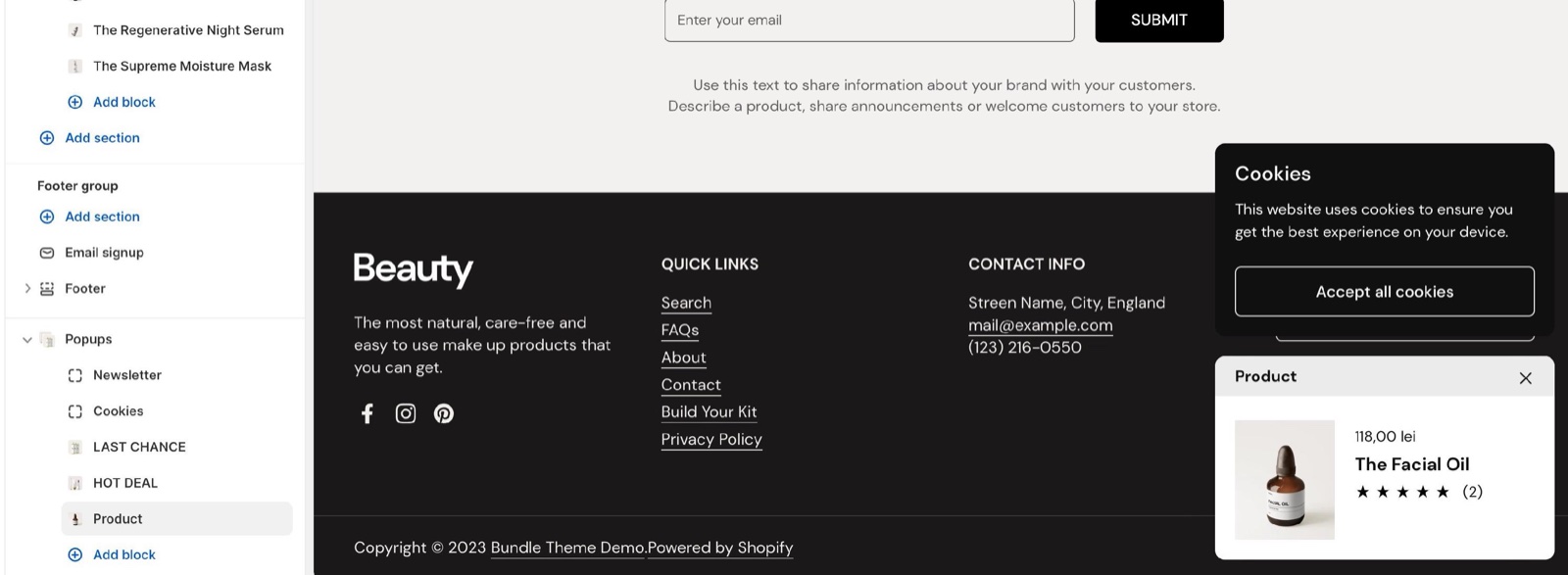
The Popups section shows small popups in a corner of the screen: a promotion image, a cookie notice, a newsletter signup, a custom message or a product. Each popup is a block with its own pages, delay and frequency.
Where to find it: select Popups in the theme editor sidebar, after the Footer group. The Popups section is the same on every page, so you can open it from any template.
Popup position and corners
- Alignment puts every popup in the bottom Left or bottom Right corner of the screen.
- Radius rounds the corners of every popup, from 0 to 30 px.
- With several popups on one page, they stack on top of each other in that corner.
Popup types
Select Add block inside the Popups section and pick a type. The section holds up to 12 popups. A new Combine theme starts with a Cookies block and a Newsletter block (off).
Image
An image popup for a banner or a promotion. Image and Link set the image and where it leads; Open link opens the link In a new page or On the same page. Popup size is Small (340 px wide) or Large (540 px). The image popup has no color settings.
Cookies
A cookie notice with an Accept all cookies and a Decline all cookies button. The buttons save the customer's choice with Shopify's customer privacy tools. The cookies popup has no enable switch and no frequency: it shows until the customer accepts or declines. You can add one. See "Setting up the cookies popup".
Newsletter
A Heading, a Content text and an email field. Subscribers are added to Shopify admin → Customers with the tag newsletter. You can add one.
Custom
A Heading and a Content text, for an announcement or a discount code. Add a link inside Content to send customers somewhere. Popup size is Small or Large.
Product
One Product with its image, price, title and rating, under a Heading with its own Heading background. The product links to its product page.
When a popup shows
Every popup except the cookies popup has the same timing settings:
- Enable popup turns the popup on. New popups are off until you turn this on.
- Visibility limits it to All pages, Homepage only, Product pages only, Cart page only or All pages except the homepage.
- Show popup after waits 1 to 60 seconds after the page loads.
- Enable scroll based trigger waits instead until the customer scrolls down to Scroll position (0 to 100 percent of the page). Show popup after then counts from that moment.
- Popup frequency sets how long Combine waits before it shows a closed popup again to the same customer: Show each day or Show each week. In Combine 4.2.0, Show each month shows the popup only once per browser: after the customer closes it, it does not come back.
If you're using multiple popups, make sure that you set a long time difference between them (in seconds), so that they don't appear all at once and overwhelm the customer.
A popup counts as seen only when the customer closes it with its close button. Until then, it shows again on every page they open.
Setting up a popup
Add the popup
In the theme editor, select Popups → Add block and pick the type, for example Newsletter.
Turn it on and choose the pages
Turn on Enable popup and pick the pages in Visibility.
Set when it shows
Set Show popup after, or turn on Enable scroll based trigger and set Scroll position. Pick a Popup frequency.
Add the content and colors
Fill in the image, text or product, then set Background color, Text color and Show shadow.
Test it in a private window
Select Save, then open the store in a private browser window. In the theme editor the popups do not open on their own. Combine remembers a closed popup in each browser, so a private window shows it as a new customer sees it.
Setting up the cookies popup
The cookies popup asks customers to accept or decline tracking cookies, and passes the answer to Shopify.
Set up consent in Shopify admin
Open Shopify admin → Settings → Customer privacy and set data collection to require consent in the regions you need. Turn off Shopify's own cookie banner there.
Check the Cookies block
A new Combine theme already has a Cookies block in the Popups section. If you deleted it, select Popups → Add block → Cookies. Set its Background color, Text color and Show shadow.
Change the texts if needed
The title, the text and the button labels are theme texts. Change them in Shopify admin → Online Store → Themes → … → Edit default theme content, under "Cookies popup".
Check it in a private window
Open the store in a private window. The popup shows until you select Accept all cookies or Decline all cookies, then stays hidden in that browser.
Combine shows its cookies popup to every new customer, in every region, as long as the Cookies block is in the Popups section. It does not read Shopify's consent regions. Keep one banner only: either the Cookies block or Shopify's banner (or a cookie app).
To remove the cookies popup, delete the Cookies block.
Why does my popup not show again?
The customer already closed it, and Popup frequency has not passed yet. Combine remembers a closed popup per browser: a day for Show each day, a week for Show each week, and forever for Show each month in Combine 4.2.0. Test in a private window to see the popup as a new customer.
Why does my popup show on every page?
The customer has not closed it yet. Combine counts the frequency from the moment the popup is closed with its close button; a popup that is ignored shows again on the next page. Also check Visibility: All pages shows it everywhere.
Why do I see two cookie banners?
Shopify's own cookie banner, or a cookie app, is on as well as the Cookies block. Turn off Shopify's banner in Shopify admin → Settings → Customer privacy, or delete the Cookies block from the Popups section.
All Popups settings
Every setting of this section, with its type and default.
Accepts these blocks: Image, Cookies, Newsletter, Custom and Product (up to 12 blocks in the section).
Radius (slider 0 to 30 px, default: 10 px): Sets the corner radius of every popup.
Alignment (dropdown, default: Right): Puts every popup in the bottom left or bottom right corner. Several popups stack in that corner. Options: Left, Right.
Image block
Where to find it: Popups → Add block → Image
Enable popup (checkbox, default: off): Turns this popup on. New popups are off.
Visibility (dropdown, default: All pages): Sets the pages where this popup can show. Options: All pages, Homepage only, Product pages only, Cart page only, All pages except the homepage.
Image block: Content
Where to find it: Popups → Add block → Image → Content
Image (image).
Link (link).
Open link (dropdown, default: On the same page): Sets whether the image link opens in a new tab or in the same tab. Options: In a new page, On the same page.
Show popup after (slider 1 to 60 s, default: 1 s): Sets how many seconds after the page loads, or after the scroll trigger, the popup opens.
Enable scroll based trigger (checkbox, default: off): Waits until the customer scrolls down to Scroll position before counting Show popup after.
Scroll position (slider 0 to 100 %, default: 50 %): Sets how far down the page, in percent, the customer must scroll for the popup to open.
Popup frequency (dropdown, default: Show each week): Sets how long Combine waits before showing the popup again after the customer closed it. In Combine 4.2.0, Show each month shows it only once per browser. Options: Show each day, Show each week, Show each month.
Popup size (dropdown, default: Small): Sets the popup width: Small (340 px) or Large (540 px) Options: Small, Large.
Show shadow (checkbox, default: off): Adds a shadow under the popup.
Cookies block
Where to find it: Popups → Add block → Cookies
One Cookies block per section.
The cookies popover will only be visible if it customer data is set to be collected after consent.
Cookies block: Colors
Where to find it: Popups → Add block → Cookies → Colors
Background color (color, default: #111111): Sets the background of the cookies popup.
Text color (color, default: #ffffff): Sets the text and button color of the cookies popup.
Show shadow (checkbox, default: off): Adds a shadow under the popup.
Newsletter block
Where to find it: Popups → Add block → Newsletter
One Newsletter block per section.
Enable popup (checkbox, default: off): Turns this popup on. New popups are off.
Visibility (dropdown, default: All pages). Options: All pages, Homepage only, Product pages only, Cart page only, All pages except the homepage.
Heading (text field, default: "Newsletter").
Content (rich text, default: "Subscribe and receive exclusive information and offers!"): Sets the text above the email field. Subscribers are added to Shopify admin → Customers with the newsletter tag.
Show popup after (slider 1 to 60 s, default: 5 s): Sets how many seconds after the page loads, or after the scroll trigger, the popup opens.
Enable scroll based trigger (checkbox, default: off): Waits until the customer scrolls down to Scroll position before counting Show popup after.
Scroll position (slider 0 to 100 %, default: 50 %): Sets how far down the page, in percent, the customer must scroll for the popup to open.
Popup frequency (dropdown, default: Show each week): Sets how long Combine waits before showing the popup again after the customer closed it. In Combine 4.2.0, Show each month shows it only once per browser. Options: Show each day, Show each week, Show each month.
Newsletter block: Colors
Where to find it: Popups → Add block → Newsletter → Colors
Background color (color, default: #111111).
Text color (color, default: #ffffff).
Show shadow (checkbox, default: off).
Custom block
Where to find it: Popups → Add block → Custom
Enable popup (checkbox, default: off): Turns this popup on. New popups are off.
Visibility (dropdown, default: All pages). Options: All pages, Homepage only, Product pages only, Cart page only, All pages except the homepage.
Custom block: Content
Where to find it: Popups → Add block → Custom → Content
Heading (text field, default: "Popup").
Content (rich text, default: "Stay up to date on the latest product releases, special offers & news by signing up for our newslet…").
Show popup after (slider 1 to 60 s, default: 10 s): Sets how many seconds after the page loads, or after the scroll trigger, the popup opens.
Enable scroll based trigger (checkbox, default: off): Waits until the customer scrolls down to Scroll position before counting Show popup after.
Scroll position (slider 0 to 100 %, default: 50 %): Sets how far down the page, in percent, the customer must scroll for the popup to open.
Popup frequency (dropdown, default: Show each week): Sets how long Combine waits before showing the popup again after the customer closed it. In Combine 4.2.0, Show each month shows it only once per browser. Options: Show each day, Show each week, Show each month.
Popup size (dropdown, default: Small): Sets the popup width: Small (340 px) or Large (540 px) Options: Small, Large.
Custom block: Colors
Where to find it: Popups → Add block → Custom → Colors
Background color (color, default: #111111).
Text color (color, default: #ffffff).
Show shadow (checkbox, default: off).
Product block
Where to find it: Popups → Add block → Product
Enable popup (checkbox, default: off): Turns this popup on. New popups are off.
Visibility (dropdown, default: All pages). Options: All pages, Homepage only, Product pages only, Cart page only, All pages except the homepage.
Heading (text field, default: "Product").
Product (product picker): Sets the product shown, with its image, price, title and rating, linked to its product page.
Show popup after (slider 1 to 60 s, default: 10 s): Sets how many seconds after the page loads, or after the scroll trigger, the popup opens.
Enable scroll based trigger (checkbox, default: off): Waits until the customer scrolls down to Scroll position before counting Show popup after.
Scroll position (slider 0 to 100 %, default: 50 %): Sets how far down the page, in percent, the customer must scroll for the popup to open.
Popup frequency (dropdown, default: Show each week): Sets how long Combine waits before showing the popup again after the customer closed it. In Combine 4.2.0, Show each month shows it only once per browser. Options: Show each day, Show each week, Show each month.
Product block: Colors
Where to find it: Popups → Add block → Product → Colors
Background color (color, default: #ffffff).
Text color (color, default: #111111).
Heading background (color, default: #ebebeb): Sets the background of the heading strip above the product.
Show shadow (checkbox, default: on).
Related pages
- Troubleshoot popups: more answers about popups that do not show or show too often.
- Age verification section: the age check popup.
- Exit intent popup section: the popup for customers about to leave.
- Email signup section: a newsletter form on a page.
- Cookie consent popup: how Shopify's customer privacy settings work.