Discounts and bundles
How to sell bundles and kits in Combine: the Products bundle and Products set sections, the Shopify discount behind them, and the kit builder template.
Applies to: Combine 4.2.0 and later. Added in: Combine 1.0.0. Last checked: 2026-10-13 against Combine 4.2.0.
Combine sells several products at once with two sections. Products set sells a fixed kit of up to 4 products you choose. Products bundle lets customers build their own bundle from a collection or a list of products. This page shows how to set up each one with the Shopify discount that gives the saving.
Where to find it: Online Store → Themes → Customize → Add section → Products set or Products bundle (category Products).
How bundle pricing works in Combine
The sections do not change prices. They add the products to the cart in one click. The saving comes from a Shopify discount that you create in Shopify admin → Discounts.
- With Discount type set to Automatic discount (the default), Shopify applies your automatic discount when the cart meets its rule.
- With Discount type set to Discount code (since Combine 4.2.0), the section also adds your discount code to the cart, right after the products.
- In both cases Shopify decides at the cart and at checkout whether the discount applies. Discounts are a Shopify feature, not a Combine setting. See Shopify's help page Discounts.
The section and the discount must describe the same offer: the same products or collection and the same number of items. When they differ, the cart shows no saving.
Products set or Products bundle
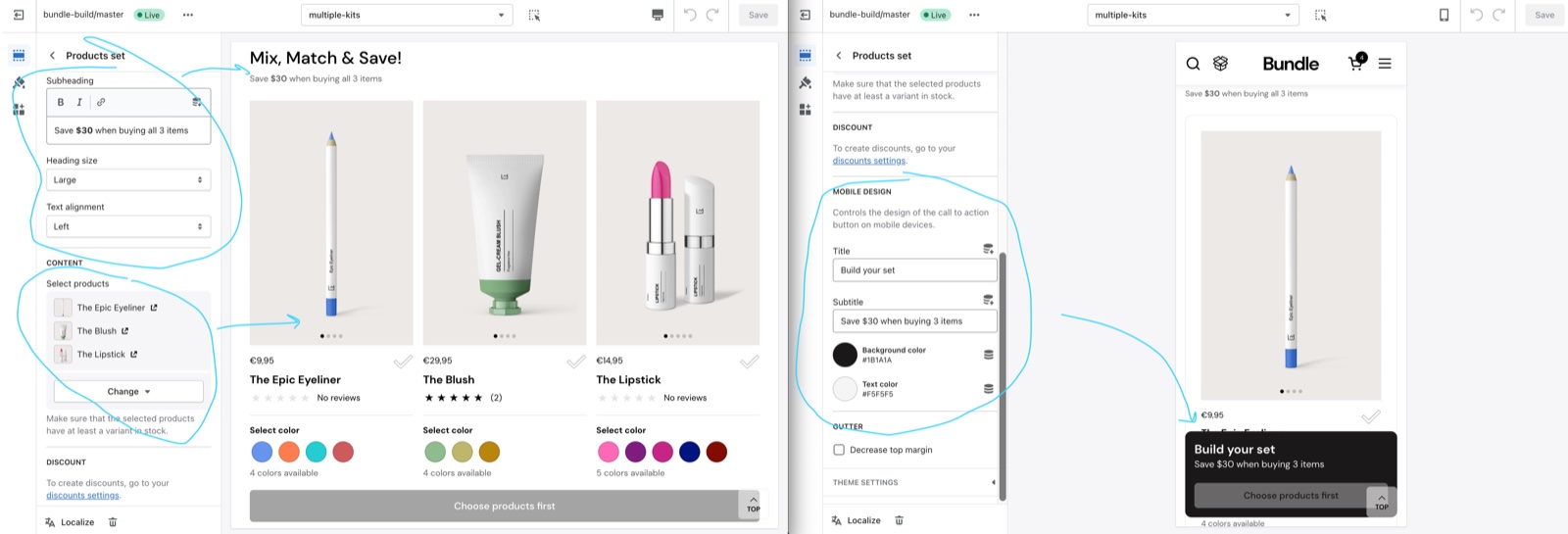
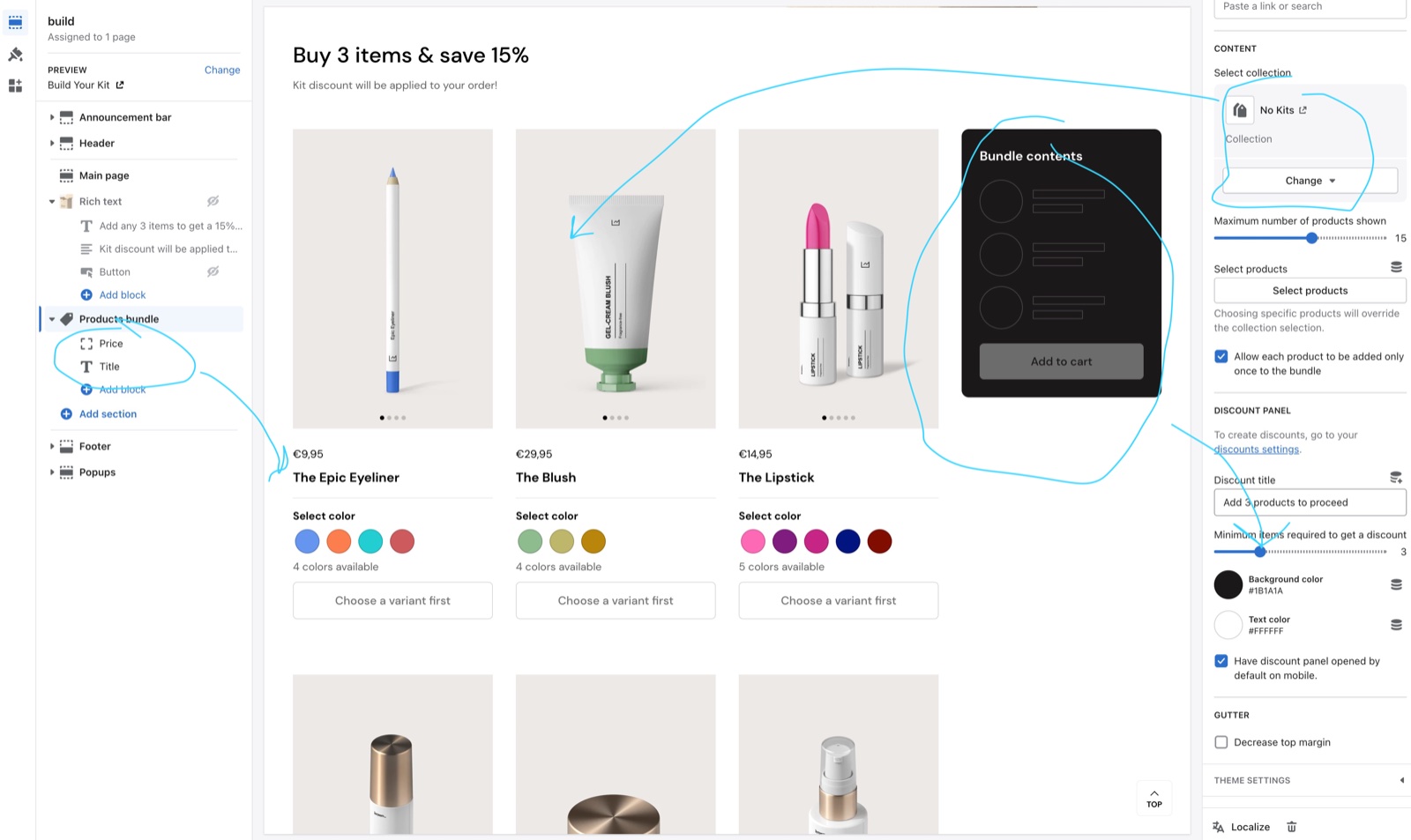
| Products set | Products bundle | |
|---|---|---|
| Offer | A fixed kit you put together | A bundle the customer builds |
| Products | 1 to 4 products you pick | A collection (up to 96 products shown) or up to 48 products you pick |
| What the customer does | Chooses a variant of every product, then adds the whole set | Adds products to the bundle panel one by one, then adds the bundle |
| Items added | 1 of each product in the set | As many as Minimum items required to get a discount (2 to 6), or more with Allow unlimited items |
| Matching Shopify discount | Applies to the set's products, minimum quantity = number of products | Applies to the collection (or the products), minimum quantity = the bundle's minimum |
Use a Products set for a curated kit with one price promise, for example "Save 25% on the Ultimate Kit". Use a Products bundle for "pick any 3 and save" offers.
Setting up a product set with an automatic discount
Choose the products
Pick 1 to 4 products for the kit, each with at least one variant in stock.
Add the Products set section
In the theme editor, open the page where the set goes, select Add section and choose Products set. Under Content, add your products in Select products.
Write the offer
Set Heading and Subheading. Under Mobile design, write Title and Subtitle, for example "Save 25% when buying the kit". These texts are only text: they do not create or change the discount.
Create the automatic discount
In Shopify admin, open Discounts → Create discount → Amount off products. Choose the method Automatic discount and give it a title.
Match the discount to the set
Set the percentage or fixed amount. Under Applies to, choose Specific products and select the same products as the set. Under Minimum purchase requirements, choose Minimum quantity of items and enter the number of products in the set. Save.
Test the set
On the storefront, choose a variant of each product and select Add all to cart. The cart shows the saving on the set's products.
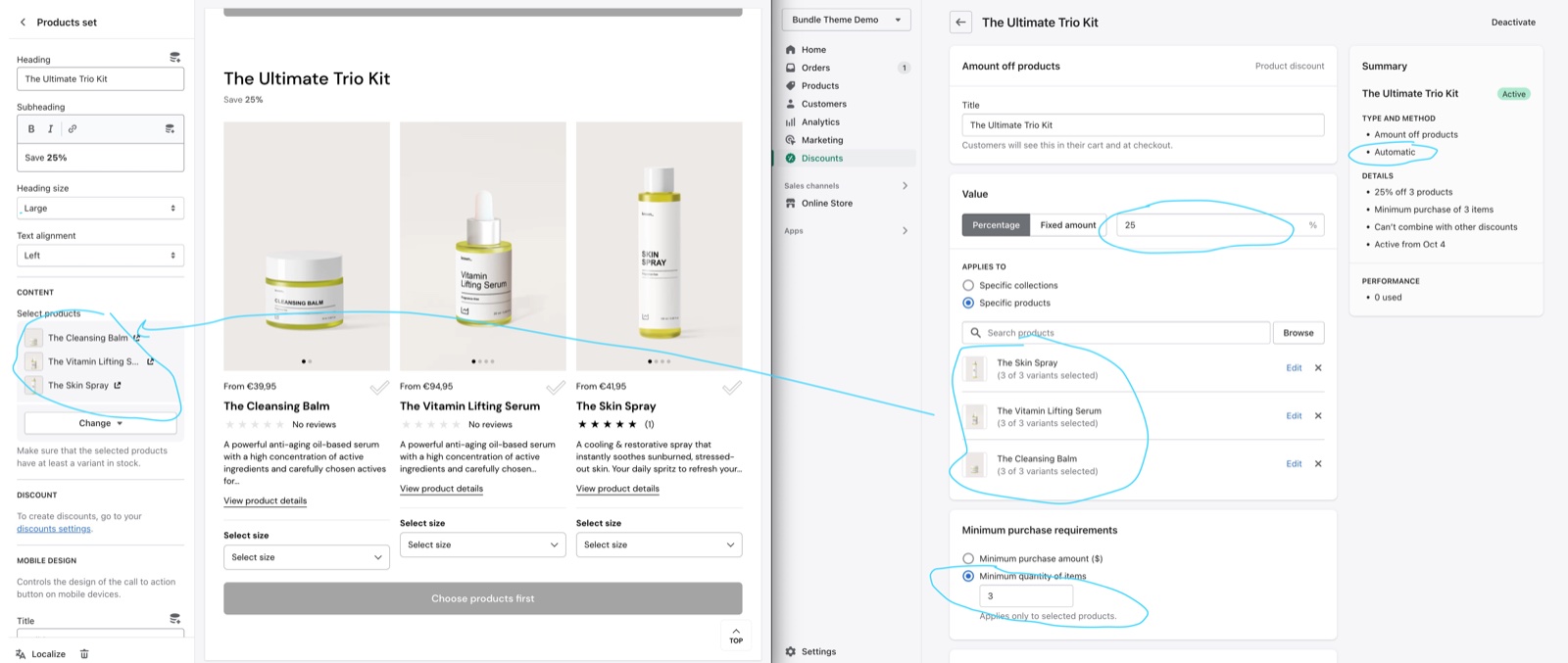
You can watch a tutorial about product sets in our Combine video tutorial: Setting up the theme, at 37:40
Setting up a product bundle with an automatic discount
Choose the products
Decide which products customers can pick from: a collection, or a list of products. Decide how many items the bundle needs for the saving, from 2 to 6.
Add the Products bundle section
In the theme editor, select Add section and choose Products bundle. Under Content, select the collection in Select collection and set Maximum number of products shown. Or pick up to 48 products in Select products, which overrides the collection.
Set the bundle size
Under Discount panel, set Minimum items required to get a discount to the number of items in your offer. The panel shows that many empty slots.
Decide how products can repeat
Keep Allow each product to be added only once to the bundle on so that every slot holds a different product. Turn on Allow unlimited items if customers may add more items than the minimum.
Write the panel text
Write Discount title, for example "Add 3 items to save $20". It shows under the panel title "Bundle contents". Set the panel Background color and Text color.
Create the automatic discount
In Shopify admin, open Discounts → Create discount → Amount off products. Choose the method Automatic discount and give it a title.
Match the discount to the bundle
Set the percentage or fixed amount. With a fixed amount, select the option to apply it once per order, or Shopify takes the amount off every eligible item.
Under Applies to, choose Specific collections and select the bundle's collection (or Specific products and the same products). Under Minimum purchase requirements, choose Minimum quantity of items and enter the same number as Minimum items required to get a discount. Save.
Test the bundle
On the storefront, select Add to bundle on products until every slot is full, then Add to cart in the panel. The cart shows the saving.
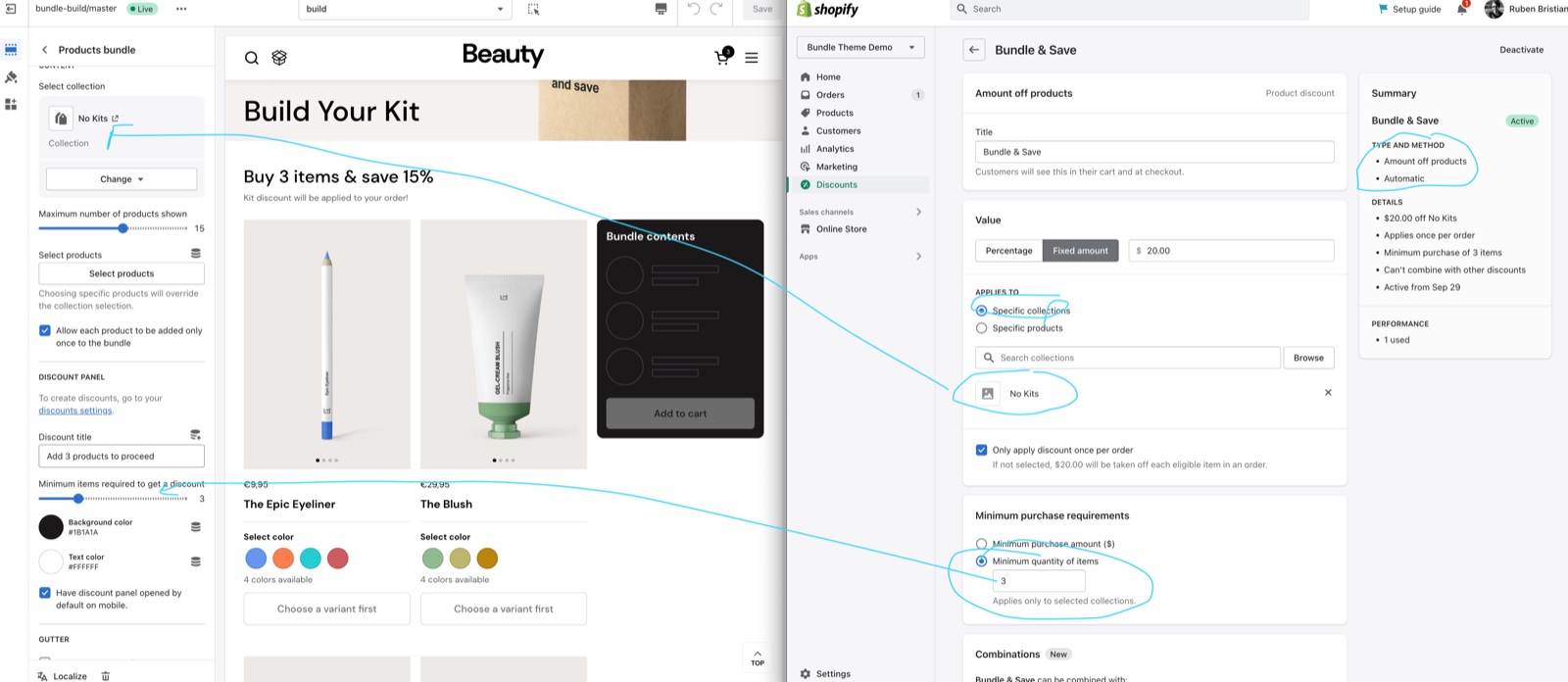
You can watch a tutorial about product bundles in our Combine video tutorial: Setting up the theme, at 30:45
Using a discount code instead
Since Combine 4.2.0, a set or a bundle can add a discount code to the cart instead of relying on an automatic discount.
Create the discount code
In Shopify admin, open Discounts → Create discount → Amount off products and choose the method Discount code. Write the code, for example KIT20. Set Applies to and Minimum quantity of items exactly as for an automatic discount. Save.
Select the code in the section
In the Products set or Products bundle section, set Discount type to Discount code. Type the same code into Discount code.
Test the code
On the storefront, add the set or the bundle, then open the cart. The code is listed in the cart with the saving.
How the theme applies the code:
- The code is added once, right after the products are added to the cart.
- Codes already in the cart stay. Shopify's combination rules decide which codes give a saving together.
- A mistyped, expired or not qualifying code does not stop the purchase. The products stay in the cart without the saving.
- Removing products later does not remove the code. Shopify stops discounting when the cart no longer meets the code's conditions.
A discount code is visible in the cart, so customers can see it and reuse it. Limit its use in Shopify admin (usage limits, one use per customer, active dates) if that matters for your offer.
Building a kit page
Combine includes a kit-builder page template for a page of several kits. It holds a Media with text overlay banner ("Build Your Kit") and four Products set sections with sample offers and no products.
Create the page
In Shopify admin, open Online Store → Pages → Add page. Write a title, for example "Build your kit". Under Theme template, select kit-builder and save.
Open the template
In the theme editor, open the template picker and select Pages → kit-builder.
Fill each set
Select each Products set section. Add up to 4 products in Select products. Rewrite Heading, Subheading and the Mobile design Subtitle ("Save $30 when buying 3 items") so they state your real offer.
Create one discount per set
For every set, create the matching Shopify discount, as in Setting up a product set with an automatic discount, or use a discount code.
Remove what you do not need
Delete the sets you do not use. Add a Products bundle section if you also want a build-your-own offer on the same page.
Show the page header (optional)
The template hides its Main page section, so the page title and the text you write in Shopify admin do not show. To show them, select the eye icon next to Main page in the theme editor. Main page can also show a cover image from the page's custom.cover_image metafield: see Regular page.
The kit-builder template and the other page templates of Combine are described on Alternate page templates.
Limits to know
- A Products set holds 1 to 4 products. For a bigger kit, use a Products bundle with Select products.
- A Products set adds 1 of each product. Customers cannot change the quantity inside the set.
- A Products set can be added only when every product has an available variant chosen. A product that is sold out in every variant blocks the whole set.
- A Products bundle shows up to 96 products of a collection, or up to 48 products you pick.
- A Products bundle needs 2 to 6 items. It can be added to the cart only when every slot of the panel is full.
- Unavailable variants are hidden in both sections, and no variant is selected in advance. Products without variants are added directly.
- The offer texts (Discount title, Subtitle, headings) are only text. They do not create or change a discount.
- Combine does not set a price for a set or a bundle. The saving always comes from a Shopify discount.
Shopify does not know about your set or bundle. An automatic discount applies to every cart that meets its rule, also when a customer adds the same products one by one from the product pages.
Why is the discount not applied in the cart?
Because the cart does not meet the Shopify discount's rule. Check that the discount applies to the same products or collection as the section, that its minimum quantity equals the number of items, and that it is active. See Troubleshoot bundles and discounts for the full checklist.
Can a customer add the same product twice to a bundle?
Yes, when Allow each product to be added only once to the bundle is off. The same variant added twice goes to the cart with a quantity of 2. With the setting on (the default), a product is greyed out once it is in the bundle.
Can I give the bundle its own price without a discount?
No. Combine does not set bundle prices. The saving always comes from a Shopify discount, automatic or with a code. For a bundle sold as one product with its own price and inventory, use a bundles app such as Shopify Bundles. The Combine cart lists the products of such a bundle under the bundle line.
Related pages
- Products set section: every setting of the fixed kit section.
- Products bundle section: every setting of the build-your-own section.
- Troubleshoot bundles and discounts: discounts that do not apply, sets that cannot be added.
- Alternate page templates: the kit-builder template and the other page templates.
- Cart theme settings: the discount code field in the cart.