Regular page
The Page template of Combine shows a page title and content, and can show a custom header image from a page metafield.
Applies to: Combine 4.2.0 and later. Added in: Combine 1.0.0. Last checked: 2026-10-13 against Combine 4.2.0.
The Main page section shows a page's title and the content you write in Shopify admin → Online Store → Pages. It is the main section of the default page template and of the alternate page templates. It can also show the title over a full-width image, the custom page header.
Where to find it: Online Store → Themes → Customize → template picker → Pages → Default page → Main page.
Page content
- Center content on destkop (shown with this spelling in the editor) puts the title and content in a narrower, centered column on desktop. When it is off, the content uses the full page width.
The title and the text come from the page in Shopify admin. Add more sections under the Main page section to build a richer page, or use one of the alternate page templates.
Custom page header
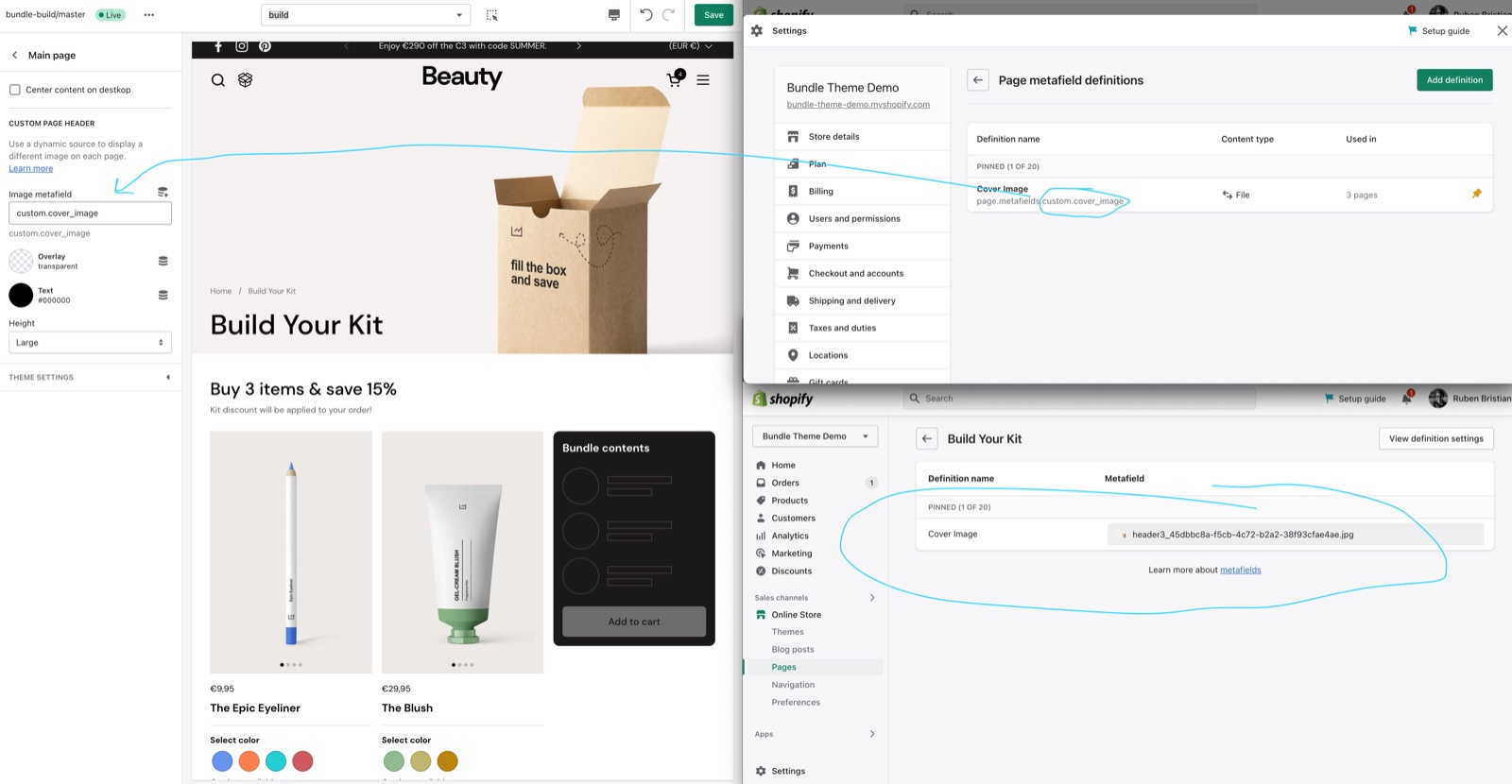
A custom page header shows the page title and the breadcrumb over a full-width background image. Each page gets its own image from a page metafield, so one template serves many pages.
- Image metafield is the page metafield that holds the image, typed as
namespace.key, for examplecustom.cover_image. Leave it empty to show the normal title. - Overlay sets a color over the image so that the title stays readable.
- Text sets the title and breadcrumb color over the image.
- Height is Small or Large.
Pages with an empty metafield show the normal title, so you can fill the image only on some pages.
Setting up a custom page header
Create the page metafield
In Shopify admin, open Settings → Metafields and metaobjects → Pages → Add definition. Name it "Cover image" (namespace and key custom.cover_image) and choose the type File, accepting images. Save.
Pick an image for each page
Open Online Store → Pages, select a page and choose its image in the Cover image metafield. Save.
Name the metafield in the template
In the theme editor, open Pages → the template the page uses (for example Default page) → Main page. Under Custom page header, type custom.cover_image into Image metafield.
Style the header
Set Overlay, Text and Height. A dark overlay with white text works on most photos.
Repeat for other templates
Image metafield is a setting of each template. Fill it in every page template whose pages should show the header. The kit-builder template already has custom.cover_image.
You can watch a tutorial about custom page headers in our Combine video tutorial: Setting up the theme, at 50:25
Custom page header with a transparent header
The Header section can sit transparently over the cover image, with its own logo and text color.
Turn on the transparent header
In the theme editor, select the Header section. Under Transparent header design, turn on Enable transparent header.
Choose the pages
Turn on Enable on regular pages for every page, or type the page handles in Enable on custom pages, separated by commas (for example about-us, build-your-kit). Handles must match exactly.
Set the colors and logo
Set the transparent header Text color and upload the Logo image for dark backgrounds.
Use the transparent header only on pages that start with an image, otherwise the header covers the title. See Header section.
Why does my page not show the header image?
Because the template's Image metafield is empty, or the page has no image in the metafield. Filling the metafield on the page is not enough: the template used by that page must name it in Main page → Custom page header → Image metafield. The metafield must be of type File (image); a text or URL metafield does not work.
Why does my page text not show?
Because the template the page uses has its Main page section hidden or removed. The kit-builder, lookbook, sale and testimonials templates hide it by default. Show the Main page section again, or assign the default template. See Alternate page templates.
All Regular page settings
Every setting of this section, with its type and default.
The same section is also on the alternate templates Pages → contact, Pages → faq, Pages → kit-builder, Pages → lookbook, Pages → sale, Pages → testimonials.
Center content on destkop (checkbox, default: off): Puts the page title and content in a narrower, centered column on desktop. When off, the content uses the full page width.
Main page section: Custom page header
Where to find it: Pages → Default page → Main page → Custom page header
Use a dynamic source to display a different image on each page.
Image metafield (text field): The page metafield of type File (image) shown behind the page title, typed as namespace.key (for example custom.cover_image). Pages with no image in it show the normal title. Set it in every page template that should show the header.
Overlay (color, default: transparent): Sets the overlay color over the header image, so that the title stays readable.
Text (color, default: transparent): Sets the title and breadcrumb color over the header image.
Height (dropdown, default: Small): Sets the height of the custom page header. Options: Small, Large.
Related pages
- Alternate page templates: the contact, FAQ, kit-builder and other page templates.
- Header section: the transparent header over cover images.
- Image size recommendations: image sizes for full-width images.