Video section
The Video section of Combine plays a YouTube or Vimeo video behind a poster image and title, or a video file you upload.
Applies to: Combine 4.2.0 and later. Added in: Combine 1.0.0. Last checked: 2026-10-13 against Combine 4.2.0.
The Video section shows a YouTube or Vimeo video behind a poster image with a title and a play button. The video starts when a customer selects play.
Where to find it: in the theme editor, select Add section and choose Video.
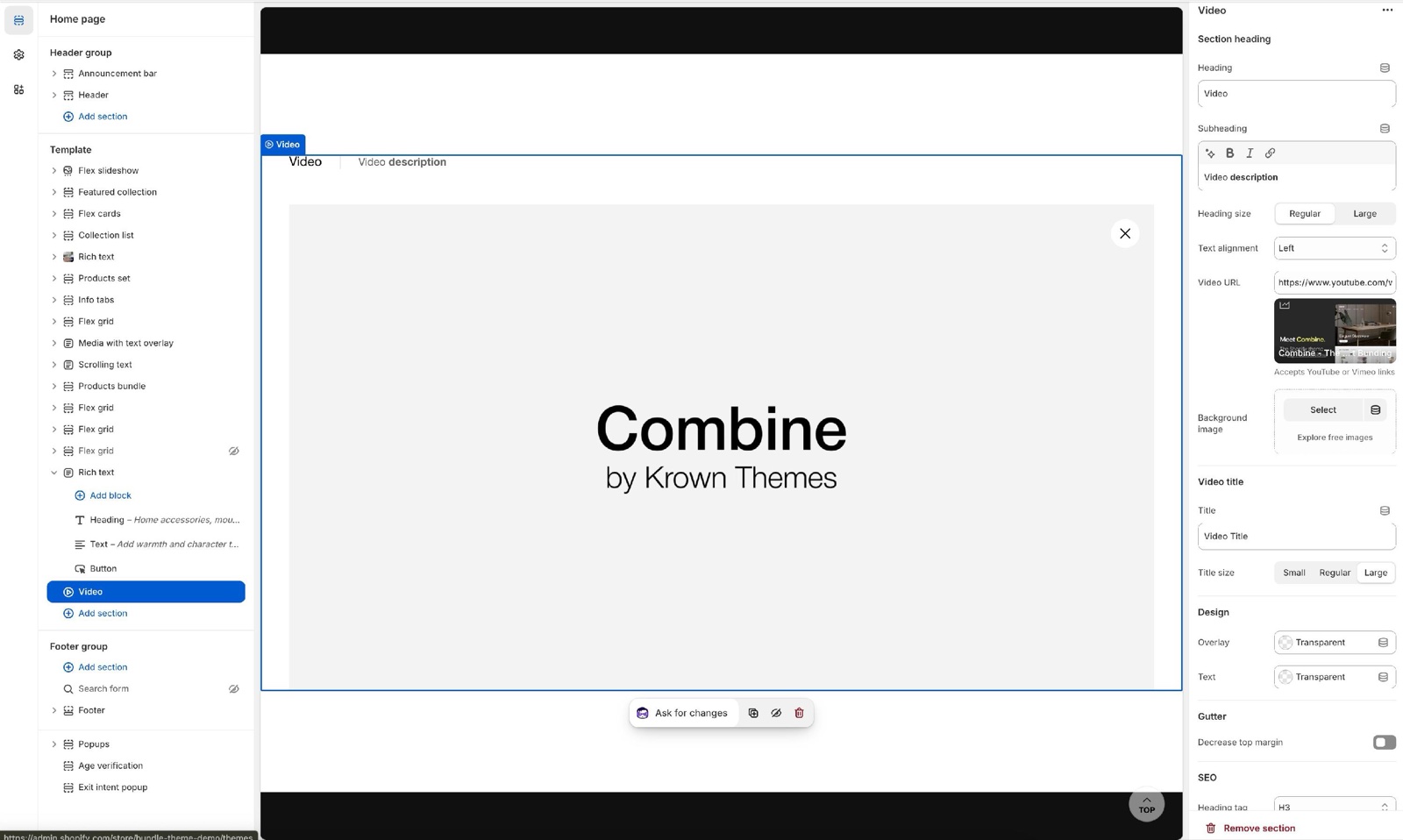
Video and poster
- Video URL takes the full link of a YouTube or Vimeo video, copied from the browser's address bar.
- Background image is the poster shown before the video plays, and when the video cannot load. Without it, the poster area shows a placeholder image.
- Use different media on mobile shows Mobile video (URL) and Mobile poster image on small screens, for example a vertical video. Mobile video aspect ratio sets the shape of the mobile video, from Natural to Tallest (9:16).
The section heading above the video (Heading, Subheading, Heading size, Text alignment) works as described in General section styling. Use Subheading for a short description of the video.
Video title
- Title is the text on the poster, next to the play button.
- Title size is Small, Regular or Large (the default).
- Heading tag under SEO sets its HTML level (default H3).
Design
- Overlay puts a color over the poster to make the title easier to read. Use a color with transparency.
- Text sets the color of the title on the poster.
- Decrease top margin under Gutter makes the space above the section smaller.
Can I upload my own video file?
Not in this section. The Video section plays YouTube and Vimeo links. For a video file uploaded to Shopify, use a Video slide in the Flex slideshow section, a Media with text overlay section card or the Shoppable videos section.
Why does the video not play?
The link is not a full YouTube or Vimeo address, or the video's owner does not allow embedding. Copy the address from the video page, for example https://www.youtube.com/watch?v=…, and check the video's privacy settings on YouTube or Vimeo.
All Video settings
Every setting of this section, with its type and default.
Video section: Section heading
Where to find it: Video → Section heading
The Video section uses the standard Section heading settings, listed in General section styling. Not available in this section: Button label and Button link.
Heading (text field, default: "Video"): Sets the section title. Leave Heading, Subheading and Button label empty to hide the heading area.
Subheading (formatted text, default: "Video description").
Heading size (dropdown, default: Regular). Options: Regular, Large.
Text alignment (dropdown, default: One row: Left). Options: One row: Left, Two rows: Left, Two rows: Center.
Video URL (video URL, default: https://www.youtube.com/watch?v=_9VUPq3SxOc): Sets the YouTube or Vimeo video. Paste its full address.
Background image (image): Sets the poster shown before the video plays and when it cannot load.
Use different media on mobile (checkbox, default: off): Shows a different video and poster on screens narrower than 768 px. Shown only when Video URL is set.
Mobile video (URL) (video URL). Shown only when Use different media on mobile is on and Video URL is set.
Mobile poster image (image). Shown only when Use different media on mobile is on and Video URL is set.
Mobile video aspect ratio (dropdown, default: Natural): Sets the shape of the mobile video. Natural keeps the video's own proportions. Options: Natural, Wide (16:9), Short (4:3), Square (1:1), Tall (5:6), Taller (2:3), Tallest (9:16). Shown only when Use different media on mobile is on and Video URL is set.
These settings differ from the standard ones or exist only here:
Heading (text field, default: "Video"): Sets the section title. Leave Heading, Subheading and Button label empty to hide the heading area.
Subheading (formatted text, default: "Video description").
Video URL (video URL, default: https://www.youtube.com/watch?v=_9VUPq3SxOc): Sets the YouTube or Vimeo video. Paste its full address.
Background image (image): Sets the poster shown before the video plays and when it cannot load.
Use different media on mobile (checkbox, default: off): Shows a different video and poster on screens narrower than 768 px. Shown only when Video URL is set.
Mobile video (URL) (video URL). Shown only when Use different media on mobile is on and Video URL is set.
Mobile poster image (image). Shown only when Use different media on mobile is on and Video URL is set.
Mobile video aspect ratio (dropdown, default: Natural): Sets the shape of the mobile video. Natural keeps the video's own proportions. Options: Natural, Wide (16:9), Short (4:3), Square (1:1), Tall (5:6), Taller (2:3), Tallest (9:16). Shown only when Use different media on mobile is on and Video URL is set.
Video section: Video title
Where to find it: Video → Video title
Title (text field, default: "Video Title"): Sets the title shown on the poster.
Title size (dropdown, default: Large). Options: Small, Regular, Large.
Video section: Design
Where to find it: Video → Design
Overlay (color, default: transparent): Puts a color over the poster to make the title easier to read. Use a color with transparency.
Text (color, default: transparent): Sets the color of the title on the poster.
Video section: Gutter
Where to find it: Video → Gutter
The Video section uses the standard Gutter settings, listed in General section styling. Not available in this section: Remove bottom margin.
Decrease top margin (checkbox, default: off): Makes the space above the section smaller.
Video section: SEO
Where to find it: Video → SEO
The Video section uses the standard SEO settings, listed in General section styling.
Heading tag (dropdown, default: H3): Sets the HTML level of the video title for search engines. Options: H1, H2, H3, H4, span.
Related pages
- Flex slideshow section: slides with uploaded videos.
- Shoppable videos section: short videos linked to products.
- Image section: one image, uncropped.
- General section styling: the section heading settings.