Product availability blocks
The availability blocks of Local show store pickup availability for the selected store and a back in stock form for sold out products.
Applies to: Local 4.2.1 and later. Added in: Local 1.0.0. Last checked: 2026-10-13 against Local 4.2.1.
The availability blocks answer two questions on the product page: can I pick this up at a store, and when is it back in stock? The Pickup availability block reads the stock of your Shopify locations. The Back in stock alert block collects the email of customers who want a sold out product.
Where to find it: in the theme editor, open Products → Default product, select Product page, then Add block.
Both blocks also exist in the Featured product section and the Quick view popup.
Pickup availability
The Pickup availability block shows whether the selected variant can be picked up at your stores. It updates when the customer changes the variant. Up to 2 Pickup availability blocks per section.
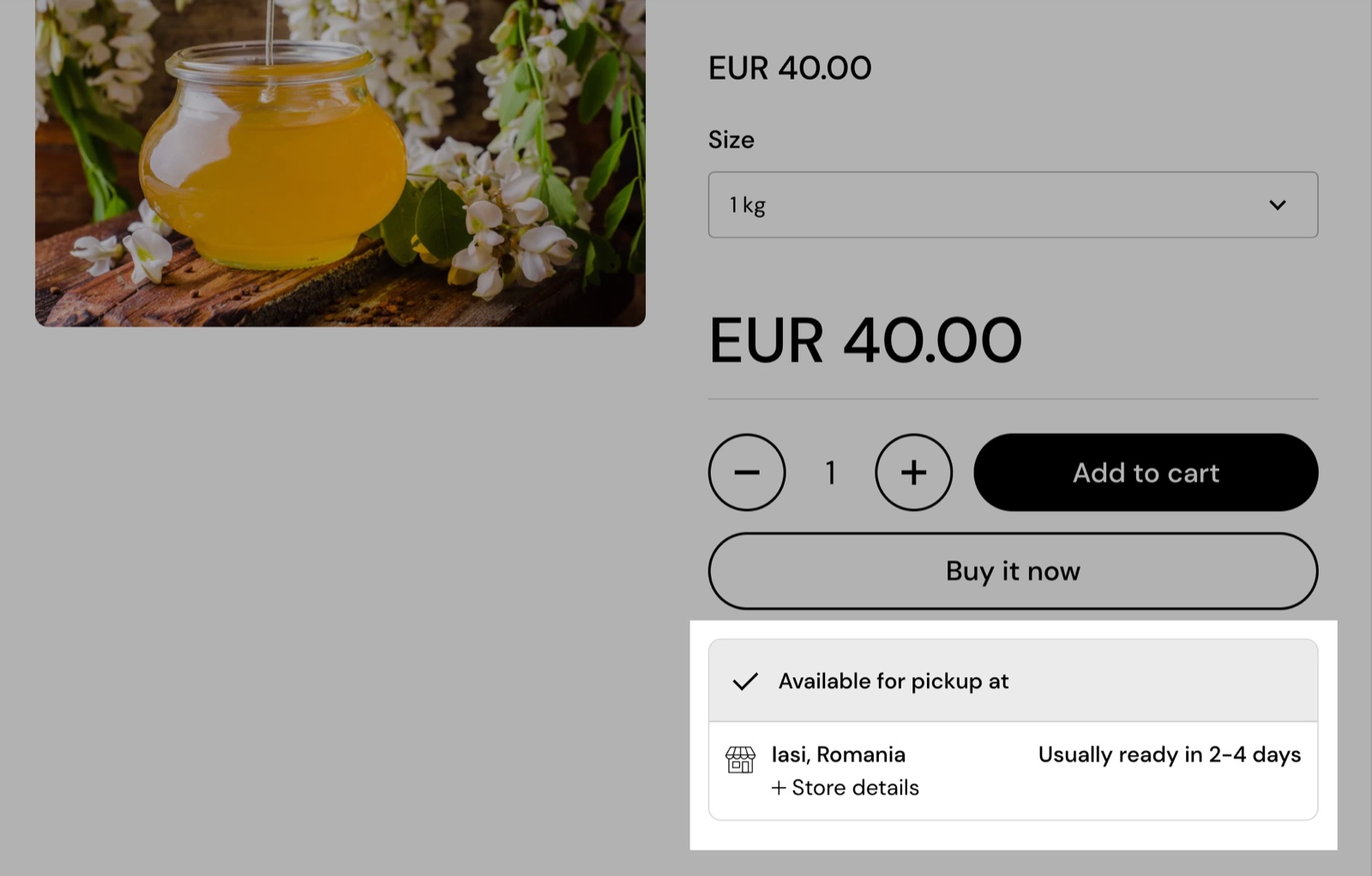
Style chooses between two widgets that work differently:
Extended (the default) works on its own, without the store selector.
- It lists up to 2 locations where the variant is available for pickup, each with Shopify's pickup time ("Usually ready in …") and a Store details link that shows the address and phone.
- With more than one pickup location, "Check availability at other stores" opens a panel with every pickup location and its status.
- When no location has the variant, it says "This product is not available for pickup at any store".
Layout shows the widget in a frame (Boxed, the default) or plain (Compact). Custom text color sets its text color. Boxed widgets also have Custom background color and Darken the header, which tints the heading row.
Showing pickup availability
Turn on local pickup for your locations
In Shopify admin, open Settings → Locations and create a location for each store. Then open Settings → Shipping and delivery → Local pickup and turn on pickup for each store location, with its pickup time.
Stock the products at those locations
Open each product's variants in Shopify admin and set the inventory quantity at each pickup location.
Set up the store selector (Compact style only)
For the Compact style, add one Store block per location in the Store selector section and name it exactly like the Shopify location. The steps are on Store selector section. Skip this step for the Extended style.
Add the block
In the theme editor, open Products → Default product → Product page, select Add block and choose Pickup availability. Choose the Style and the Layout, then select Save.
Only locations with local pickup turned on appear. A location that has stock but no local pickup is never listed, and the Compact widget then says "Out of stock at" that store.
The pickup time in the Extended widget comes from the location's local pickup settings in Shopify, not from the Store block. Showing availability does not limit what customers can buy: they choose shipping or pickup in Shopify checkout.
Back in stock alert
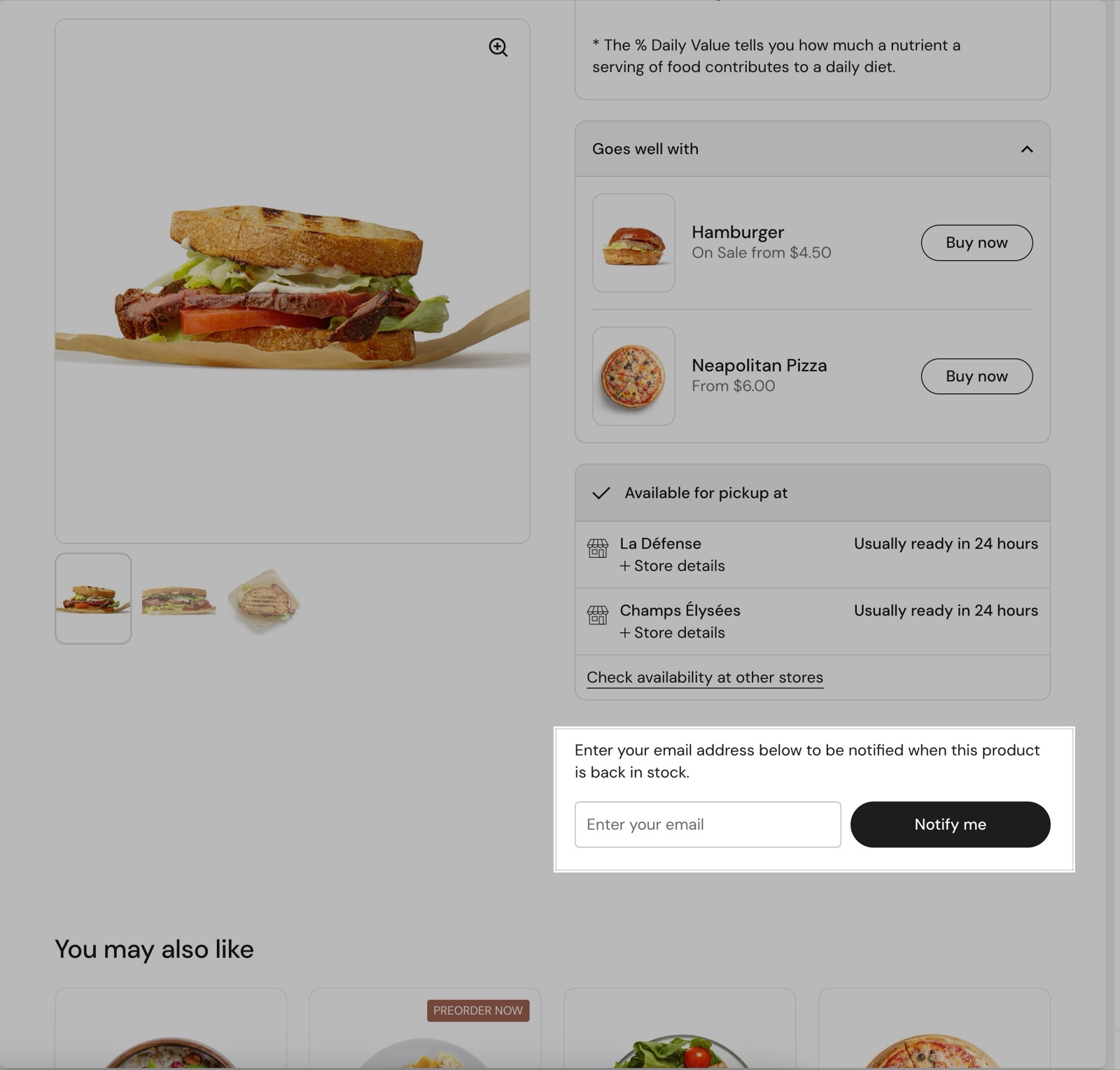
The Back in stock alert block shows an email form when the selected variant is sold out. It stays hidden while the variant is in stock, but always shows in the theme editor so you can style it. One Back in stock alert block per section.
- Text is the line above the form.
- Button label is the button text (default "Notify me").
- Success message shows after the customer sends the form.
- Email message is the message you receive with the request.
Who sends the back in stock email?
You do. The form is a Shopify contact form: Shopify emails your store's contact address with the customer's email, the Email message, the product, the variant and its link. Local does not watch your stock or email customers when the product is back. Write to the customers yourself when you restock, or use a back in stock app for automatic emails.
Why does pickup availability not show?
Usually because the location does not offer local pickup, or the variant has no stock there.
- Check that local pickup is on for the location in Shopify admin → Settings → Shipping and delivery → Local pickup.
- Check that the selected variant has stock at that location.
- Compact style: check that the Store block's Name matches the Shopify location name word for word, and that a store is chosen in the store selector.
More answers are on Troubleshoot the store selector and maps.
All Product availability blocks settings
These blocks are part of the Product page section. Every setting of every block, with its type and default, is listed in All Product page settings.
Related pages
- Store selector section: the stores and the store picker that the Compact style needs.
- Product grid blocks: the Local availability block in product cards.
- Hide purchase buttons when local pickup is not available: the code tweak for pickup-only stores.
- Product page: the full list of block settings.
Variant swatches
Variant swatches in Local: show color or image swatches for variant options from Shopify category metafields or from your own metaobjects.
Product attribute blocks
The attribute blocks of Local show nutrition tables, Nutri-Score, attribute meters, progress charts and icon lists from product metafields.