Events calendar
The Events calendar of Local turns blog posts into events with a date, time, duration and ticket, listed by date on an events page.
Applies to: Local 4.2.1 and later. Added in: Local 4.2.0. Last checked: 2026-10-13 against Local 4.2.1.
The Local events calendar turns blog posts into events. Each event is a post in a blog you create for events, with its start date, its duration and an optional ticket stored in metafields. The Events list section lists the events by date, and each event can have its own page with a ticket button and Add to calendar links.
Where to find it: Theme settings → Events, plus the Events list section (Add section → Events list) and the blog posts of your events blog.
The video walks through the setup on this page: the blog post metafields, Theme settings → Events, the events blog and its posts, the event page and the events list.
Local 4.2.1 does not include the event blog post template and the event-ticket product template in its theme files, and the theme editor cannot create them: their sections cannot be added with Add section. Without them, event posts open in the default blog post layout, without the date, the Buy ticket button or Add to calendar. The metafields, Theme settings → Events and the Events list section work. If the template picker has no Blog posts → event template, contact Krown support.
How events work
- Events are blog posts. Create a blog, for example "Events", and write one post per event. The post's title, featured image, excerpt, content and tags are the event's title, image, summary, description and tags.
- Metafields hold the event data. A date (or date and time) metafield holds the start, an optional text metafield the duration in hours, and an optional product metafield the ticket.
- Theme settings → Events tells the theme which metafields to read. Every event section and block reads them from there.
- The Events list section shows the events of the blog by start date, on an events page or on any page. See Events list section.
- The event page (Blog posts → event template) shows one event with its date and time, information rows, share links, a Buy ticket button and Add to calendar links. See Event page.
- Tickets are products. The Buy ticket button sells a product you create, through the Event ticket popup. See Event ticket page.
Date and time or date only
The type you pick for the date metafield decides what shows on the storefront and how the event is added to a calendar.
| Date metafield type | Use a duration? | What customers see |
|---|---|---|
| Date and time | Yes | The date and the time range, for example 14:00 – 16:00. Add to calendar exports a timed event that ends after the duration. |
| Date | No | Only the date. The event is an all-day event and Add to calendar exports it as all-day. |
Times show in 24-hour format, in your store's time zone. An event that ends on another day shows the end date too, for example "11:00 – 01 Aug 23:00".
Events theme settings
- Event date and time metafield is the blog post metafield with the event start, typed as
namespace.key, for examplecustom.event_date_time. - Event duration metafield (optional) is the blog post metafield with the duration in hours, for example
custom.event_duration. Without it, events have no end time.
Type the keys as plain text. These fields cannot be connected with the dynamic source button.
Setting up the event metafields
Open the blog post metafields
In Shopify admin, open Settings → Metafields and metaobjects → Blog posts and select Add definition.
Add the start date
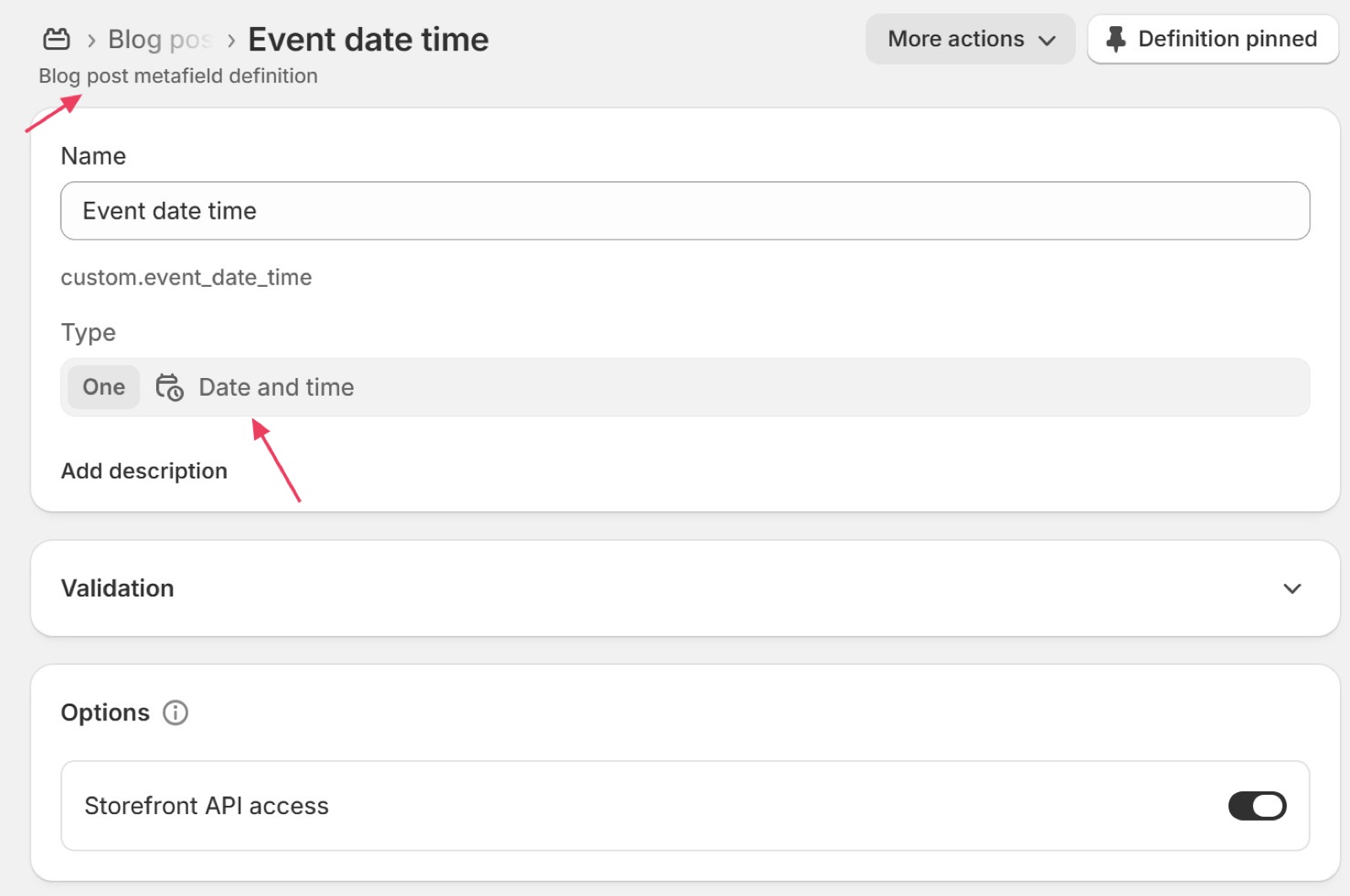
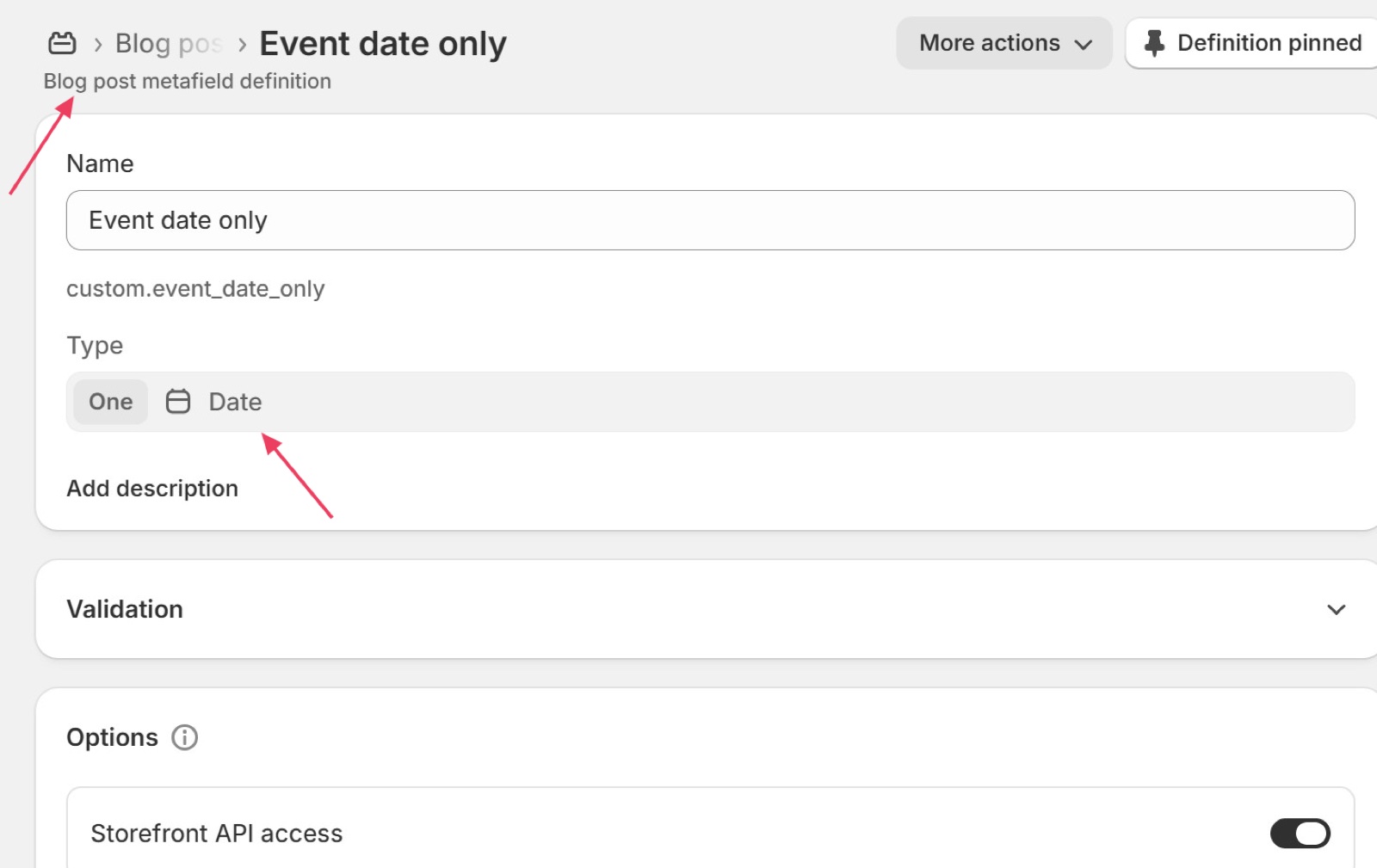
Name it, for example "Event date time" (custom.event_date_time), and choose the type Date and time, or Date for all-day events. Save.
Add the duration (optional)
Add a second definition, for example "Event duration" (custom.event_duration), of type Single line text. On each event you will type the duration in hours: 2, 1.5, 2h and 24 hours all work.
Add the ticket product (optional)
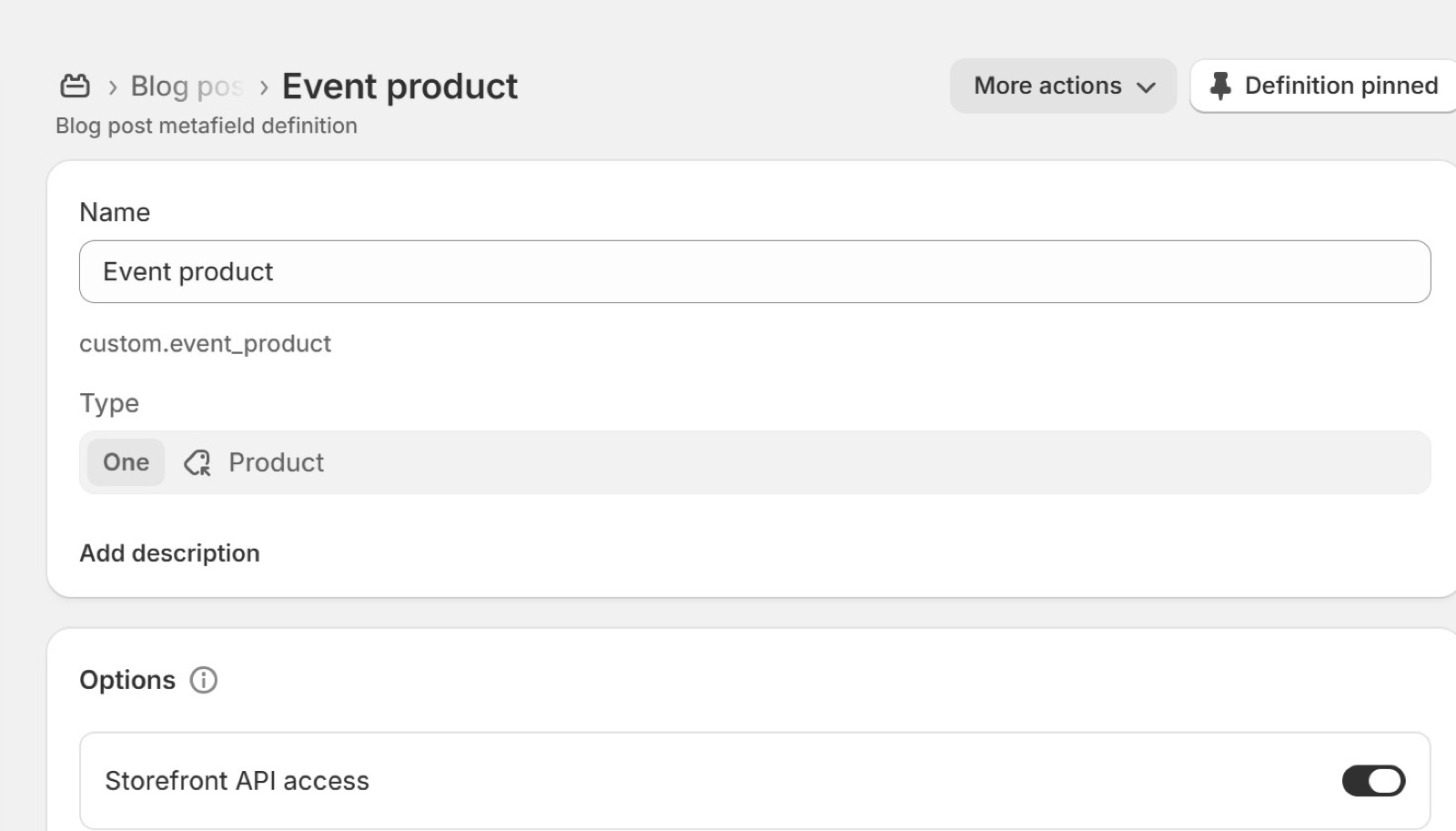
Add a third definition, for example "Event product" (custom.event_product), of type Product (one product). It links each event to the product that sells its tickets.
If your date metafield is the Date type, the event is an all-day event and only the date is shown (there's no time to display). In this case do not use the Event duration metafield, because a duration on an all-day event is ignored on storefront, and the calendar will export multiple days depending on the value of the duration metafield. Use Event duration only together with a Date and time metafield.
Pointing the theme at your metafields
Open Theme settings → Events
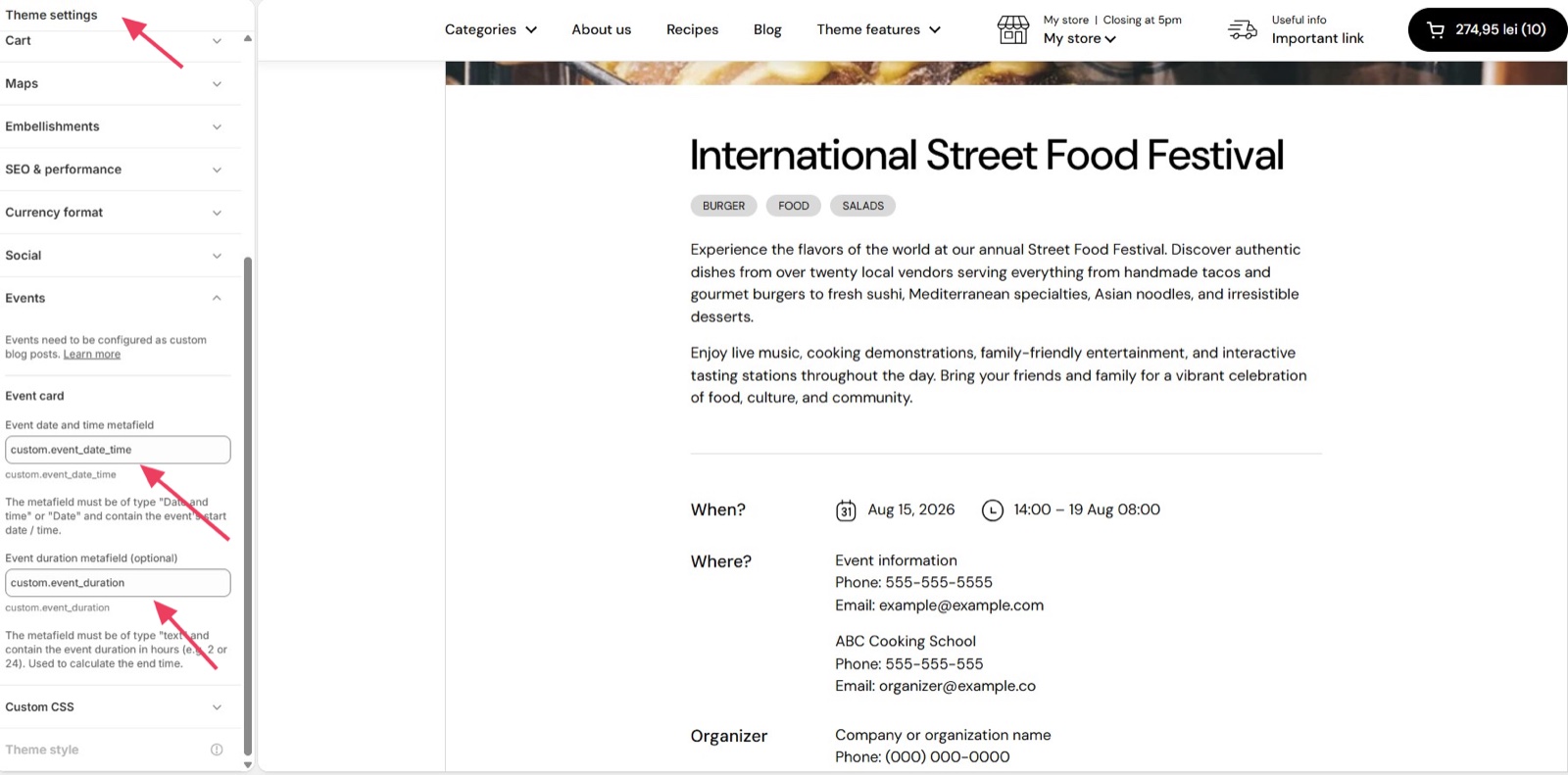
In the theme editor, select the gear icon (Theme settings) and open Events.
Type the date metafield
In Event date and time metafield, type the key of the start metafield, for example custom.event_date_time.
Type the duration metafield
If you created one, type its key in Event duration metafield (optional), for example custom.event_duration. Select Save.
Creating the events blog and posts
Create the events blog
In Shopify admin, open Content → Blog posts → Manage blogs and select Add blog. Name it, for example "Events", and save.
Create a post per event
Open Content → Blog posts → Add blog post. Choose the Events blog, write the title, the content and an excerpt (the excerpt shows on the event cards), and add a featured image.
Fill the event metafields
At the bottom of the post, fill the start date and time, the duration and the ticket product.
Choose the event template
Under Theme template, choose event if your theme has it (see the note at the top of this page), then save the post.
Building the events page
An events page is a page with an Events list section that shows your events blog.
Create a page template
In the theme editor, open the template picker, select Pages → Create template, name it "events" and base it on Default page.
Add the Events list section
In the new template, select Add section and choose Events list. Select your Events blog in Events blog.
Set the list
Set Number of events to show (up to 50) and turn on Hide past events to list only upcoming events. Select Save.
Create the page
In Shopify admin, open Online Store → Pages → Add page, name it "Events", choose the events template under Theme template and save. Add the page to your menu in Online Store → Navigation.
You can also add an Events list section to the home page, for example "Upcoming events" with 3 events.
Why does my event show no time?
Because the date metafield is of type Date, or the event has no date. A Date metafield has no time, so the event shows only its date and counts as an all-day event. Use a Date and time metafield to show a time range. A post with an empty date metafield shows no time on its event page and is left out of the Events list.
Why does Add to calendar add several days?
Because the event uses a Date metafield together with a duration. A date-only event is all-day, and the duration then stretches it over that many days in the calendar export. Leave the duration empty on date-only events, or switch to a Date and time metafield.
Can I sell tickets for an event?
Yes. Create the ticket as a normal product, with variants for ticket types if you need them. Link it to the event with the product metafield, and the event page's Buy ticket button sells it. See Event page for the button and Event ticket page for the popup.
Why is the event template missing?
Because Local 4.2.1 does not include the event and event-ticket templates in its theme files, and the theme editor cannot create them: their sections cannot be added with Add section. If the template picker has no Blog posts → event template, contact Krown support. An events page needs no special template: build it with an Events list section, as in "Building the events page" on this page.
All Events calendar settings
Every setting of the Events theme settings, with its type and default.
Events need to be configured as custom blog posts.
Events theme settings: Event card
Where to find it: Theme settings → Events → Event card
Event date and time metafield (text field): The blog post metafield with the event start, typed as namespace.key (for example custom.event_date_time). Date and time metafields show a time range; Date metafields make all-day events. Posts without a value are left out of event lists.
The metafield must be of type "Date and time" or "Date" and contain the event's start date / time.
Event duration metafield (optional) (text field): The blog post metafield with the event duration in hours, typed as namespace.key (for example custom.event_duration). Values such as 2, 1.5, 2h or 24 hours work. Use it only with a Date and time metafield.
The metafield must be of type "text" and contain the event duration in hours (e.g. 2 or 24). Used to calculate the end time.
Related pages
- Event page: the page of one event, with tickets and Add to calendar.
- Event ticket page: the ticket popup.
- Events list section: events by date on any page.
- Blog page: blogs and blog templates.
Article page
The Article page of Local shows a blog post with its image, title and content, previous and next posts, comments, and quick buy for linked products.
Event page
The Event page of Local shows one event with its image, date and time, information rows, share buttons, ticket button and add to calendar links.