Article page
The Article page of Local shows a blog post with its image, title and content, previous and next posts, comments, and quick buy for linked products.
Applies to: Local 4.2.1 and later. Added in: Local 1.0.0. Last checked: 2026-10-13 against Local 4.2.1.
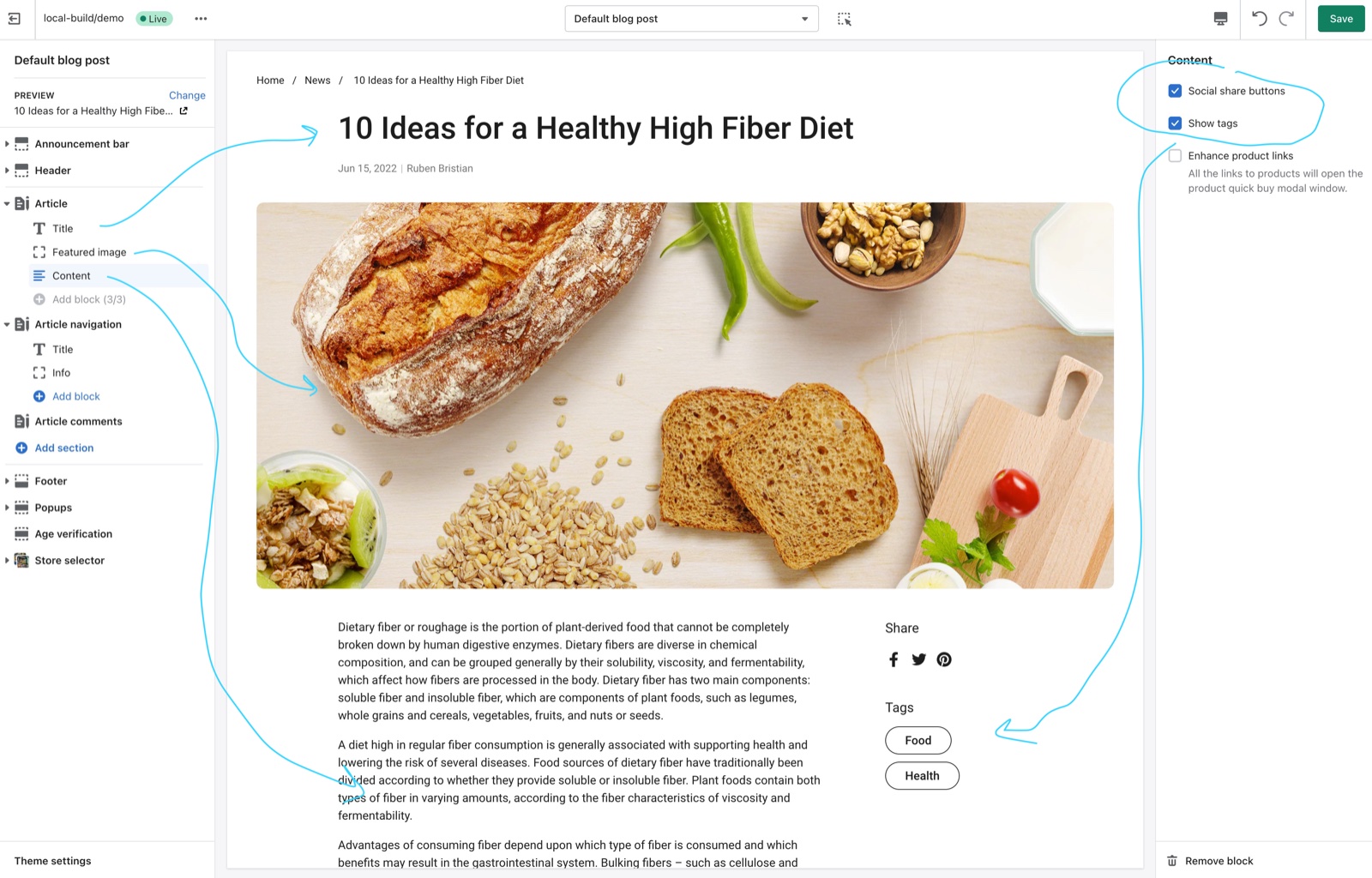
The Article page shows one blog post: its featured image, title and content, then links to two other posts and the comments. It can also turn product links in the post into quick buy links, so customers buy the ingredients of a recipe without leaving the post.
Where to find it: in the theme editor, open the template picker and select Blog posts → Default blog post, then select Article.
Article blocks
The Article section is built from three blocks, in the order you set:
- Featured image shows the post's featured image. Media aspect ratio keeps it uncropped (Natural, the default) or crops it to 16:9, 3:2, 4:3, 1:1 or 5:6. Fullwidth (on by default) shows it at the wide page width; off, it has the width of the text.
- Title shows the post title with Show date and Show author (both on by default) and Show comments number.
- Content shows the post text. Show tags lists the post's tags under it, each linked to the blog filtered by that tag. Enhance product links turns product links into quick buy links (see below). Social share buttons adds Show Facebook, Show X, Show Pinterest and Show custom link (the device's own share menu).
Article navigation
The Article navigation section shows two other posts of the same blog as cards under the post, with the heading "More articles".
- By default the cards are the previous (older) and the next (newer) post. Previous post and Next post let you pick other posts instead.
- Show featured image and Media aspect ratio set the card images.
- The Title, Info and Excerpt blocks set what each card shows, as on the blog page. The Link block shows nothing in Local 4.2.1: the card's title and image already link to the post.
The section shows nothing on a post that has no other post around it.
Article comments
The Article comments section shows the comments and a comment form, 10 comments per page. It has no settings. It appears only when comments are turned on for the blog: in Shopify admin, open Content → Blog posts → Manage blogs, select the blog and choose a Comments option. With moderation on, a new comment shows only after you approve it.
Product links that open quick buy
Turn on Enhance product links in the Content block and every link in the post body that points to a product opens that product in the Quick view popup. Customers select a variant and add it to the cart there. The link text stays as you wrote it. The old Local articles call this the "recipes" feature.
Setting up recipe articles with quick buy
Create a template for recipe posts (optional)
In the theme editor, open the template picker, select Blog posts → Create template, name it, for example "recipe", and base it on Default blog post. Only posts with this template get quick buy links; your other posts keep normal links.
Turn on Enhance product links
In the new template, select the Article section → Content block and turn on Enhance product links. Select Save.
Link the products in the post
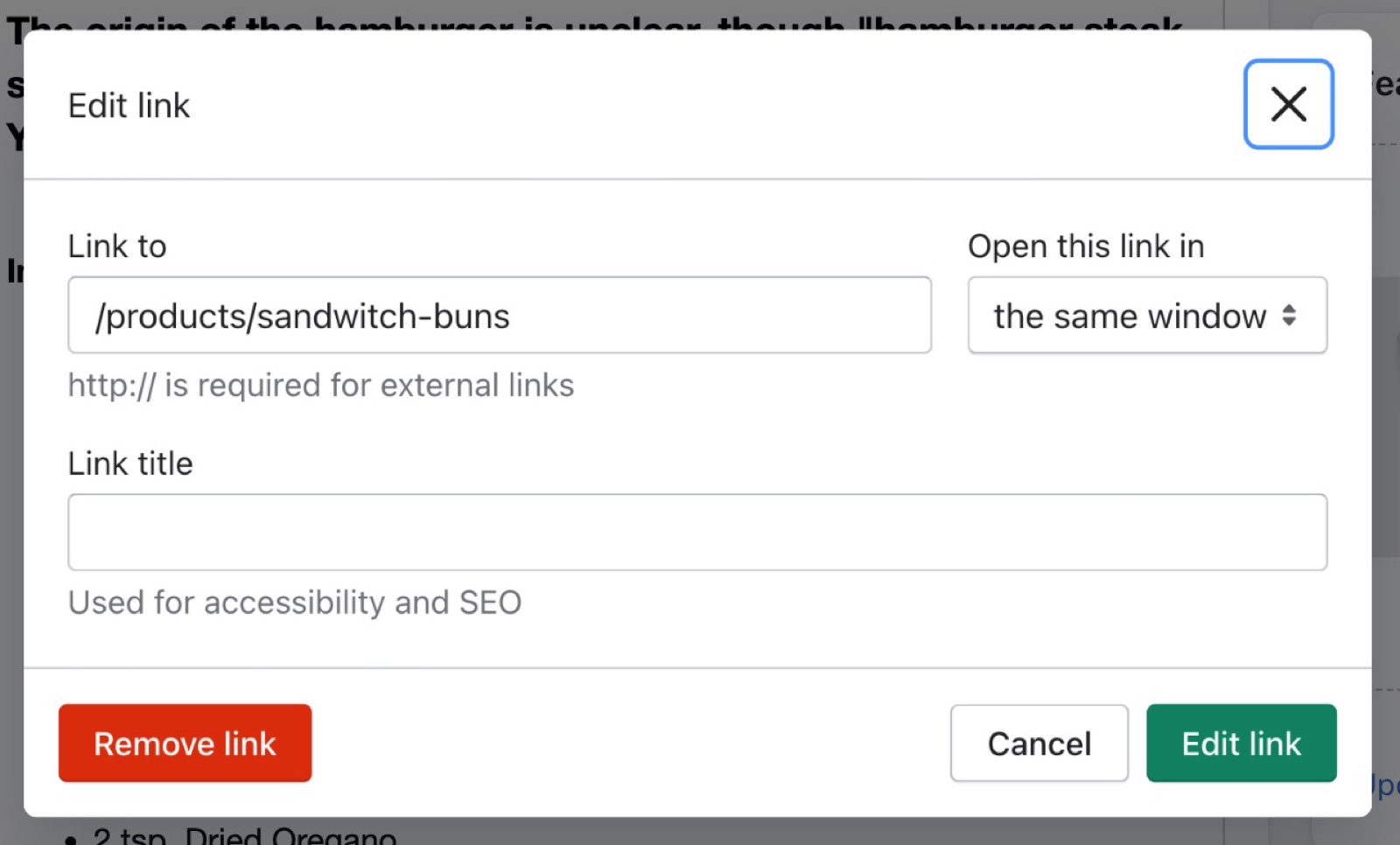
In Shopify admin, open Content → Blog posts and edit the post. Select an ingredient name, select the link button, and link it to the product with a relative address: /products/burger-buns, not https://your-store.myshopify.com/products/burger-buns.
Assign the template to the post
In the post's editor, choose the recipe template under Theme template and save. Open the post on the storefront and select a product link: the Quick view popup opens.
Every link whose address contains "products" is converted, including links to a collection's product URL. Links to another domain, such as your myshopify.com address while customers browse your own domain, cannot load in the popup: use relative links that start with /products/.
Why do my product links not turn into quick buy products?
Usually because Enhance product links is off in the template the post uses, or the link points to another domain.
- Check which Theme template the post uses in Shopify admin, and turn the setting on in that template's Content block.
- Use relative links,
/products/<handle>style: a full address with your myshopify.com domain does not load from your custom domain. - Only links inside the post content are converted, not links in the excerpt or in other sections.
Can I use a separate template for recipes?
Yes, and it is the best way. Create a blog post template with Enhance product links on, and assign it only to recipe posts.
- You can also create a blog template for a recipes blog, for example with 3 cards per row, and assign it to that blog.
- The Local demo stores use both, a "recipe" post template and a "recipes" blog template. They are not part of the theme files, so create them in the theme editor.
All Article page settings
Every setting of the three sections and their blocks, with its type and default.
Accepts these blocks: Featured image, Title and Content.
The Article section has no settings of its own in Local 4.2.1; its blocks have theirs.
Featured image block
Where to find it: Blog posts → Default blog post → Article → Add block → Featured image
One Featured image block per section.
Media aspect ratio (dropdown, default: Uncropped: Natural). Options: Uncropped: Natural, Cropped: Wide (16:9), Cropped: Shorter (3:2), Cropped: Short (4:3), Cropped: Square (1:1), Cropped: Tall (5:6).
Fullwidth (checkbox, default: on): Shows the featured image at the wide page width. When off, it has the width of the article text.
Title block
Where to find it: Blog posts → Default blog post → Article → Add block → Title
One Title block per section.
Show date (checkbox, default: on).
Show author (checkbox, default: on).
Show comments number (checkbox, default: off).
Content block
Where to find it: Blog posts → Default blog post → Article → Add block → Content
One Content block per section.
Show tags (checkbox, default: on): Lists the post's tags under the content, each linked to the blog filtered by that tag.
Enhance product links (checkbox, default: off): Turns every link in the post content whose address contains products into a link that opens the product in the Quick view popup. Use relative links such as /products/handle.
Content block: Social share buttons
Where to find it: Blog posts → Default blog post → Article → Add block → Content → Social share buttons
Social share buttons (checkbox, default: on).
Show Facebook (checkbox, default: on). Shown only when Social share buttons is on.
Show X (checkbox, default: on). Shown only when Social share buttons is on.
Show Pinterest (checkbox, default: on). Shown only when Social share buttons is on.
Show custom link (checkbox, default: on): Adds a Share link that opens the device's share menu; browsers without one show Copy to clipboard. Shown only when Social share buttons is on.
Where to find it: Blog posts → Default blog post → Article navigation.
Accepts these blocks: Title, Info, Excerpt and Link.
Heading (text field, default: "More articles").
Show featured image (checkbox, default: on).
Media aspect ratio (dropdown, default: Short (4:3)). Options: Short (4:3), Square (1:1), Tall (5:6), Taller (2:3).
Article navigation section: Blog posts
Where to find it: Blog posts → Default blog post → Article navigation → Blog posts
Previous post (article picker): A post to show instead of the previous (older) post of the blog.
Next post (article picker): A post to show instead of the next (newer) post of the blog.
Title block
Where to find it: Blog posts → Default blog post → Article navigation → Add block → Title
One Title block per section.
The Title block has no settings in Local 4.2.1.
Info block
Where to find it: Blog posts → Default blog post → Article navigation → Add block → Info
One Info block per section.
Show date (checkbox, default: on).
Show author (checkbox, default: off).
Show comments number (checkbox, default: off): Shows the number of comments, when comments are on for the blog.
Excerpt block
Where to find it: Blog posts → Default blog post → Article navigation → Add block → Excerpt
One Excerpt block per section.
Number of words (slider 5 to 40, default: 15): The number of words shown from the article content when the article has no excerpt. An excerpt always shows in full.
Link block
Where to find it: Blog posts → Default blog post → Article navigation → Add block → Link
One Link block per section.
The Link block has no settings in Local 4.2.1.
Where to find it: Blog posts → Default blog post → Article comments.
To enable comments go to your blog settings in Shopify admin.
Related pages
- Blog page: the list of posts and blog templates.
- Quick view popup: what opens from enhanced product links.
- Events calendar: blog posts as events.
- Blog posts section: the latest posts on any page.