Product variant and buy blocks
The variant and buy blocks of Local: the variant picker, product siblings, buy buttons with pre-order and gift card options, and custom properties.
Applies to: Local 4.2.1 and later. Added in: Local 1.0.0. Last checked: 2026-10-13 against Local 4.2.1.
The variant and buy blocks are where customers choose and buy: the variant picker, the product siblings row, the buy buttons and custom fields such as an engraving text.
Where to find it: in the theme editor, open Products → Default product, select Product page, then Add block.
The same blocks exist in the Featured product section and the Quick view popup.
Variant picker
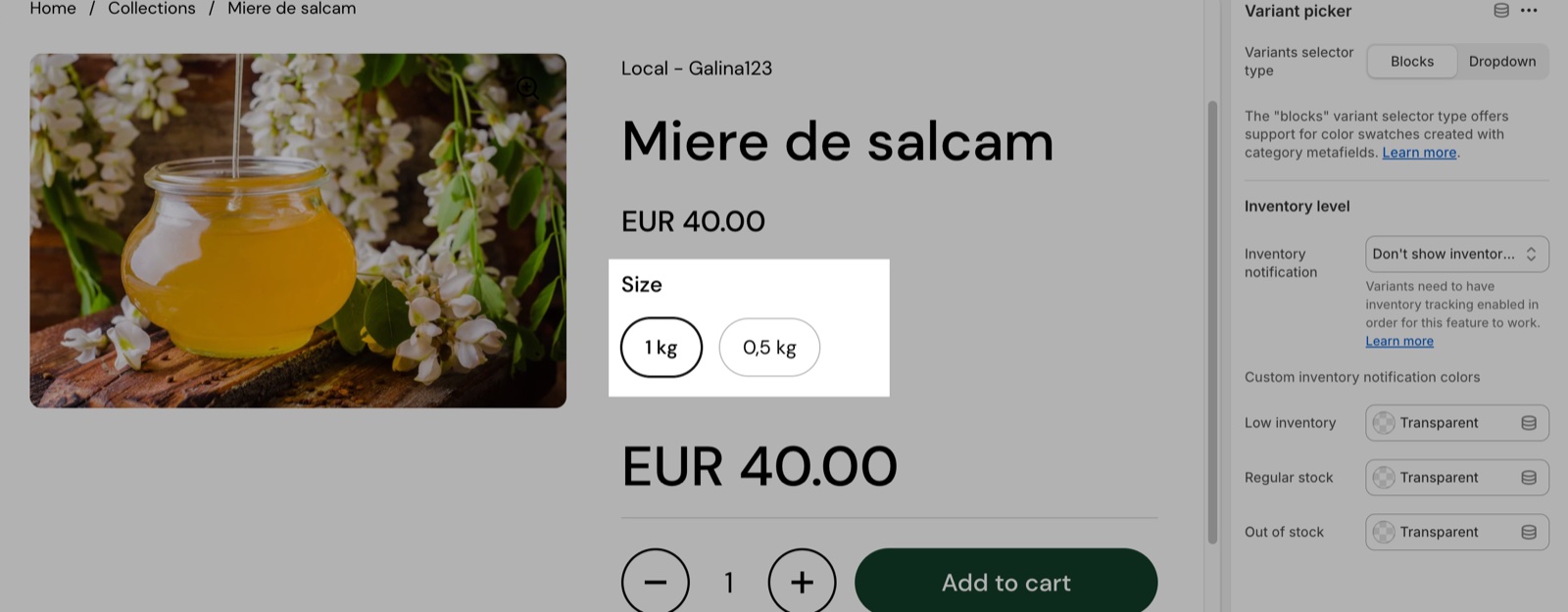
The Variant picker block shows the product options (for example Size and Color) so customers can select a variant. One Variant picker block per section.
- Variants selector type shows the option values as Blocks (buttons, the default) or as a Dropdown. Color and image swatches need Blocks.
- Metaobject swatch metafields adds color or image swatches from your own metaobjects. The setup is on Variant swatches.
- Inventory notification shows a stock message under the options. Inventory tracking must be on for the variant in Shopify admin.
- Don't show inventory information (the default) shows nothing.
- Show a notice if inventory falls below 5 shows "There is only one product left!" or "There are 3 products left" from 5 items down, and a sold out or "you can still order it" message at 0.
- Always show inventory also shows the number of items left above 5, or "In stock" when the quantity is not tracked.
- Low inventory, Regular stock and Out of stock give each message a colored background.
Product siblings
The Product siblings block links separate products as if they were variants. Use it when each color or flavor is its own product, with its own page, photos and inventory. The block shows a row of thumbnails, one per product, each linked to that product. The product being viewed is marked as the current one.
- Heading is the text above the row (default "Sibling products").
- Products is the list of products to show. Connect it to a metafield so each product gets its own list (steps below).
- Media aspect ratio sets the thumbnail shape.
- Reduce opacity for unavailable products fades the thumbnails of sold out products.
The block shows each product's main image, without color swatches or option names. With an empty list it shows nothing.
The video walks through the whole setup: the product list metafield, filling it on each product and connecting it to the Product siblings block.
Setting up product siblings
Create a product list metafield
In Shopify admin, open Settings → Metafields and metaobjects → Products and select Add definition. Name it, for example "Siblings" (custom.siblings), choose the type Product and select List of products. Save.
Fill the list on every product of the group
Open each product of the group, for example every color of a T-shirt. In the Siblings metafield, select all the products of the group, the product itself included, in the order you want them shown. Save each product.
Add the Product siblings block
In the theme editor, open Products → Default product → Product page, select Add block and choose Product siblings. Drag it next to the variant picker.
Connect Products to the metafield
Select the Connect dynamic source icon next to Products and choose the Siblings metafield. Change the Heading, for example to "Color", and select Save.
Do not pick the products by hand in the block. A list picked in the theme editor is the same on every product that uses the template. Connect the metafield instead, so each product shows its own group.
Buy buttons
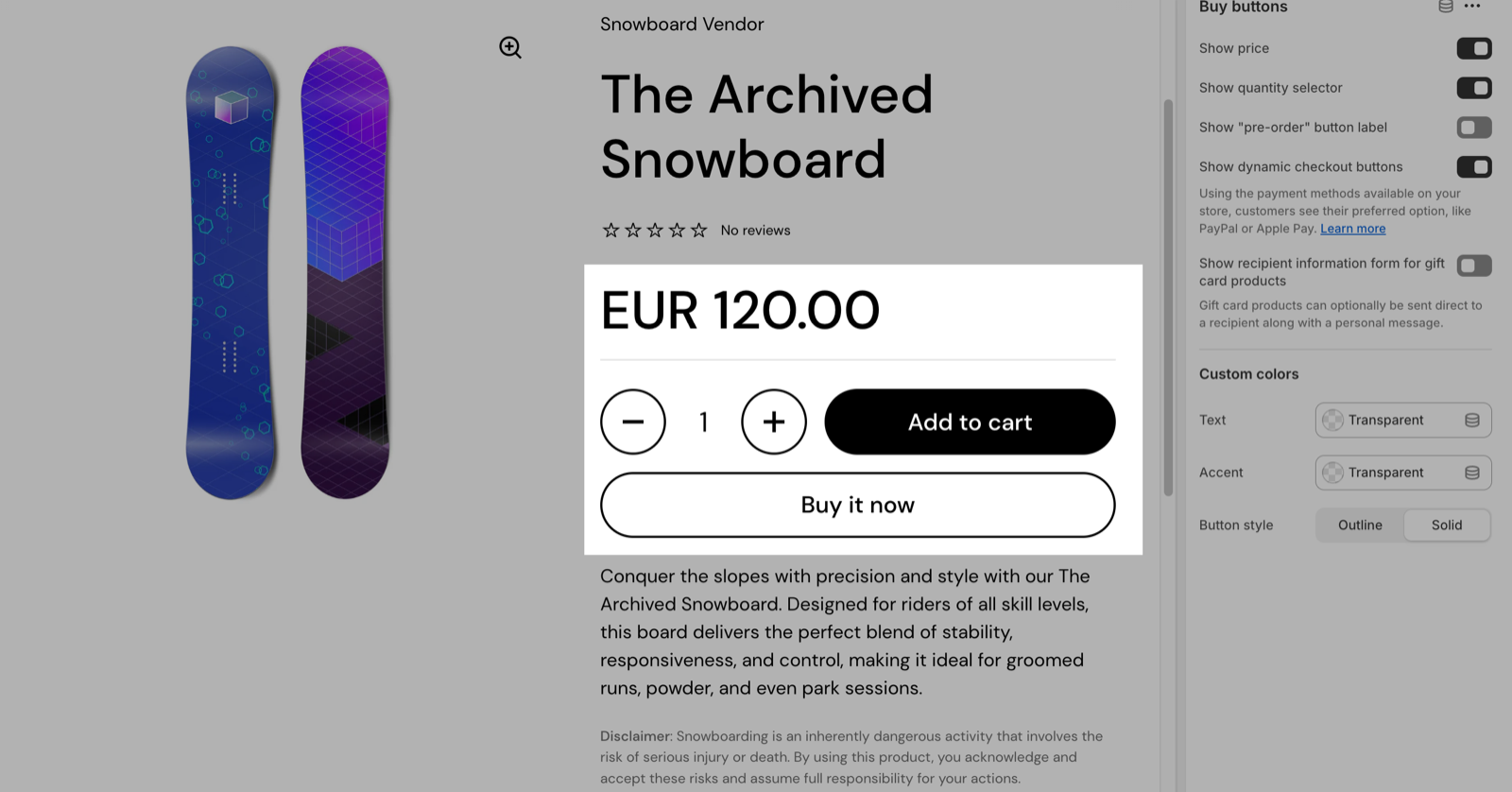
The Buy buttons block holds the add to cart button and the buttons around it. One Buy buttons block per section.
- Show price shows the price above the buttons, with the amount saved when the product is on sale.
- Show quantity selector adds the quantity field.
- Show "pre-order" button label changes "Add to cart" to "Pre-Order" (see the question below).
- Show dynamic checkout buttons adds the express checkout button, such as Shop Pay or PayPal, from the payment methods of your store.
- Show recipient information form for gift card products lets customers send a gift card to someone else (see the question below).
- Text, Accent and Button style set the button colors and a Solid or Outline add to cart button.
The add to cart button says "Sold out" for sold out variants and "Unavailable" for option combinations that do not exist.
Custom property
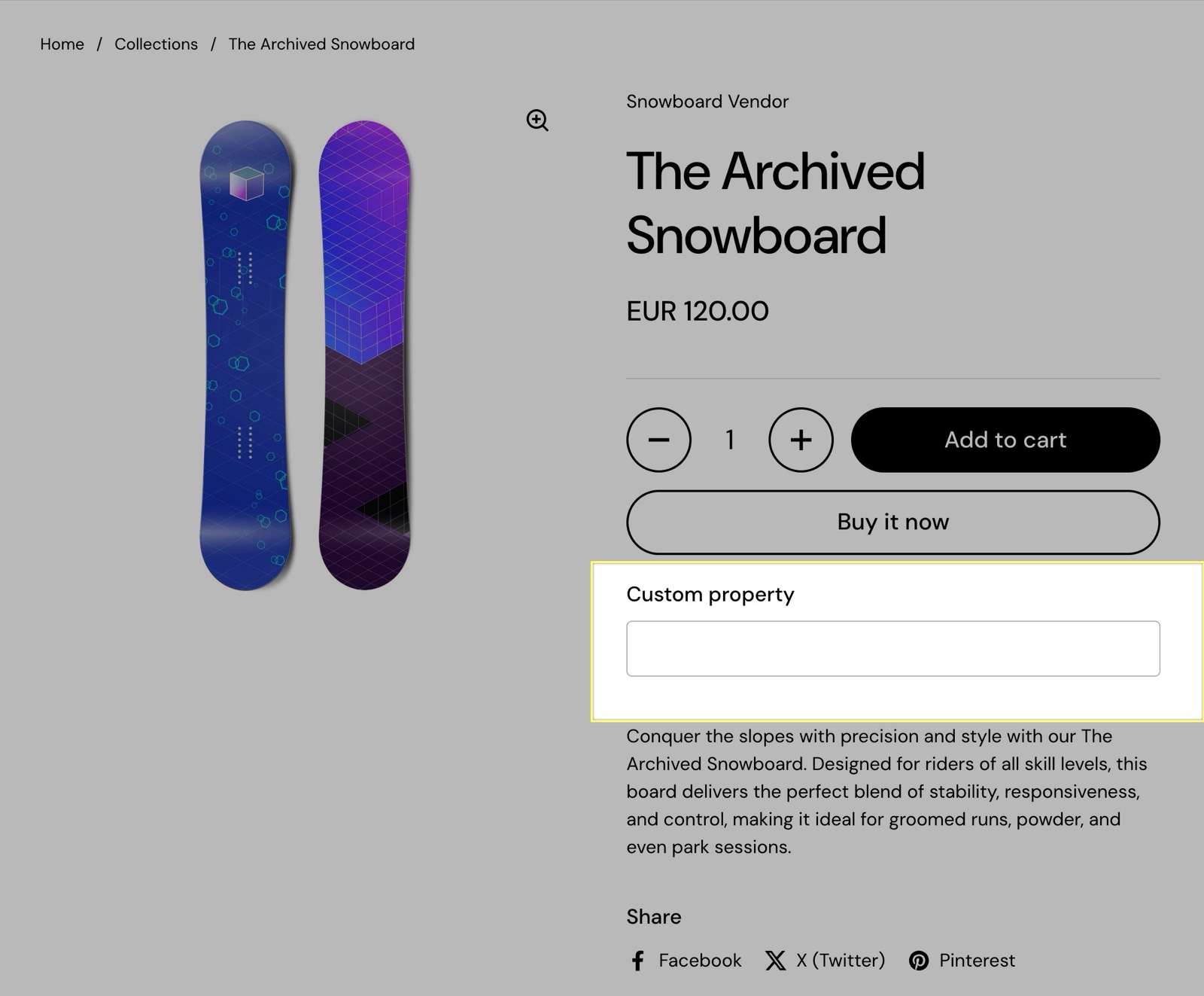
The Custom property block adds a field that customers fill before they add the product to the cart, for example an engraving text or a gift note. Shopify saves the answer with the product in the cart and the order (a line item property).
- Label is the field's name, shown to the customer and in the order.
- Type sets a Text field, a Checkbox or a Dropdown.
- Required makes the field mandatory: the product cannot be added to the cart while it is empty. The label gets an asterisk.
- Hide at checkout keeps the answer out of the checkout and the order summary the customer sees. You still see it in the order in Shopify admin.
- Text fields: Allow long text gives a bigger box, Maximum characters limits the length.
- Checkboxes: Value is what the order shows when the box is checked (default "Yes").
- Dropdowns: Values lists the choices, separated by commas. Default value adds an empty "----" choice that is selected first, so the customer must pick one.
Adding a custom property
Add the block
In the theme editor, open Products → Default product → Product page, select Add block and choose Custom property. Drag it above the Buy buttons block.
Name the field
Type the Label, for example "Engraving text". Use a clear name: it is the name of the property in the cart and the order.
Choose the type
Select the Type. For a text, set Maximum characters if the engraving has a limit. For a dropdown, type the choices in Values, for example Gold,Silver,Black.
Make it required if needed
Turn on Required when the product cannot be made without the answer, then select Save.
The field shows on every product that uses the template. For a field on some products only, create a separate product template for them; see Product page.
Can I take pre-orders with Local?
Local can change the button label, not the stock logic. Turning on Show "pre-order" button label shows "Pre-Order" instead of "Add to cart" for every available variant of every product on that template. There is no per-product detection.
- Create a product template for pre-order products (Products → Create template) and turn the setting on only there.
- Assign that template to the pre-order products in Shopify admin → Products → Theme template.
- To sell items that are out of stock, turn on Continue selling when out of stock on the variants in Shopify admin. Shopify controls that, not the theme.
For deposits, partial payments or release dates, use a pre-order app.
How do customers send a gift card to someone else?
Turn on Show recipient information form for gift card products in the Buy buttons block of the template your gift card products use.
- Customers then see a "send as a gift" checkbox with the recipient's email, name, a message and a send date.
- Shopify emails the gift card to the recipient on that date.
- The dynamic checkout buttons are hidden on gift card products while this form is on, so the recipient details always reach the order.
All Product variant and buy blocks settings
These blocks are part of the Product page section. Every setting of every block, with its type and default, is listed in All Product page settings.
Related pages
- Variant swatches: color and image swatches from category metafields or metaobjects.
- Product page: templates, the first variant setting and the full list of block settings.
- Product availability blocks: pickup availability and the back in stock form.
- Gift card page: the page the recipient opens.
Product content blocks
The product content blocks of Local add text, collapsible tabs, images, buttons, popups, text banners, custom code, dividers and space to the product page.
Variant swatches
Variant swatches in Local: show color or image swatches for variant options from Shopify category metafields or from your own metaobjects.