Product attribute blocks
The attribute blocks of Local show nutrition tables, Nutri-Score, attribute meters, progress charts and icon lists from product metafields.
Applies to: Local 4.2.1 and later. Added in: Local 2.0.0. Last checked: 2026-10-13 against Local 4.2.1.
The attribute blocks show product facts in a visual form: a nutrition table, a Nutri-Score scale, meters, charts and a list of icons. Each block can take its values from product metafields, so one template shows different values on every product.
Where to find it: in the theme editor, open Products → Default product, select Product page, then Add block.
The same blocks exist in the Featured product section and the Quick view popup. Nutriscore and Attribute meter also exist as rows of the Product comparison section.
Nutritional information
The Nutritional information block turns plain text into a two-column table, for nutrition facts, ingredients or product details such as a wine's region and vintage.
- Left column label and Right column label are the table headings (default "Typical values" and "Per 100g").
- Information is the table content. Type it, or connect it to a rich text metafield.
- Extra information is a text under the table, for example the ingredients.
- Hide block if dynamic content is not present hides the block when Information is empty.
- Collapsible is on by default and Layout is Boxed: the table sits in a box that customers open.
Write the Information text with these rules:
- One row per line: the label, a comma, then the value. Only the first comma splits the row, so the value can contain commas. Press Shift + Enter for a new line.
- Start a row with a hyphen (
-) to indent it, for "of which" rows. Any hyphen in a row indents it and the first hyphen is removed, so avoid hyphens inside labels. - A new paragraph (Enter without Shift) starts a new table.
- Bold, italic, underline and links work. Headings are not styled: do not use them.
For example, these lines give a table with two indented rows:
Energy, 205 kJ / 49 kcal
Fat, 0g
- of which: Saturates, 0g
Carbohydrate, 10g
- of which: Sugars, 7g
Setting up a nutrition table from a metafield
Create a rich text metafield
In Shopify admin, open Settings → Metafields and metaobjects → Products and select Add definition. Name it, for example "Nutrition facts", and choose the type Rich text. Use Rich text: it keeps the line breaks the table needs.
Fill it on each product
Open a product and type its rows in the metafield, one row per line (Shift + Enter), label and value separated by a comma. Save the product.
Add the block
In the theme editor, open Products → Default product → Product page, select Add block and choose Nutritional information. Set the column labels.
Connect Information to the metafield
Select the Connect dynamic source icon next to Information and choose the metafield. Turn on Hide block if dynamic content is not present so products without nutrition facts show no block, then select Save.
Nutriscore
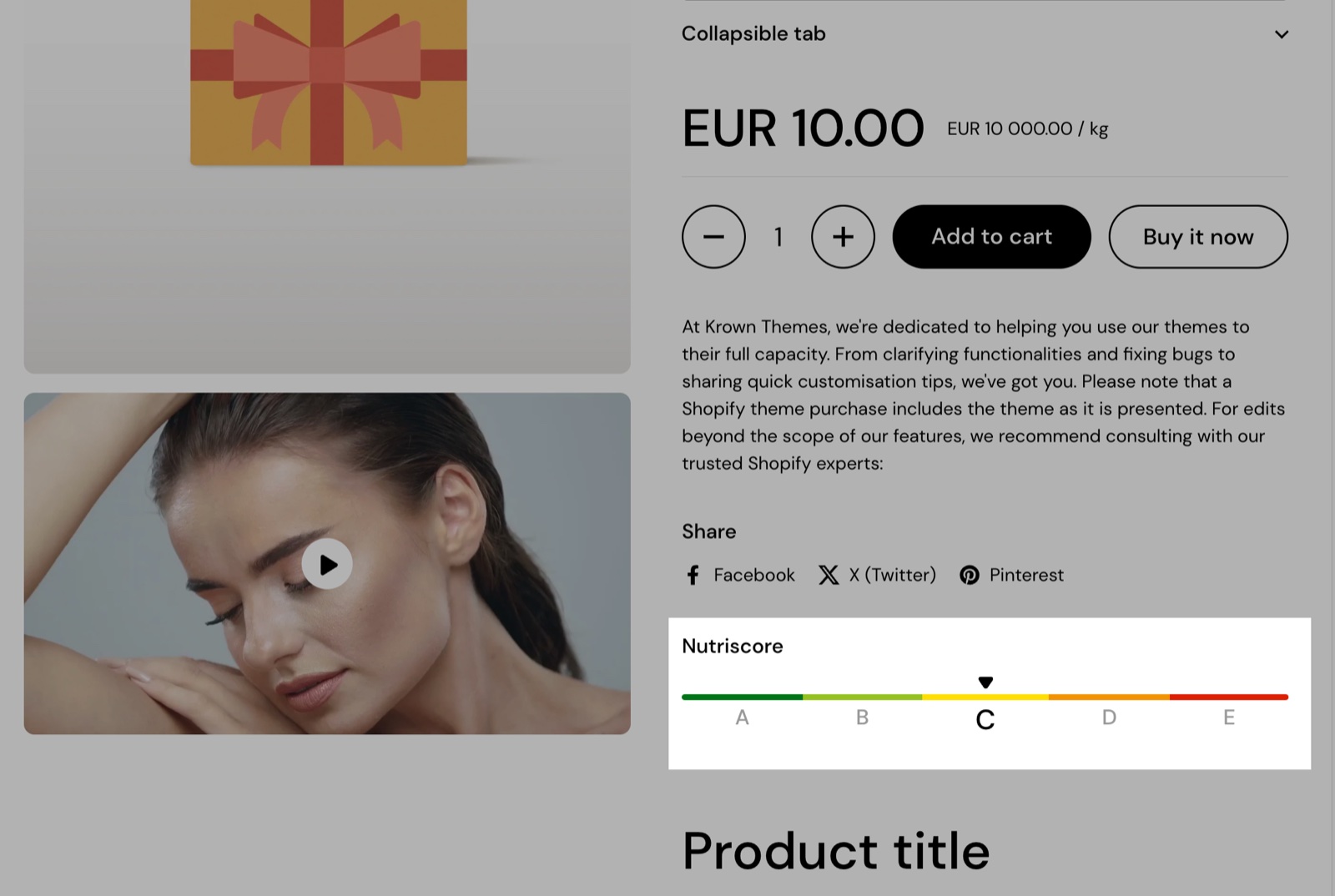
The Nutriscore block shows the Nutri-Score scale, from A (green) to E (red), with one letter marked.
- Active item marks a letter: 1 is the first (A), 5 the last (E).
- Active item metafield takes the number from a product metafield instead (see the steps below).
- Label and Color of each of the 5 items change the letters and colors. An item with an empty label is left out.
Attribute meter
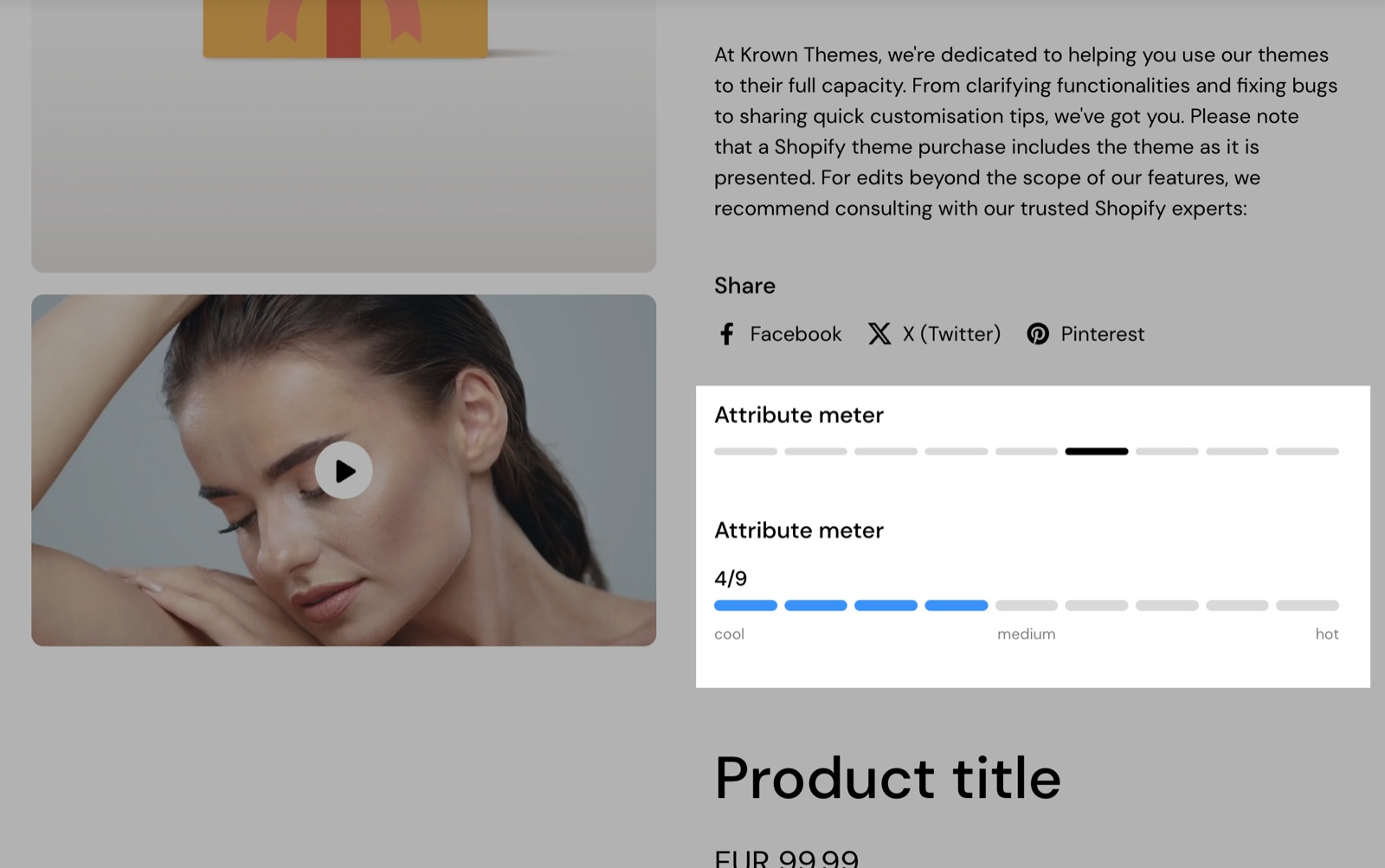
The Attribute meter block shows a value on a bar made of segments, for strength, roast level, sweetness or durability.
- Segments sets the number of segments, 1 to 10.
- Active segments sets the value. Active segment metafield takes it from a product metafield instead.
- Fill segments up to active segment fills every segment up to the value, like a progress bar. When it is off, only the segment at the value is filled.
- Active segment color, Remove space between segments and Segments height set the look.
- Show active segments value writes the value over the bar, for example "4/9".
- Start label, Middle label and End label add words under the bar, for example "Mild", "Medium", "Strong".
Progress dots chart
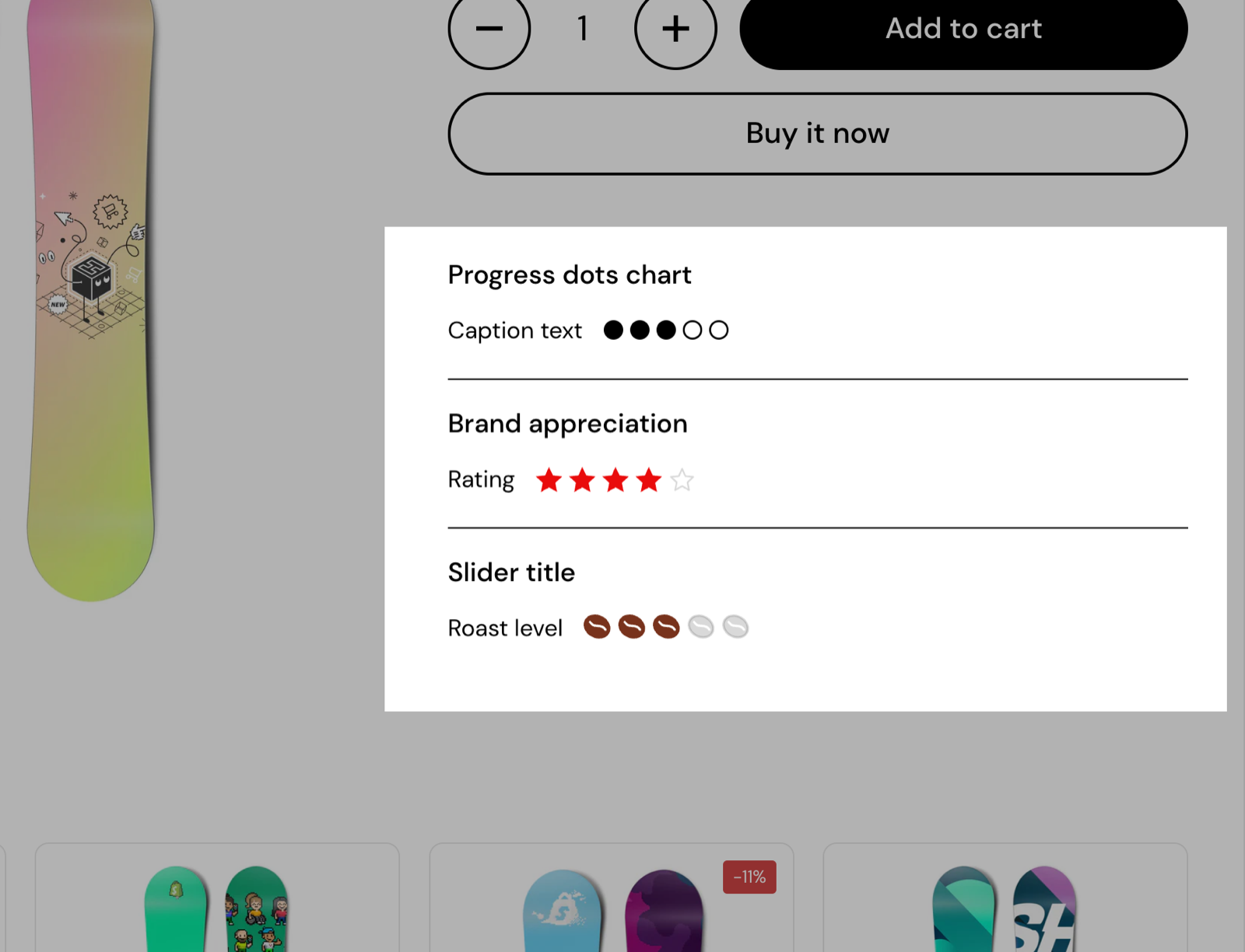
The Progress dots chart block shows a value as a row of icons, some highlighted, for example 3 coffee beans out of 5.
- Caption is the text above the icons.
- Dot icon chooses the icon: Circle, Star, Heart, Coffee bean, Chili pepper, Drop and more. Dot size sets its size.
- Total dots sets the number of icons, 1 to 10.
- Highlighted dots sets the value. Highlighted dots metafield takes it from a product metafield instead. Values above Total dots are capped.
- Inactive color and Highlighted color set the icon colors.
Progress bar chart
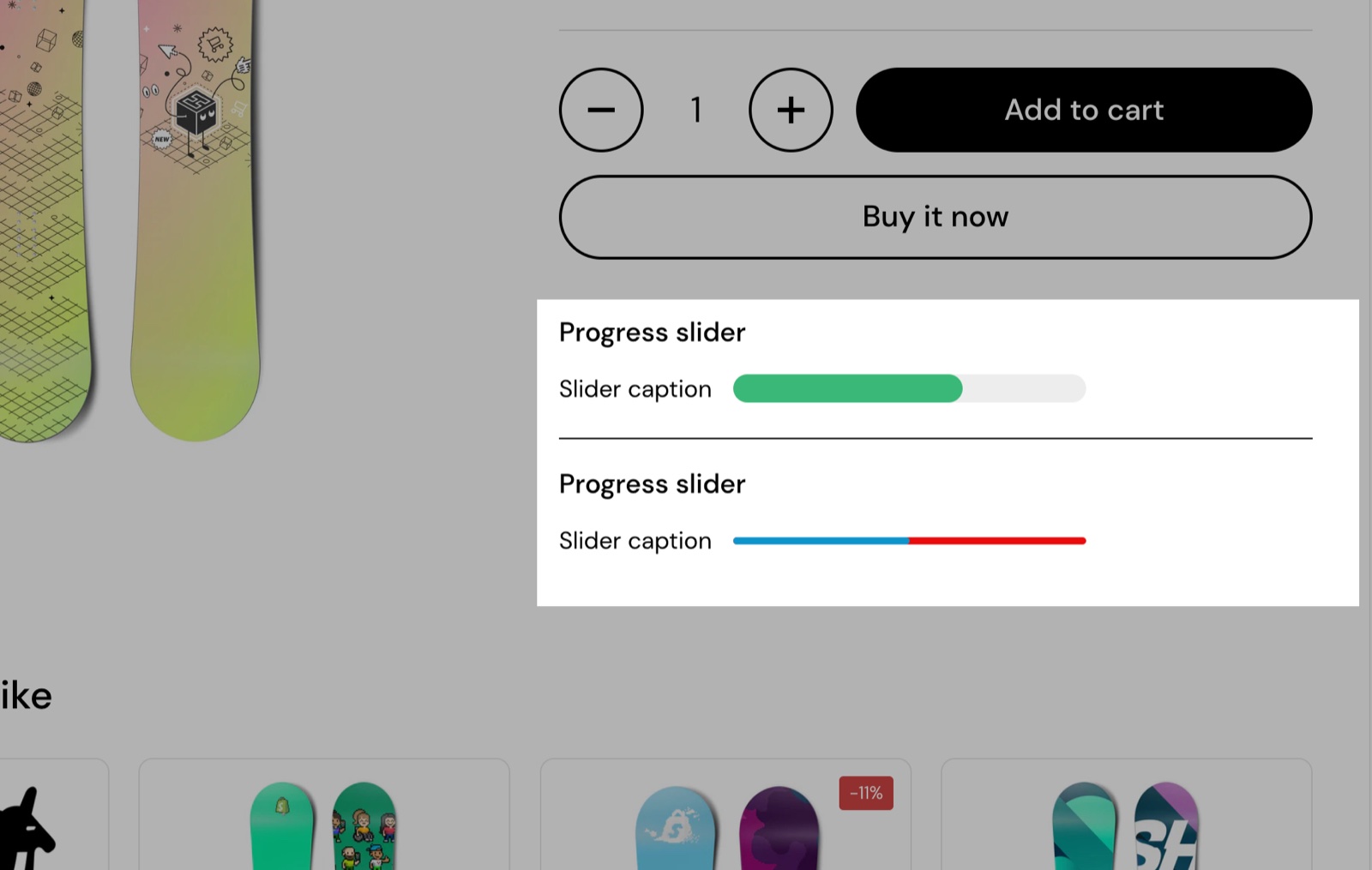
The Progress bar chart block shows a value as a filled bar, from 0 to 100 percent. The bar is a fixed picture of the value; customers cannot move it.
- Caption is the text above the bar.
- Slider height and Slider width set its size.
- Value sets the filled part, 0 to 100 %. Value metafield takes it from a product metafield instead.
- Inactive color and Highlighted color set the bar colors.
Connecting a meter to a metafield
Nutriscore, Attribute meter, Progress dots chart and Progress bar chart each have a metafield field: Active item metafield, Active segment metafield, Highlighted dots metafield and Value metafield. You type the metafield's name in it.
Create a number metafield
In Shopify admin, open Settings → Metafields and metaobjects → Products and select Add definition. Name it, for example "Roast level", and choose the type Integer. For the Progress bar chart, the number is a percentage from 0 to 100.
Copy its namespace and key
Open the definition and copy the namespace and key, in the form namespace.key, for example custom.roast_level.
Type it into the block
In the theme editor, select the block and paste custom.roast_level into its metafield field as plain text. Select Save.
Fill the number on each product
Open each product in Shopify admin and type its value in the metafield. Products without a value use the block's own slider value (Active item, Active segments, Highlighted dots or Value).
When connecting to a metafield, don't connect the metafield directly, but instead just type in plain text the value of the metafield (eg: custom.roast_level).
Icons list
The Icons list block shows up to 8 icons with a label each, for product features such as "Vegan", "Organic" or "Gluten free".
- Layout shows the items in a Grid, Inline in a row (the default), or as a List.
- Icon and Label of each of the 8 items set the item. Use square images, 128 x 128 px.
- An item with a label and no icon looks in Shopify admin → Content → Files for a PNG named like the label: the label "Gluten free" uses
gluten-free.png. - Hide block if dynamic content is not present hides the block when the first item has no icon and no label, useful when the first item is connected to a metafield.
You can add up to 4 Icons list blocks to one product page.
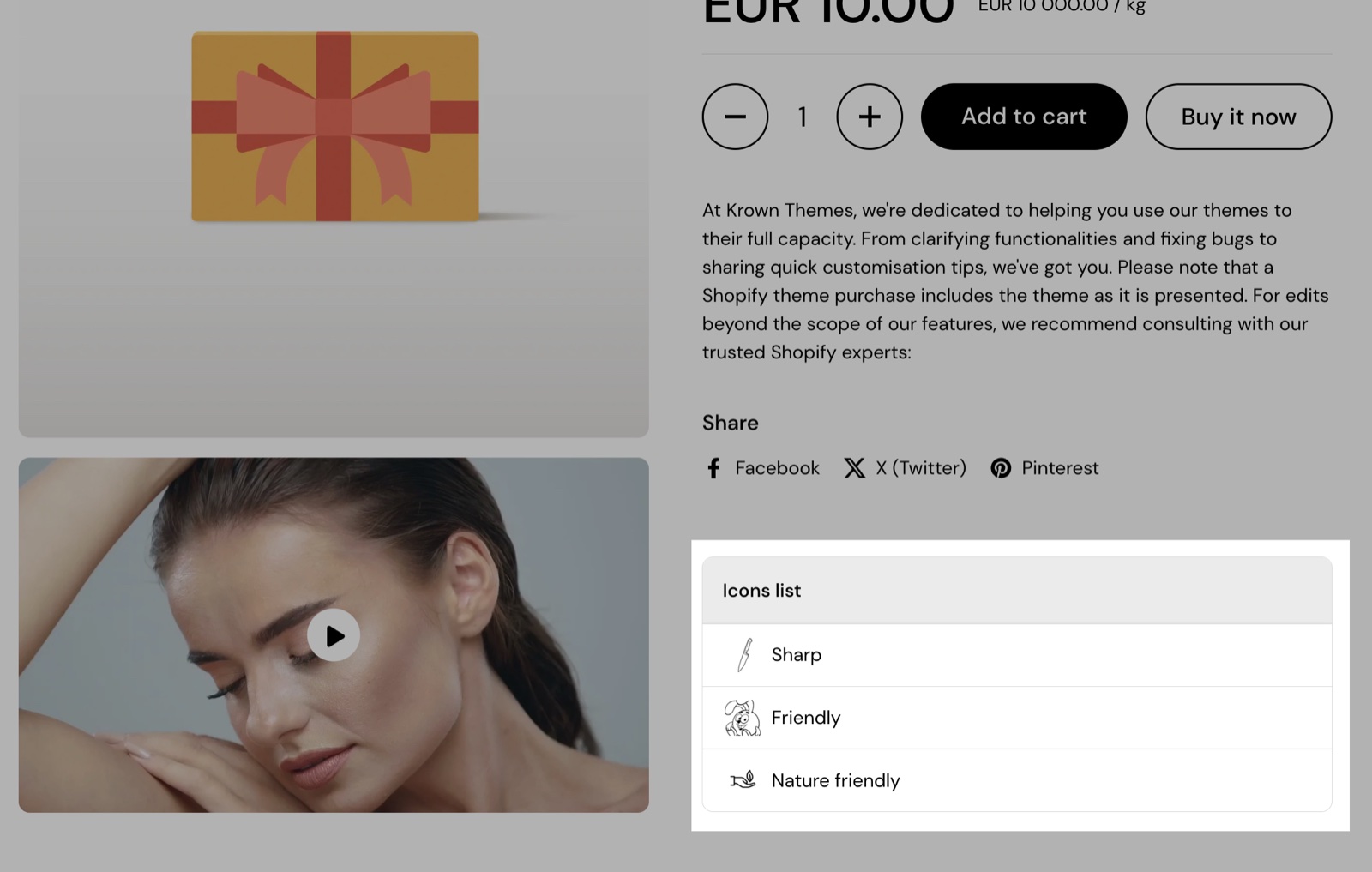
Setting up an icons list on the product page
Add the block
In the theme editor, open Products → Default product → Product page, select Add block and choose Icons list. Set its Title and Layout.
Fill the items
For each item, upload an Icon (128 x 128 px) and type its Label. For icons that change per product, select Connect dynamic source next to Icon and Label and choose a file metafield and a text metafield.
Reuse icons by label (optional)
Upload PNG files named after the labels to Shopify admin → Content → Files, for example gluten-free.png for "Gluten free". Leave Icon empty: Local uses the file that matches the label.
Hide the block on products without icons
When item 1 is connected to a metafield, turn on Hide block if dynamic content is not present. Select Save.
Why does my meter not change per product?
Because the metafield is connected with the dynamic source button, or the products have no value. The metafield fields need the metafield's name typed as text, for example custom.roast_level. A connected source puts the value itself in the field, which the block cannot read, so it falls back to its slider value. Clear the field, type the namespace.key, and fill the metafield on each product.
How many icons can one Icons list block show?
- Each block has 8 items, and a product page takes up to 4 Icons list blocks, so up to 32 icons. Older Local articles said 6 and suggested editing the theme code; that is no longer needed.
Why is my nutrition table split up or empty?
Because of how the text is split. Each paragraph becomes its own table, so rows typed with Enter show as many small tables: write the rows of one table with Shift + Enter. A metafield connected to Information must be of type Rich text; text without paragraphs shows no table at all.
All Product attribute blocks settings
These blocks are part of the Product page section. Every setting of every block, with its type and default, is listed in All Product page settings.
Related pages
- Dynamic icons list theme settings: icons from metafields in product cards.
- Product comparison section: Nutriscore and Attribute meter rows in a comparison table.
- Product page: the shared Block Heading and Block Style settings and the full list of block settings.
- Troubleshoot product and collection pages: metafield blocks that show nothing.
Product availability blocks
The availability blocks of Local show store pickup availability for the selected store and a back in stock form for sold out products.
More product blocks
More product page blocks of Local: products list, complementary products, discount coupon code, product disclosures and variant metafield.