More product blocks
More product page blocks of Local: products list, complementary products, discount coupon code, product disclosures and variant metafield.
Applies to: Local 4.2.1 and later. Added in: Local 1.2.0. Last checked: 2026-10-13 against Local 4.2.1.
These product page blocks add other products, a discount code, Shopify's product disclosures and a variant metafield next to the product.
Where to find it: in the theme editor, open Products → Default product, select Product page, then Add block.
The same blocks exist in the Featured product section and the Quick view popup.
Products list
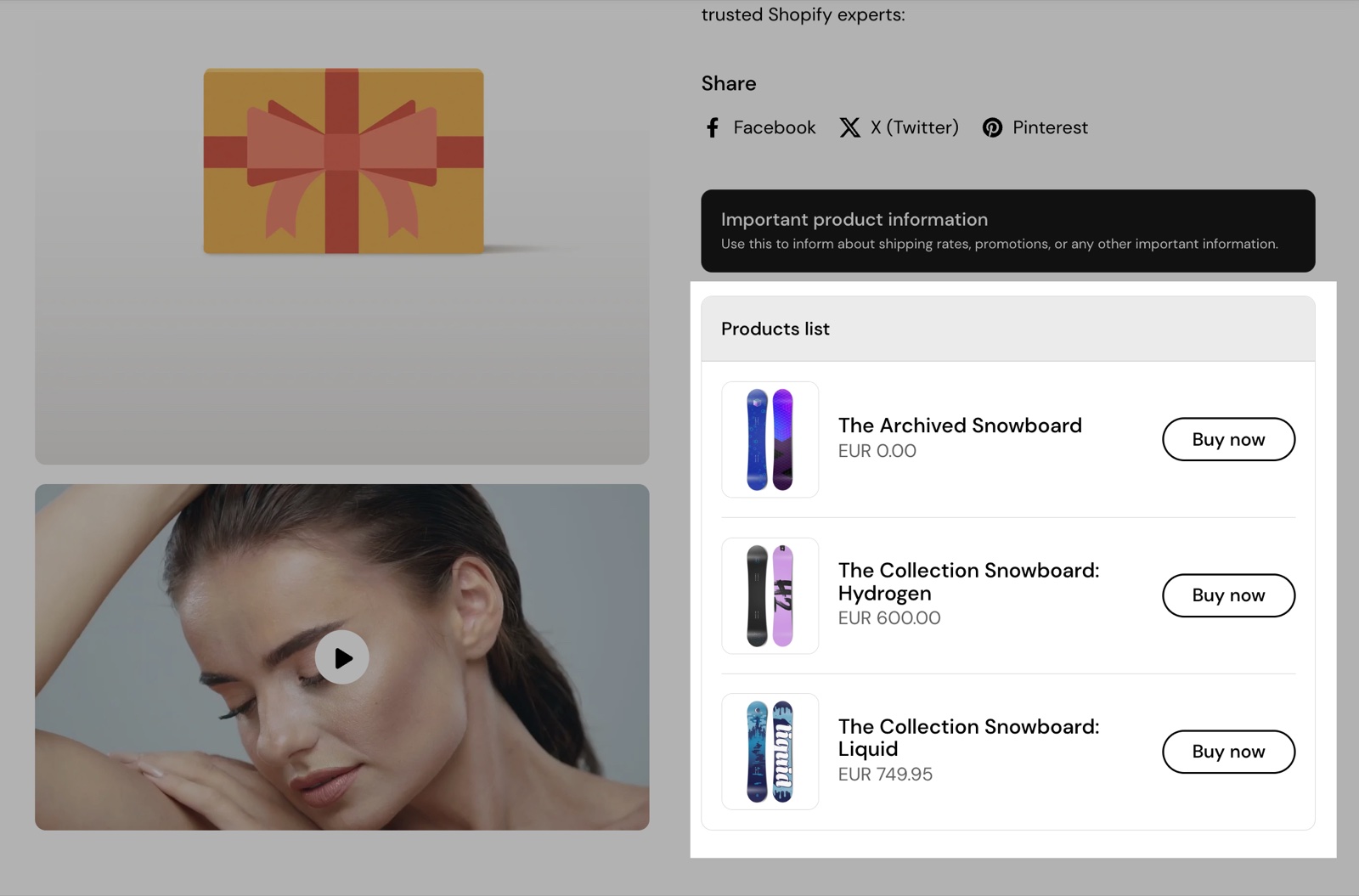
The Products list block shows up to 3 products that you pick, each with its image, title, price and a quick buy button. Use it for add-ons, refills or a matching item. One Products list block per section.
- Products sets the products. Connect it to a product list metafield to show different products on each product page.
- Hide block if dynamic content is not present hides the block when the list is empty.
- The Block Heading settings set the title (default "Products list"); the Block Style settings can make it collapsible.
The quick buy button adds a one-variant product straight to the cart and opens the Quick view popup for products with variants, as on product cards.
Complementary products
The Complementary products block shows the products you set as complementary to this one in Shopify's Search & Discovery app. The default title is "Pairs well with". One Complementary products block per section.
- Show price, Show rating and Enable quick buy choose what each product shows.
- Maximum number of products shown sets 1 to 8 products.
Products without complementary products show nothing.
Coupon code
The Coupon code block shows a discount code that customers copy with one click, for example "SAVE10". It shows "Copied!" when the code is copied.
- Code is the code. Create the discount with that code in Shopify admin → Discounts; the block only displays it.
- Caption adds a short line under the code, for example "10% off your first order".
- Link label, Link and Open link in a new window add a link under it, for example to the terms.
- Custom text color and Custom background color set its colors.
Customers paste the code at checkout. The block does not apply it to the cart.
Disclosures
The Disclosures block shows the product disclosures you add to a product in Shopify admin, for example allergen or safety warnings. Shopify's Product Disclosures feature stores them; the block shows only the disclosures set to appear on the product page.
- The block shows the disclosure titles and symbols in one line that customers open to read the full text. Opened by default shows it open.
- The Block Heading settings set the title (default "Disclosures").
Products without disclosures show nothing. See Shopify's guide to product disclosures.
Variant metafield
The Variant metafield block shows one metafield of the selected variant, for example a variant's weight, material or delivery time. It changes when the customer selects another variant.
- Variant metafield key is the metafield's name, typed as
namespace.key. - Title adds a label above the value.
Variants without a value show nothing. When no variant is selected yet, the block stays hidden.
Showing a variant metafield
Create a variant metafield
In Shopify admin, open Settings → Metafields and metaobjects → Variants and select Add definition. Name it, for example "Material", and choose a type such as Single line text.
Fill it on each variant
Open a product, select a variant and type its value in the new metafield. Repeat for each variant.
Copy the namespace and key
Open the definition and copy the namespace and key, for example custom.material.
Add the block
In the theme editor, open Products → Default product → Product page, select Add block and choose Variant metafield. Paste custom.material into Variant metafield key as plain text and type a Title, for example "Material". Select Save.
Type the key, do not connect it with the dynamic source button. The block uses the key to find the value of the selected variant; a connected source gives it a value instead of a key, and the block shows nothing.
A general guide to variant metafields is on Show variant metafields on the product page.
Where do complementary products come from?
From Shopify's Search & Discovery app, not from the theme. Install the app, open its Product recommendations, select a product and add its complementary products. The Complementary products block then shows them on that product's page. Products without a complementary list show no block.
Does the Coupon code block apply the discount?
No. The block shows the code and copies it; the customer pastes it at checkout. The discount itself must exist in Shopify admin → Discounts with exactly the same code.
All More product blocks settings
These blocks are part of the Product page section. Every setting of every block, with its type and default, is listed in All Product page settings.
Related pages
- Product page: the shared Block Heading and Block Style settings and the full list of block settings.
- Product recommendations section: related products below the product page.
- Quick view popup: what opens from the quick buy buttons.
- Cart theme settings: cart recommendations.
Product attribute blocks
The attribute blocks of Local show nutrition tables, Nutri-Score, attribute meters, progress charts and icon lists from product metafields.
Product recommendations
The Product recommendations section of Local shows products related to the one on the page, chosen by Shopify, as product cards.