Variant swatches
Variant swatches in Local: show color or image swatches for variant options from Shopify category metafields or from your own metaobjects.
Applies to: Local 4.2.1 and later. Added in: Local 2.4.1. Last checked: 2026-10-13 against Local 4.2.1.
Variant swatches show a small color or image next to each option value in the variant picker, for example a red dot next to "Red" or a fabric photo next to "Silk". Local takes them from Shopify's category metafields, or from metaobjects you create for options that Shopify has no swatches for.
Where to find it: in the theme editor, open Products → Default product → Product page and select the Variant picker block.
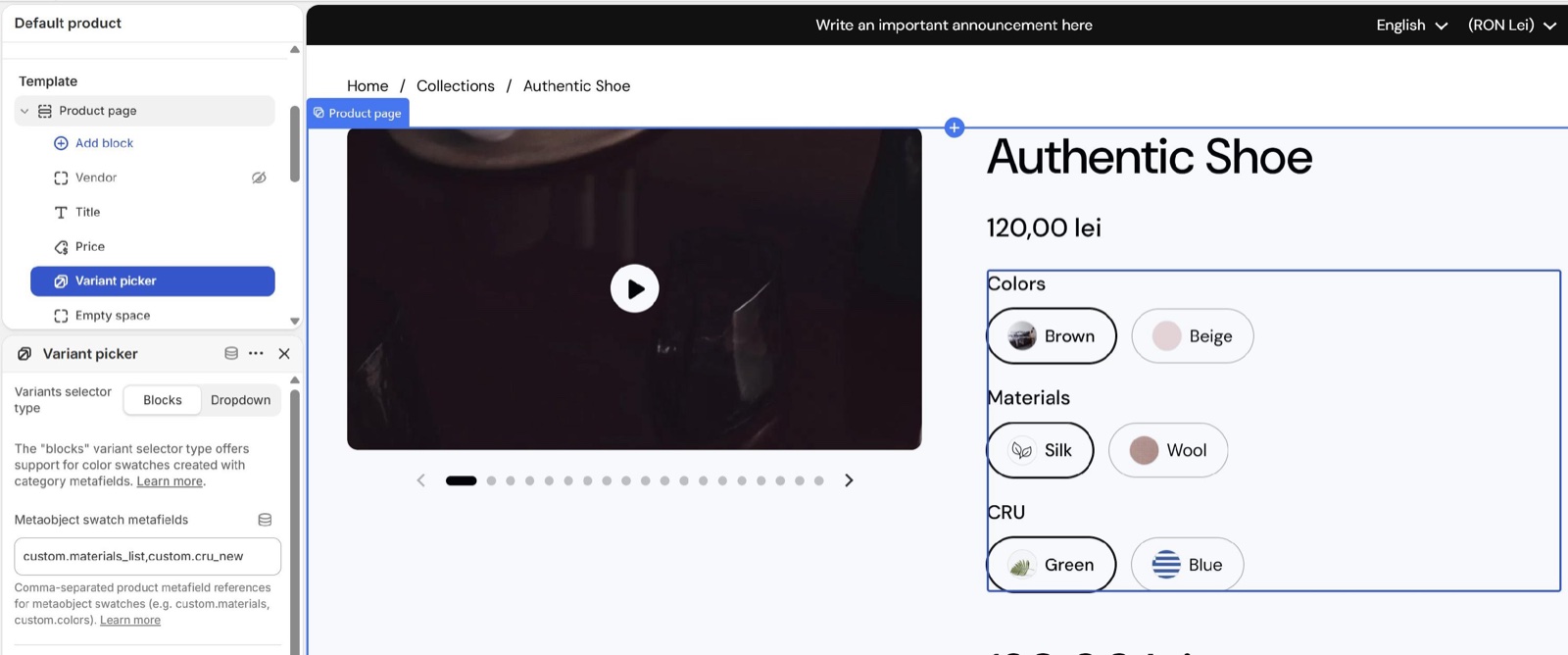
Which swatches Local can show
- Shopify swatches come from category metafields, for example the Color metafield of a product category. Shopify gives each color value a swatch color or image, and Local shows it on the option button. Nothing to set in the theme.
- Metaobject swatches come from your own metaobject entries, for options such as Material, Pattern or Roast. You create the entries in Shopify admin and type the product metafield in the Variant picker block's Metaobject swatch metafields setting (steps below).
Both need Variants selector type set to Blocks. The option value's name always shows next to the swatch.
This option to display image or color swatches for variant options using metaobjects is available for Product page, Featured product and Quick view sections.
The Event ticket section's variant picker has no Metaobject swatch metafields setting.
Swatch priority
For each option value, Local uses the first swatch it finds, in this order:
- The Shopify swatch image (category metafields).
- The Shopify swatch color (category metafields).
- The metaobject image.
- The metaobject color.
When none is found, the option shows as a plain text button.
You don't have to use both images and colors. Both types are available, but you can decide if you want to use only one (image always takes priority).
Setting up metaobject swatches
The example below adds swatches to a "Materials" option. Repeat it for each option that needs swatches.
Create a metaobject definition
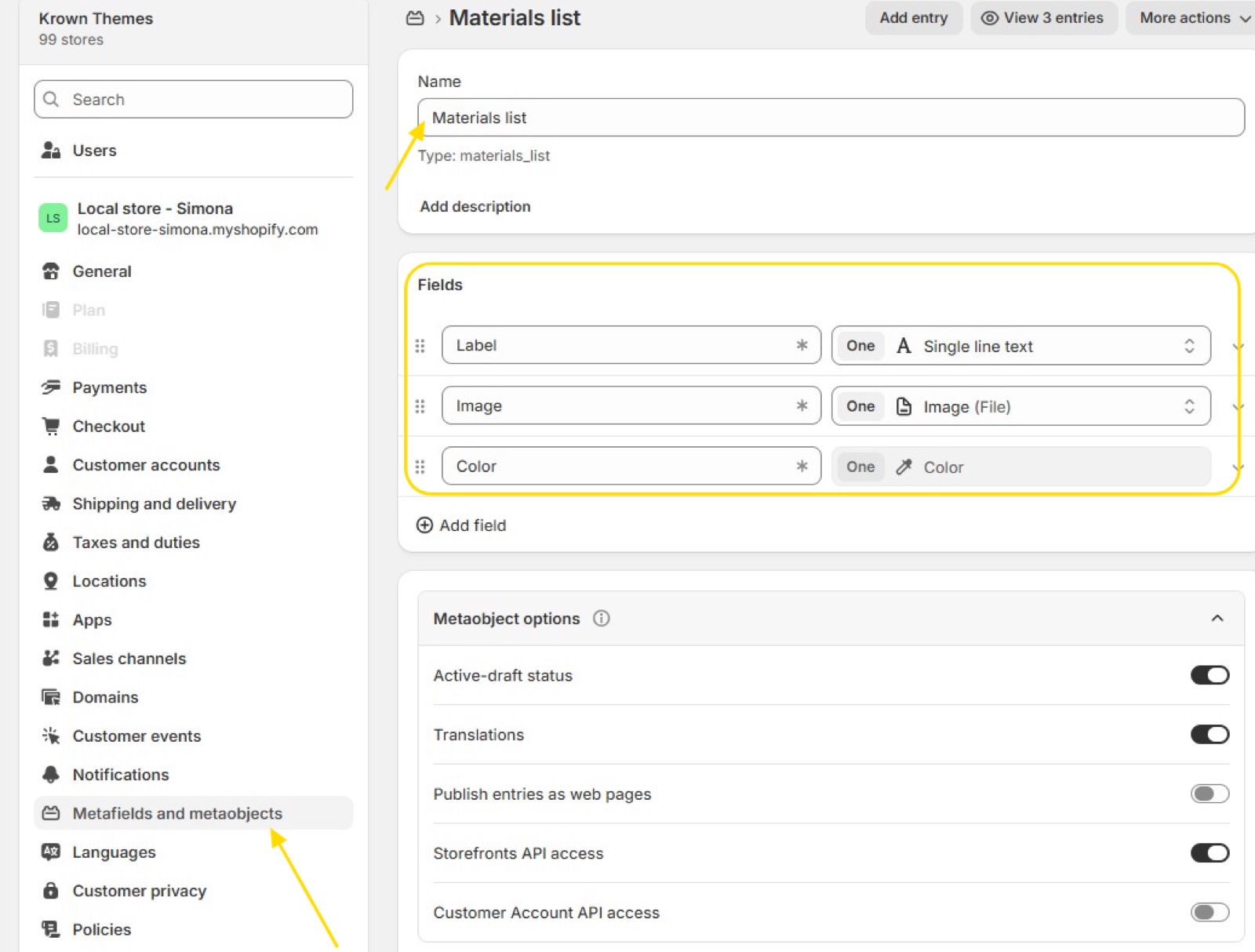
In Shopify admin, open Settings → Metafields and metaobjects → Metaobject definitions and select Add definition. Name it, for example "Materials list", and add these fields, each with one value:
- Label: Single line text.
- Image: File, images only. Optional.
- Color: Color. Optional.
Add at least an image or a color.
Create one entry per option value
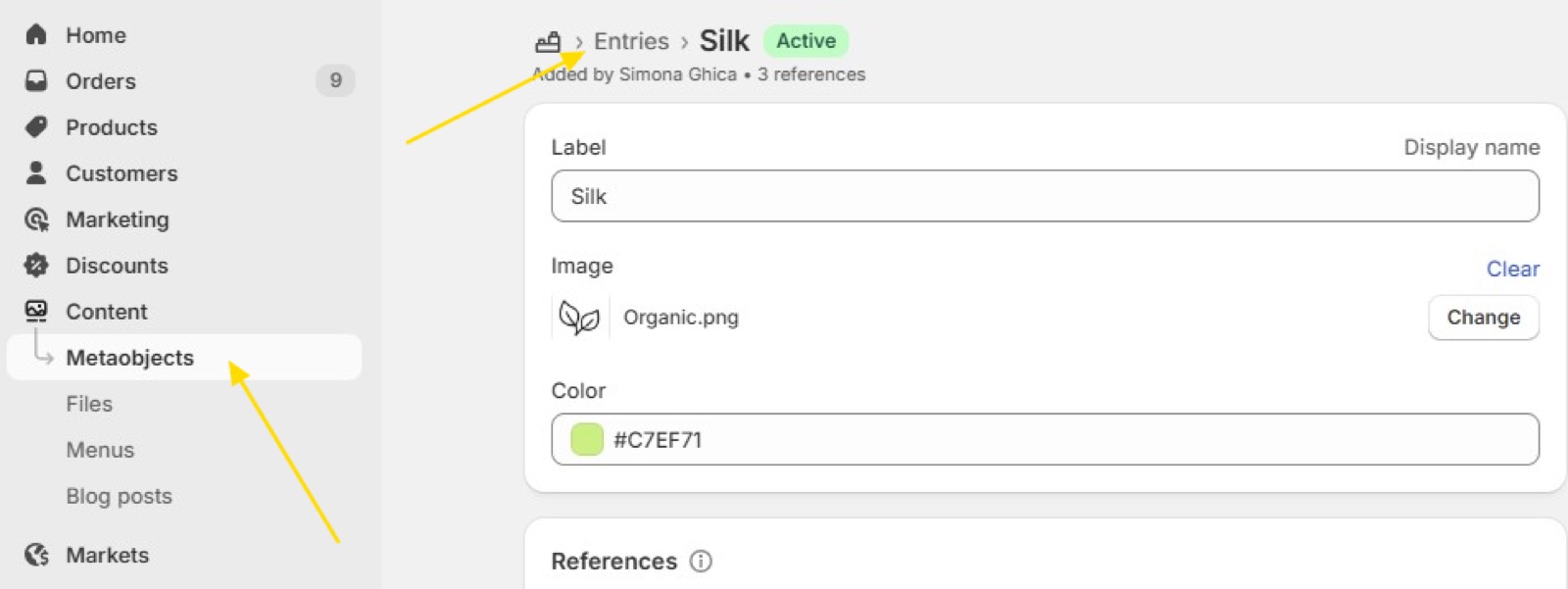
Open Content → Metaobjects, select your definition and add one entry per value, for example Label "Silk" with a color or an image.
Create a product metafield that lists the entries
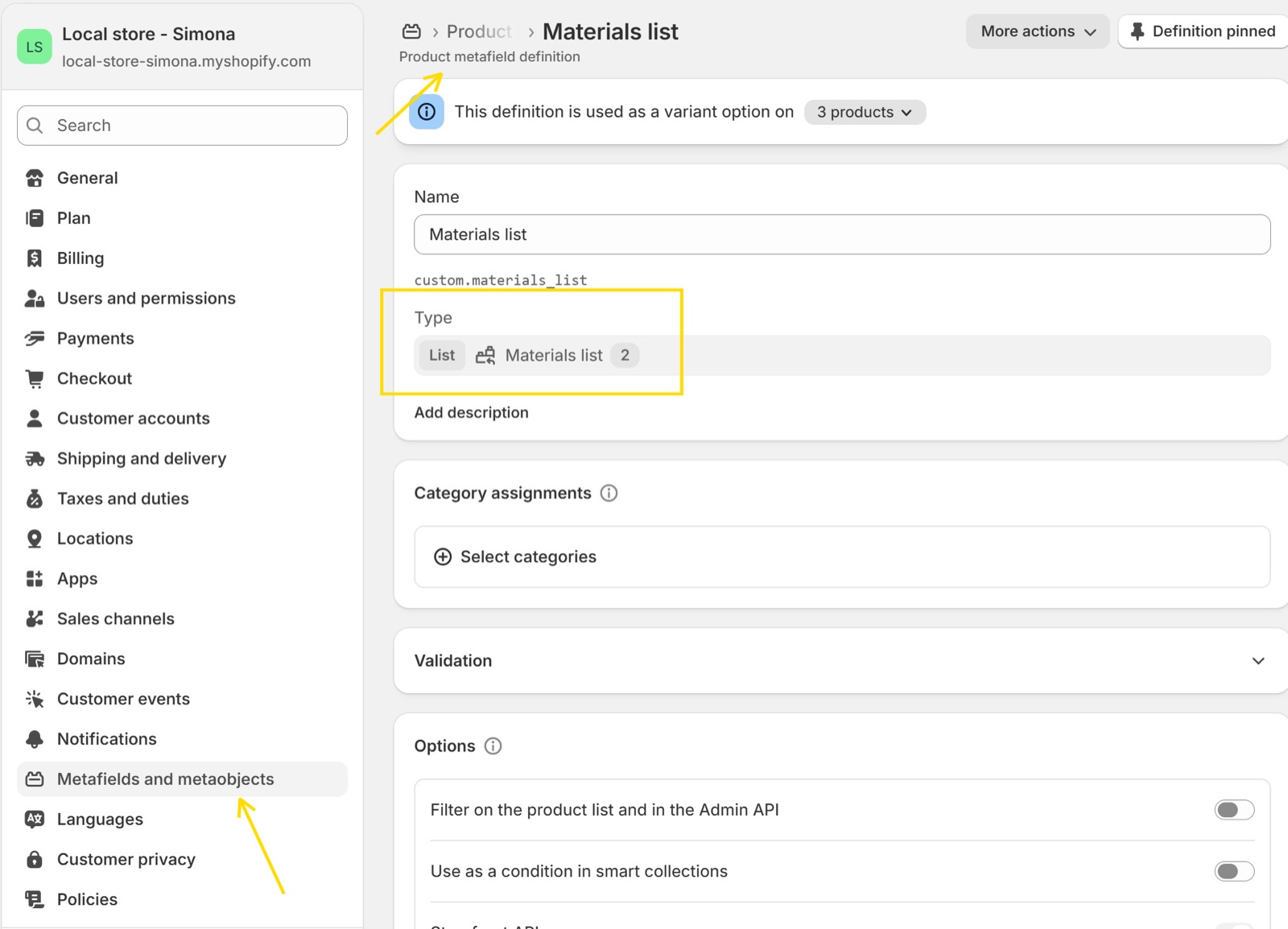
Open Settings → Metafields and metaobjects → Products and select Add definition. Name it, for example "Materials list" (custom.materials_list), choose the type Metaobject, select your definition and select List of entries. The list is required: the theme reads a list.
Fill the metafield on the product
Open the product, find the new metafield under Metafields and add the entries that its variants use.
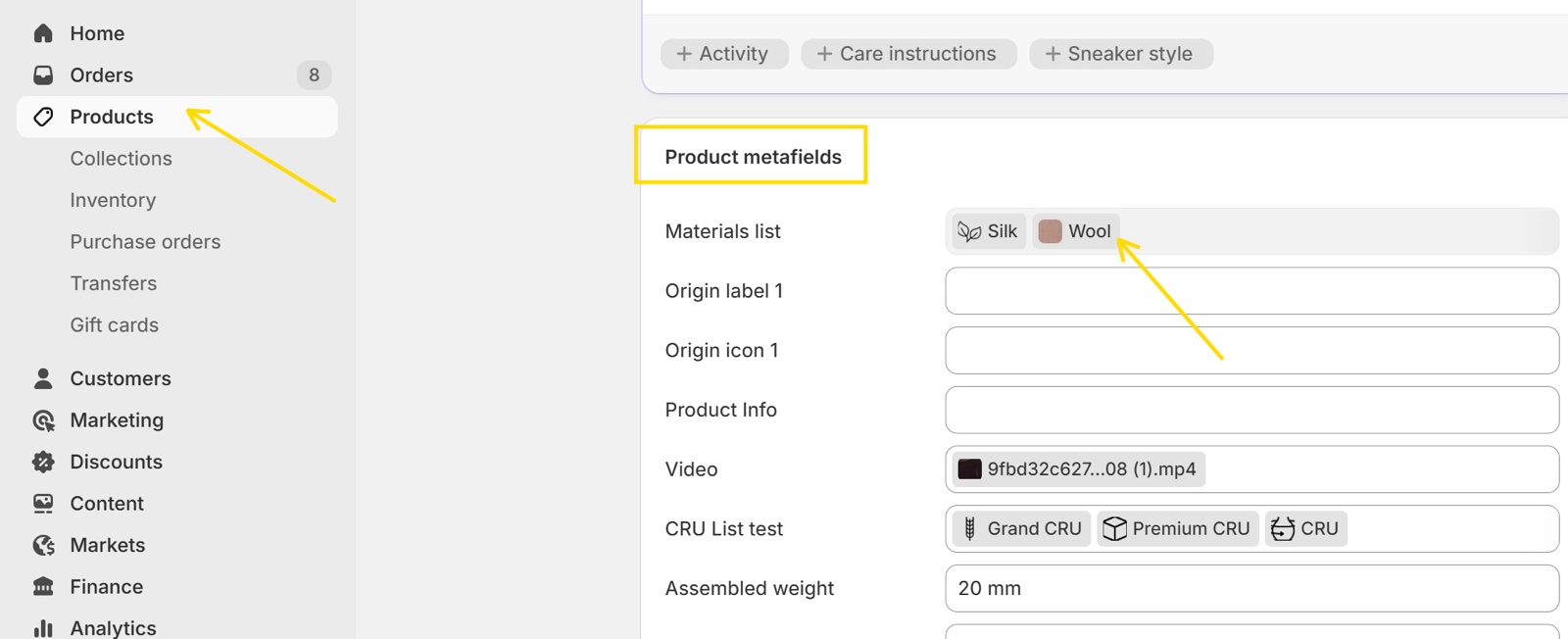
Add the option to the product
In the product's Variants card, select Add options and choose your metafield from the recommended list. Shopify fills the option values from the entries, so their names match the labels.
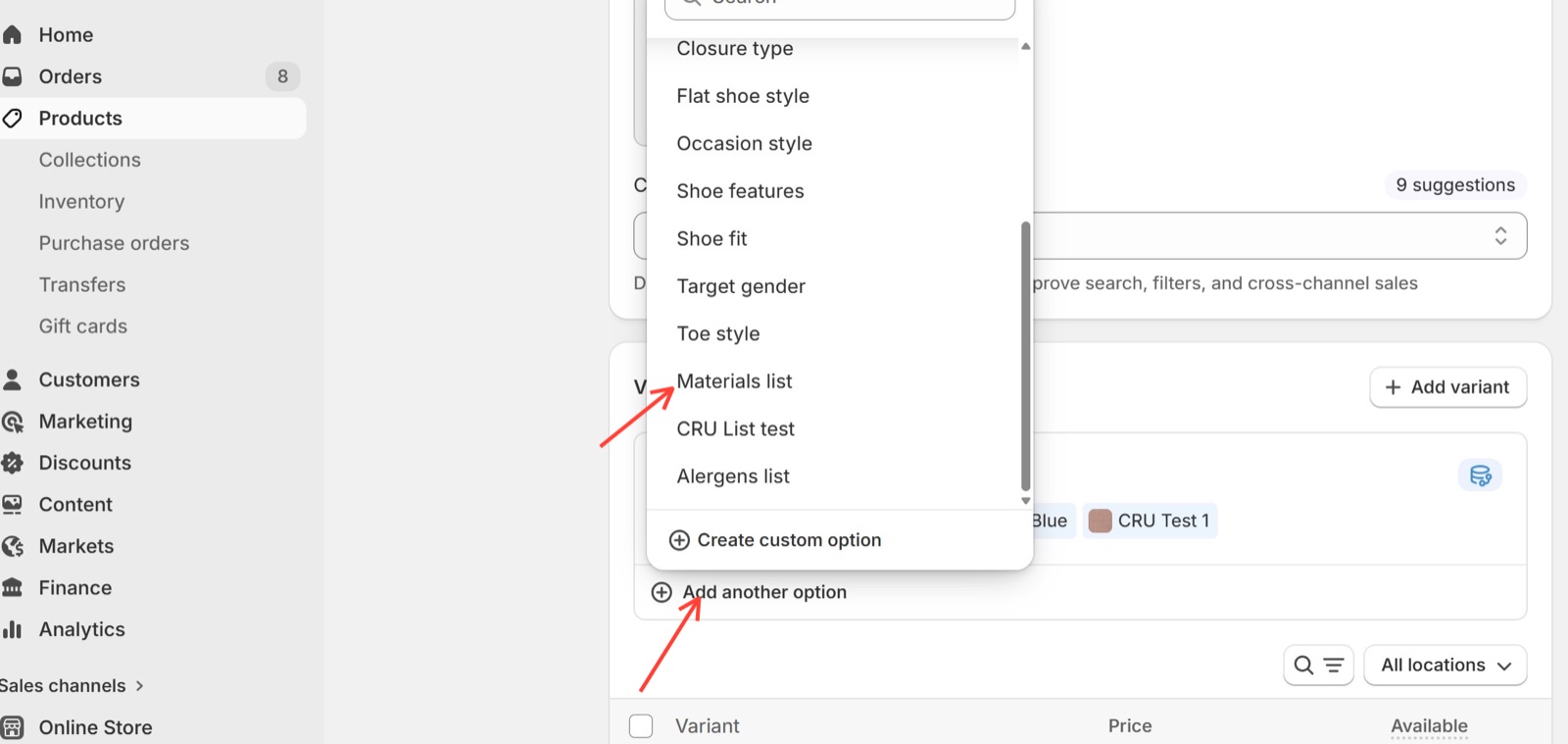
Configure the theme
In the theme editor, open Products → Default product → Product page and select the Variant picker block. Set Variants selector type to Blocks and type custom.materials_list in Metaobject swatch metafields. For several metafields, separate them with commas: custom.materials_list, custom.colors. Select Save.
Repeat in Featured product and Quick view
Type the same metafields in the Variant picker block of each Featured product section and of the Quick view popup (template picker → Products → quick-view), so product cards' quick buy shows the swatches too.
Make sure these fields are created exactly as specified above, as the theme relies on this structure to correctly render swatches.
How Local matches labels to option values
- Each option value is compared with the Label of the entries, exactly: "Silk" does not match "silk" or "Silk fabric". Spaces at the start and end of the label are ignored.
- With several metafields in the setting, the first metafield that has a matching label wins.
- An option value without a matching entry shows as a plain text button.
Make sure each Label value is unique across the metaobject entries, so that swatches are always displayed correctly.
Why does my option show text instead of a swatch?
Because Local found no swatch for that value. Check these points in order:
- Variants selector type is Blocks, not Dropdown.
- The product metafield is typed in Metaobject swatch metafields, as
namespace.key, in the template the product uses. - The metafield is a List of entries and holds an entry for this value on this product.
- The entry's Label matches the option value exactly, including capitals.
- The entry has an Image or a Color.
Do swatches work with the dropdown picker?
No. With Variants selector type set to Dropdown, the variant picker shows plain text choices, for Shopify swatches and metaobject swatches alike. Set it to Blocks to show swatches.
Related pages
- Product variant and buy blocks: the Variant picker block and its other settings.
- Featured product section: the same Variant picker on any page.
- Quick view popup: the template that quick buy opens from product cards.
- Troubleshoot product and collection pages: more answers about swatches and metafields.
Product variant and buy blocks
The variant and buy blocks of Local: the variant picker, product siblings, buy buttons with pre-order and gift card options, and custom properties.
Product availability blocks
The availability blocks of Local show store pickup availability for the selected store and a back in stock form for sold out products.