Product information blocks
The product information blocks of Local show the title, vendor, price, tax notice, SKU, badges, description, rating and share buttons on the product page.
Applies to: Local 4.2.1 and later. Added in: Local 1.0.0. Last checked: 2026-10-13 against Local 4.2.1.
The product information blocks show the facts about the product: its title, vendor, price, tax notice, SKU, badges, description, rating and share links. Most of them read Shopify product data and have few or no settings.
Where to find it: in the theme editor, open Products → Default product, select Product page, then Add block.
The same blocks exist in the Featured product section and the Quick view popup.
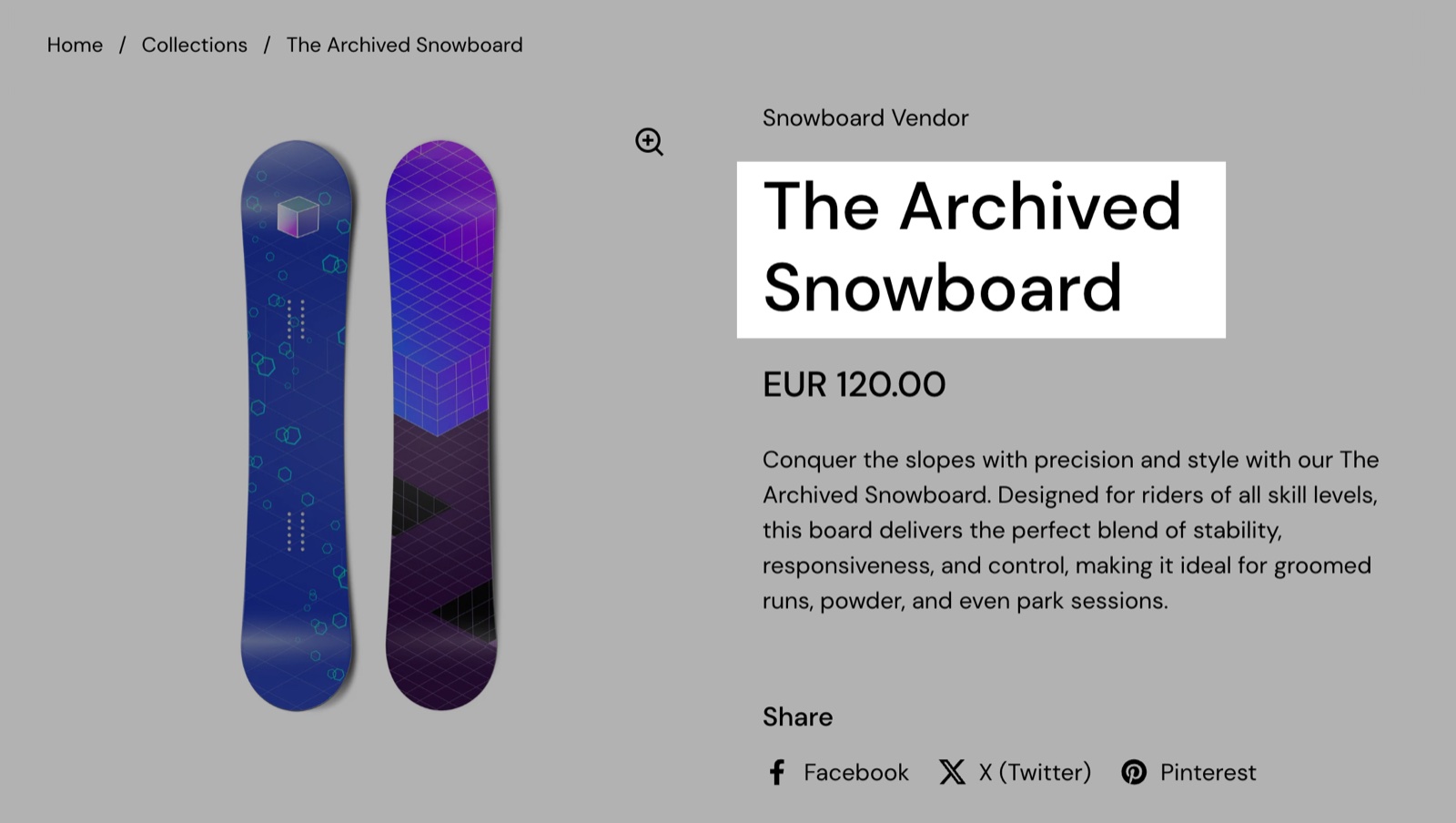
Title
The Title block shows the product name as the page's main heading (H1). It has no settings. One Title block per section.
Vendor
The Vendor block shows the product's vendor from Shopify admin, linked to a page with all products of that vendor.
- Text size sets Small, Regular or Large text.
Price
The Price block shows the price of the selected variant. One Price block per section.
- On sale, the compare-at price shows crossed out next to it.
- Variants with a unit price also show the unit price, for example "€2.50 / 100 g".
- With Shop Pay Installments turned on in Shopify, the installments message shows under the price.
- When no variant is selected yet (see Select the first available variant by default on the Product page), the block shows "From" and the lowest price.
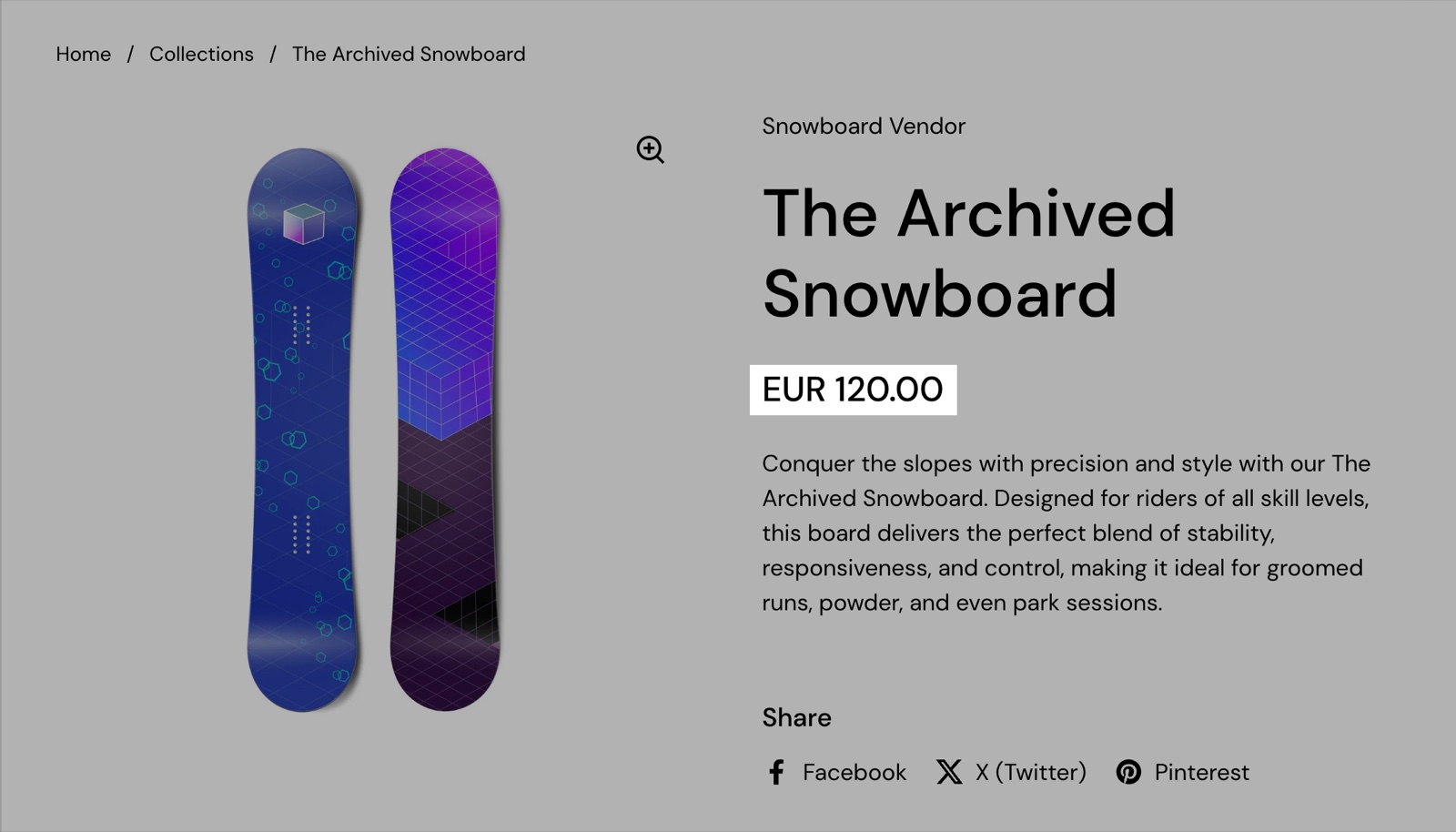
The Buy buttons block can show the price too, with the amount saved; see Product variant and buy blocks.
Tax information
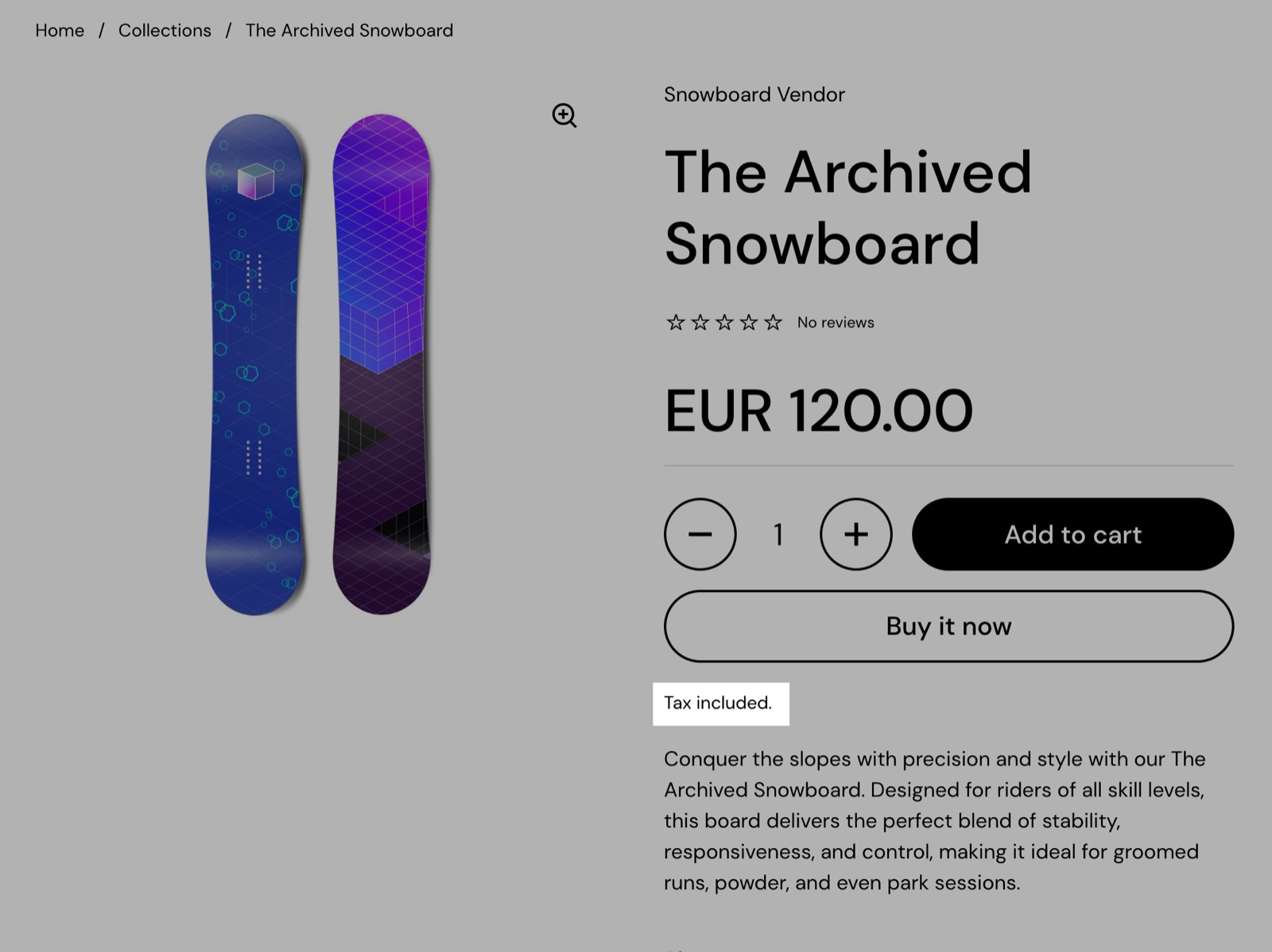
The Tax information block shows "Tax included." when your prices include tax, and "Shipping calculated at checkout." with a link to your shipping policy when you have one. Shopify decides both: tax in Shopify admin → Settings → Taxes and duties, the policy in Shopify admin → Settings → Policies. One Tax information block per section.
- Open links in opens the shipping policy in a Popup on the product page, in the Same window or in a New window.
SKU / barcode
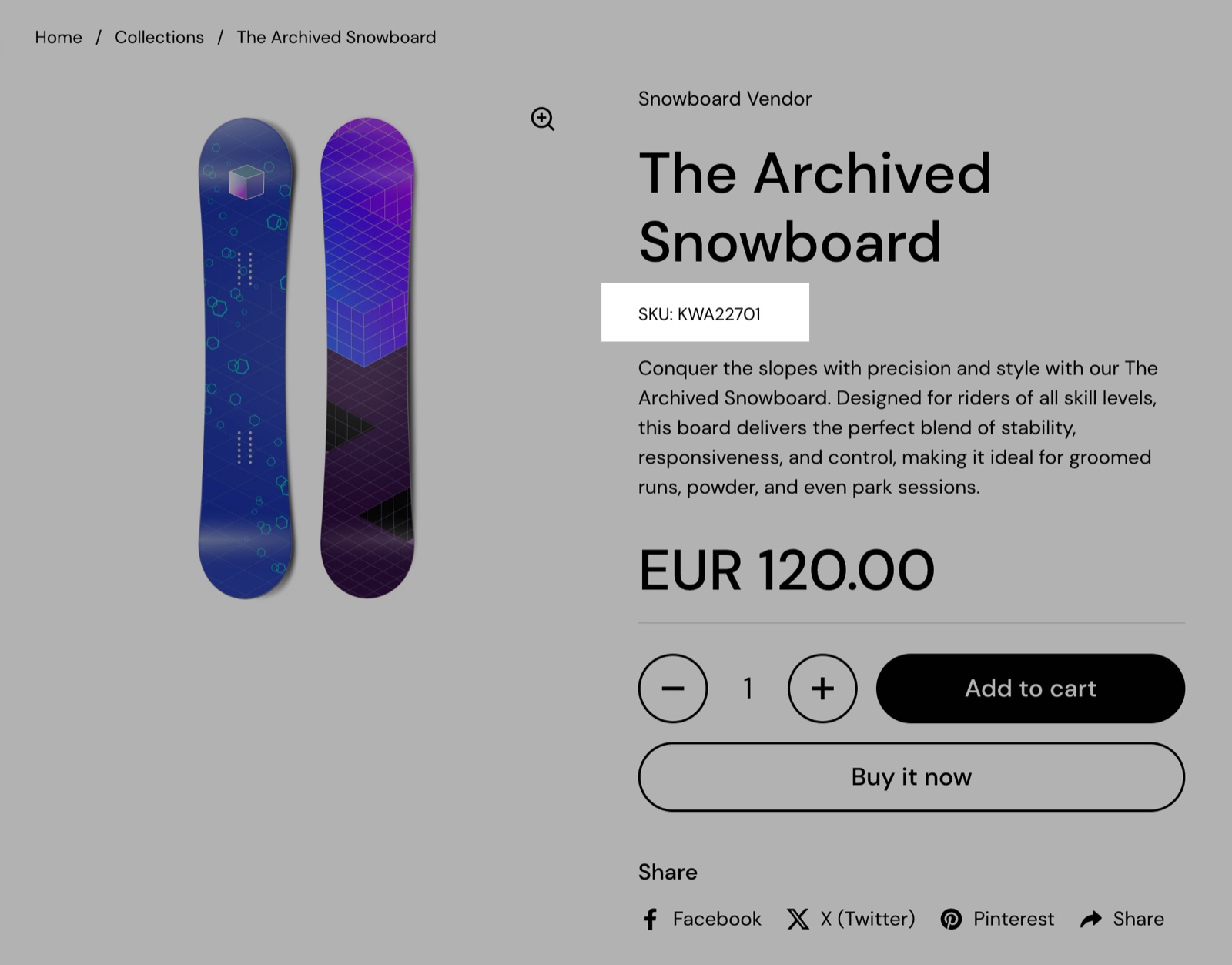
The SKU / barcode block shows the SKU and the barcode of the selected variant, each only when it is filled in Shopify admin. It updates when the customer changes the variant. It has no settings.
Product badges
The Product badges block shows the product's badges on the product page: Sold out, the discount badge and your custom badges. It has no settings of its own: the badges, their texts and colors come from Theme settings → Product badges. On the product page the discount badge shows the saving of the selected variant. See Product badges theme settings.
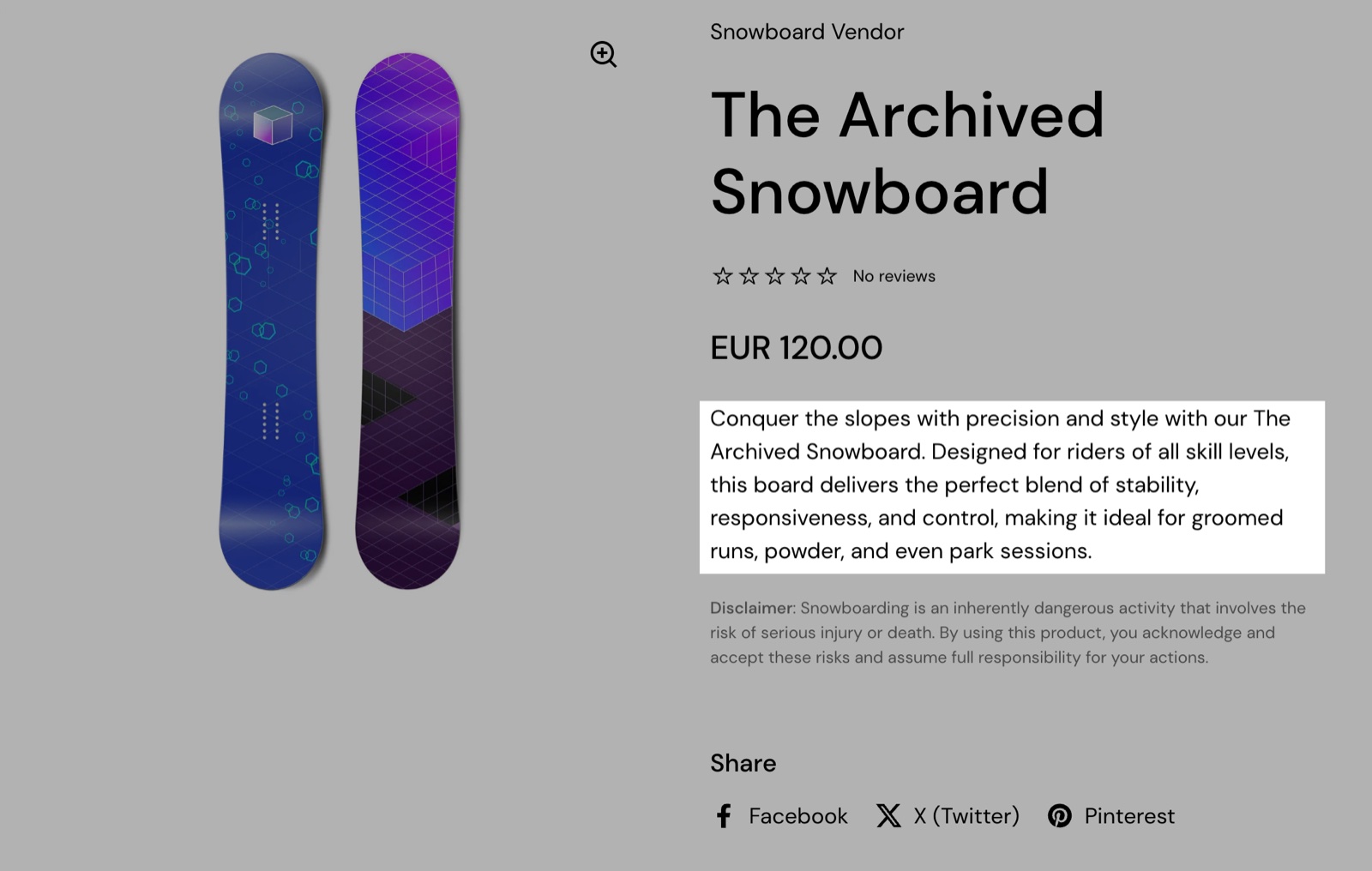
Description
The Description block shows the product description from Shopify admin. Products without a description show nothing.
- The Block Heading settings add a Title, Subtitle, Tooltip text and Icon above it.
- Turn on Collapsible to show the description as a tab that customers open. A collapsible description needs a Title.
- Layout shows it framed (Boxed) or plain (Compact, the default).
Product rating
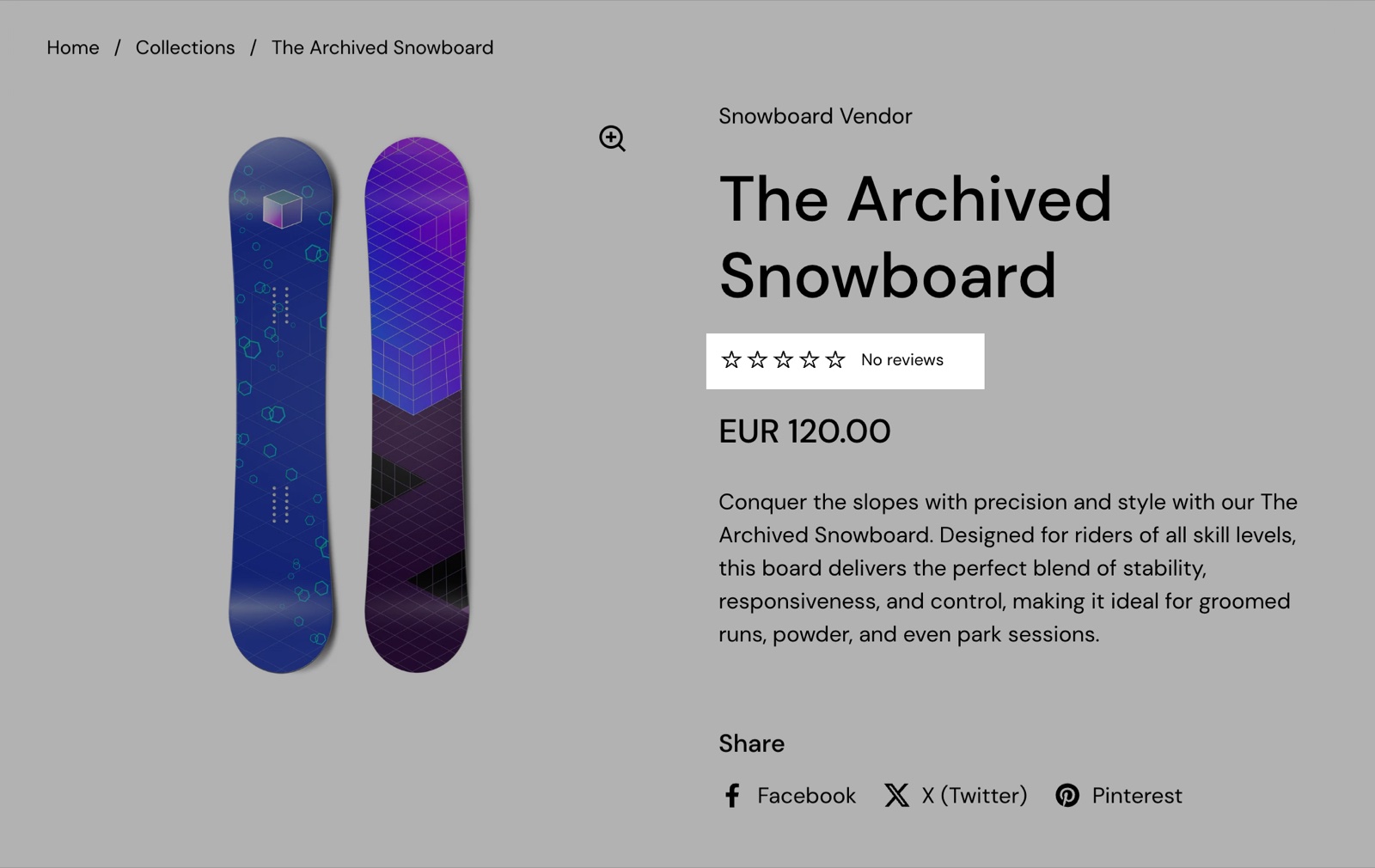
The Product rating block shows the product's star rating and number of reviews, or "No reviews", from your reviews app. It has no settings.
Make sure that you also set the app that you are using for reviews in Theme settings → Product card → Product rating → Rating app. You can also use app blocks to show product ratings instead of the block that comes with the theme.
Share
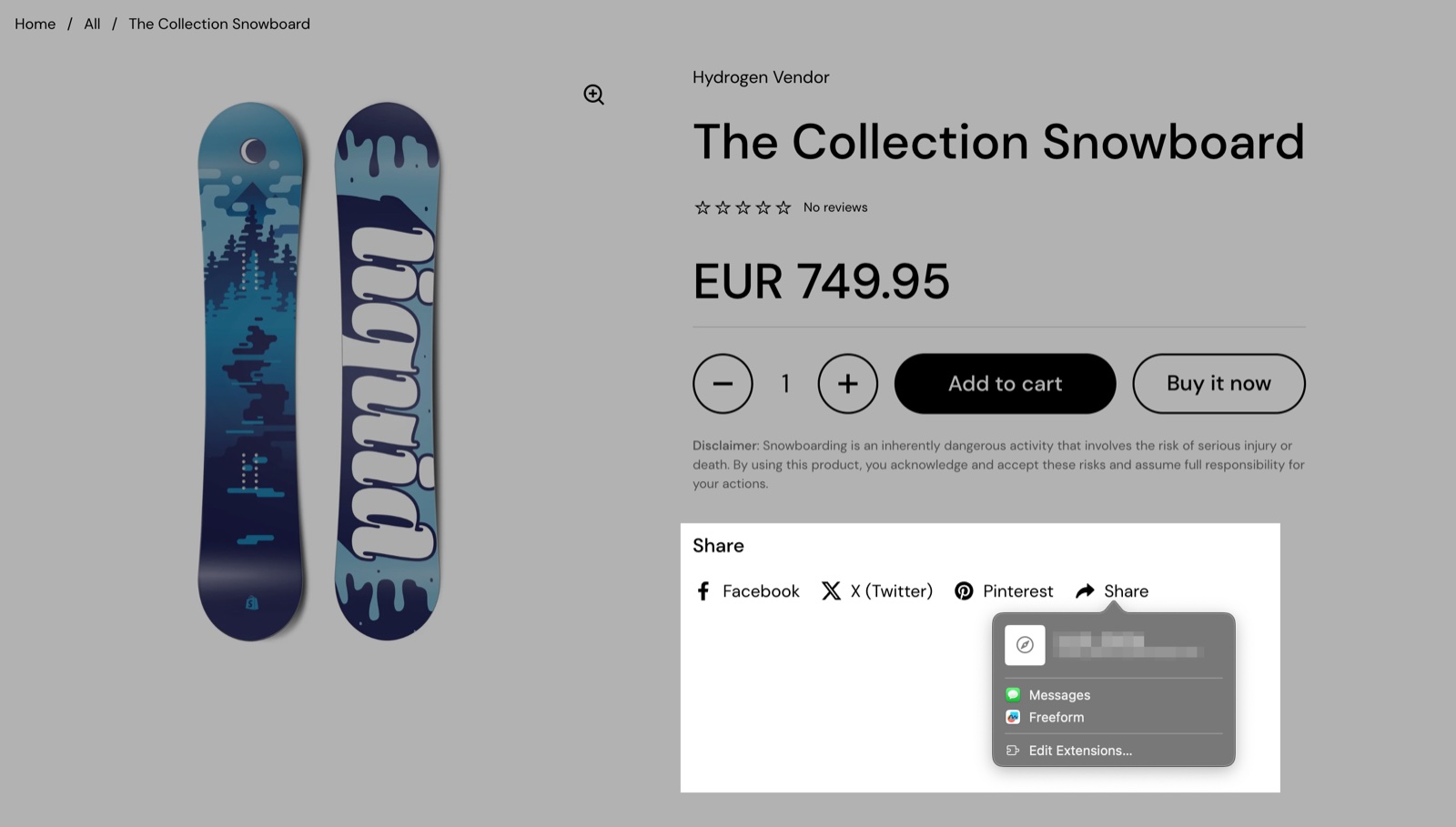
The Share block shows share links for the product page.
- Show Facebook, Show X and Show Pinterest add a link for each network. Pinterest shares the product's main image.
- Show custom link adds a "Share" link that opens the device's own share menu. Browsers without one show "Copy to clipboard" instead, which copies the product link.
- The Block Heading and Block Style settings work as on the other boxed blocks. The default title is "Share".
Why does the product rating not show?
Because the theme does not know which reviews app you use, or the product has no reviews yet. Select your app in Theme settings → Product card → Product rating → Rating app. Products without reviews show empty stars and "No reviews". Apps that are not in the list can add their own app block to the product page instead.
Can I show the description in a collapsible tab?
Yes. Select the Description block, type a Title under Block Heading, for example "Description", and turn on Collapsible under Block Style. Turn on Opened by default if the tab should be open when the page loads.
Why does the vendor link open a page with other products?
Because the Vendor block links to Shopify's vendor page, which lists every product with the same vendor. Shopify builds that page; the theme shows it with the collection template.
All Product information blocks settings
These blocks are part of the Product page section. Every setting of every block, with its type and default, is listed in All Product page settings.
Related pages
- Product page: the gallery, sticky add to cart and the full list of block settings.
- Product badges theme settings: the badges the Product badges block shows.
- Product card theme settings: the Rating app the Product rating block uses.
- Product content blocks: text, tabs, images and buttons for the product page.
Product page
The Product page of Local: the gallery and media settings, variant selection, sticky add to cart, and the blocks that build the product information.
Product content blocks
The product content blocks of Local add text, collapsible tabs, images, buttons, popups, text banners, custom code, dividers and space to the product page.