Product badges theme settings
The Product badges theme settings in Local show sold out and discount badges and up to three custom badges chosen by product tag.
Applies to: Local 4.2.1 and later. Added in: Local 1.0.0. Last checked: 2026-10-13 against Local 4.2.1.
Badges are the small labels in the top right corner of product images. Local shows the sold out and discount badges automatically, and up to three custom badges for products with a tag you choose.
Where to find it: Theme settings → Product card → Product badges (and the badge groups below it)
Showing badges
- Show badges turns the badges on product cards on or off. It changes product cards only: on the product page, badges come from the Product badges block, see Product information blocks.
- Every badge has its own background and text color.
- Badges sit at the top right of the image (top left in right-to-left languages).
Sold out badge
The Sold out badge appears when the product, or on the product page the selected variant, is not available.
- 'Sold out' background color and 'Sold out' text color set its colors.
Discount badge
The discount badge appears when a product is on sale: its compare-at price, set on the product in Shopify admin, is higher than its price.
- Show discount as... chooses what the badge says:
- Percentage: the saving in percent, for example "-20%".
- Text: "On Sale".
- Amount saved: "Save" and the amount, for example "Save $10.00".
- 'Discount' background color and 'Discount' text color set its colors.
When the variants of a product have different prices or compare-at prices, product cards show "On Sale" instead of a percentage or an amount. On the product page, the badge shows the exact saving of the selected variant.
The badge texts "Sold Out", "On Sale" and "Save" are theme texts. Change them in Shopify admin → Online Store → Themes → … → Edit default theme content.
Custom badges
Local has three custom badges: Custom badge 1, 2 and 3. Each one shows on every product that has its tag.
- Text is what the badge says, for example "New".
- Tag is the product tag that turns the badge on, for example
new. One tag per badge. - Background color and Text color set its colors.
Custom badge 1 starts as "New" with the tag new, and Custom badge 2 as "Pre Order" with the tag preorder. Custom badge 3 is empty. A badge with an empty Tag never shows.
Setting up custom badges with product tags
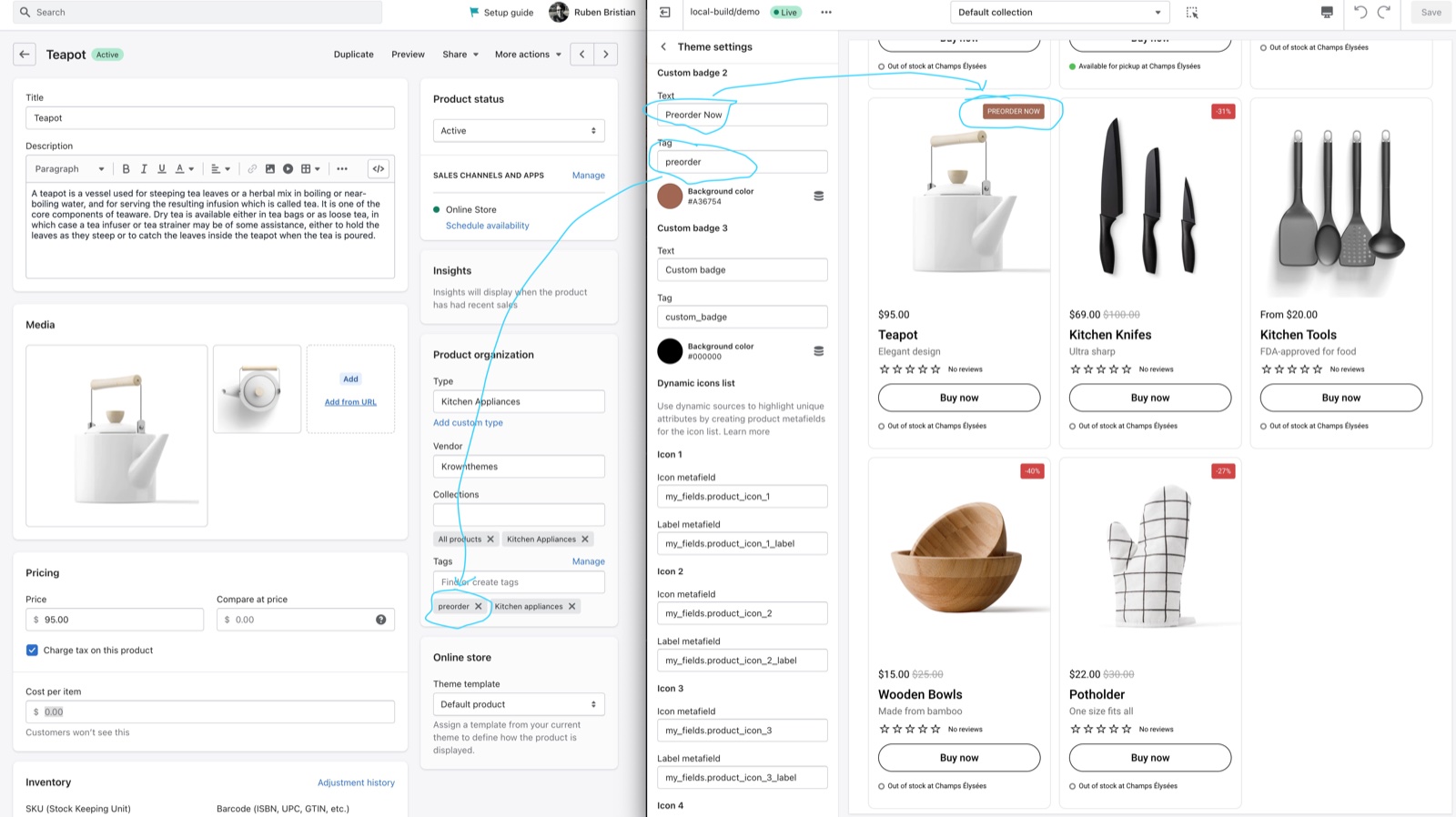
Tag your products
In Shopify admin → Products, open a product and type the tag in Tags, for example new. Repeat for every product that should get the badge. To tag many products at once, see Bulk edit your products.
Open the custom badge
In the theme editor, open Theme settings → Product card and scroll to Custom badge 1 (or 2 or 3).
Write the text and the tag
Type the badge label in Text and the tag in Tag, exactly as it is written on the products, with the same capitals and spaces.
Choose the colors
Set Background color and Text color, then repeat the steps for the other custom badges you need.
Check that badges are on
Make sure Show badges is on (Theme settings → Product card → Product badges), and select Save. Product cards of tagged products now show the badge; on the product page it shows through the Product badges block.
Why does my discount badge say On Sale instead of a percentage?
Because the product's variants have different prices or compare-at prices. Product cards then show "On Sale", since one percentage would not be true for every variant. Give all variants the same price and compare-at price to see the percentage or the amount on the card; the product page always shows the selected variant's saving.
Why does my custom badge not show?
Because the tag on the product does not match the Tag setting exactly. Local compares the whole tag, with capitals: New and new are different tags. Also check that Show badges is on and that the badge has a Text.
Can I add more than three custom badges?
Not with theme settings. Local has three custom badges, a limit set for design reasons. A developer can add more in the theme code, see Code tweaks; Krown support does not make that change for you.
All Product badges settings
Every setting, with its type and default.
Product badges theme settings: Product badges
Where to find it: Theme settings → Product card → Product badges
Show badges (checkbox, default: on): Shows badges on the images of product cards. The product page shows badges through its Product badges block instead.
Product badges theme settings: Sold out badge
Where to find it: Theme settings → Product card → Sold out badge
'Sold out' background color (color, default: #757575): Sets the background of the badge shown on sold out products.
'Sold out' text color (color, default: #ffffff): Sets the text color of the Sold Out badge.
Product badges theme settings: Discount badge
Where to find it: Theme settings → Product card → Discount badge
Show discount as... (dropdown, default: Percentage): Sets the discount badge text: Text shows On Sale, Percentage shows the saving in percent (-20%), Amount saved shows Save and the amount. Product cards of products whose variants have different prices or compare-at prices always show On Sale. Options: Text, Percentage, Amount saved.
Products with varying prices across variants will show a generic 'Sale' badge. Shown only when Show discount as... is not Text.
'Discount' background color (color, default: #D14545): Sets the background of the discount badge, shown when the compare-at price is higher than the price.
'Discount' text color (color, default: #ffffff): Sets the text color of the discount badge.
Product badges theme settings: Custom product badges
Where to find it: Theme settings → Product card → Custom product badges
This theme uses custom product badges that you can define here.
Product badges theme settings: Custom badge 1
Where to find it: Theme settings → Product card → Custom badge 1
Text (text field, default: "New"): Sets the label of custom badge 1.
Tag (text field, default: "new"): Sets the product tag that shows custom badge 1, matched exactly, with capitals. One tag per badge; an empty tag hides the badge.
Background color (color, default: #3C863B): Sets the background of custom badge 1.
Text color (color, default: #ffffff): Sets the text color of custom badge 1.
Product badges theme settings: Custom badge 2
Where to find it: Theme settings → Product card → Custom badge 2
Text (text field, default: "Pre Order"): Sets the label of custom badge 2.
Tag (text field, default: "preorder"): Sets the product tag that shows custom badge 2, matched exactly, with capitals. One tag per badge; an empty tag hides the badge.
Background color (color, default: #A36754): Sets the background of custom badge 2.
Text color (color, default: #ffffff): Sets the text color of custom badge 2.
Product badges theme settings: Custom badge 3
Where to find it: Theme settings → Product card → Custom badge 3
Text (text field): Sets the label of custom badge 3.
Tag (text field): Sets the product tag that shows custom badge 3, matched exactly, with capitals. One tag per badge; an empty tag hides the badge.
Background color (color, default: #000000): Sets the background of custom badge 3.
Text color (color, default: #ffffff): Sets the text color of custom badge 3.
Related pages
- Product card theme settings: media, caption and buy buttons of product cards.
- Product information blocks: the Product badges block on the product page.
- Code tweaks: more than three custom badges, with code.
Product card theme settings
The Product card theme settings set the media, caption, buy buttons, colors and rating app of every product card in Local.
Dynamic icons list theme settings
The Dynamic icons list theme settings connect up to six icon and label metafields, so Local shows product features as icons in product cards.