FAQ section
The FAQ section in Seventh is a Multicolumn preset of questions and answers in accordion blocks, boxed or classic.
Applies to: Seventh 4.0.0 and later. Added in: Seventh 1.0.0. Last checked: 2026-10-12 against Seventh 4.0.0.
The FAQ section shows frequently asked questions as accordion blocks next to a contact form. It is a preset of the Multicolumn section, in two versions: FAQ: boxed and FAQ: classic.
Where to find it: select Add section in the theme editor, then choose FAQ: boxed or FAQ: classic. The default FAQ page template (page.faq) uses a Multicolumn section with Accordion blocks in one column, without a form.
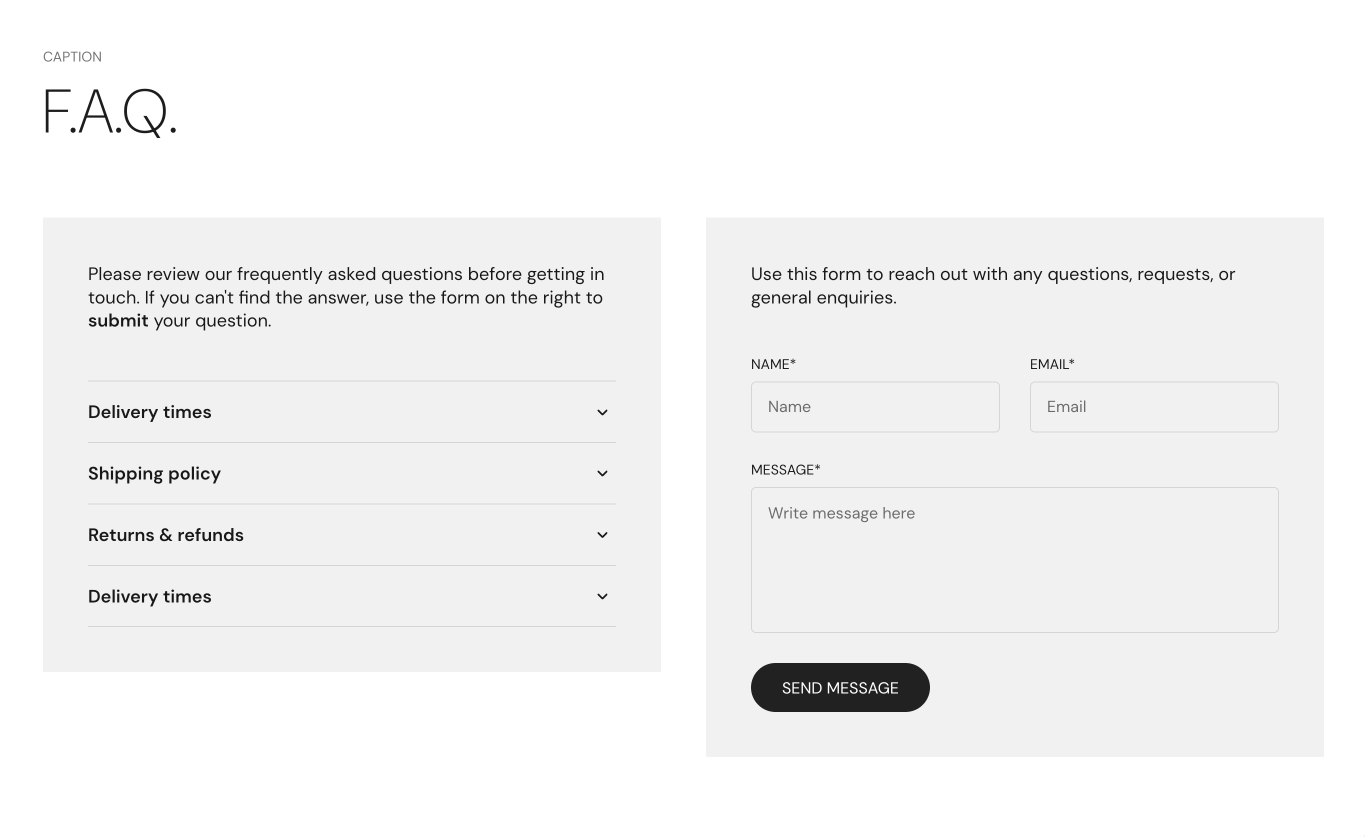
What the section contains
Both FAQ presets add the same content, in two columns:
- A section header with a Caption and a Heading ("F.A.Q.").
- Column 1: a Text block with an introduction, then four Accordion blocks. Each Accordion holds a title (the question) and a Text block (the answer).
- Column 2: a Contact form block with a Text block, the Name & email fields, a Message field and a Submit button.
The FAQ section has no settings of its own:
- Layout, color scheme and spacing are the Multicolumn section settings, listed in Multicolumn section.
- For the question and answer settings, see Accordion block.
- For the form, see Contact form block.
Tip: Read about general section styling here: Seventh section general styles.
Adding a question
Open the questions column
In the theme editor, select the FAQ section, then the Card or Column that holds the Accordion blocks.
Add an Accordion block
Select Add block and choose Accordion. Enter the question in its title.
Add the answer
Select Add block inside the new Accordion and choose Text. Enter the answer.
Use concise questions and short answers to keep the section easy to scan.
What is the difference between FAQ: boxed and FAQ: classic?
The two presets differ in the container and the column widths.
FAQ: boxed places each column in a Card, so the questions and the form each sit on their own background with padding. Desktop columns is Standard: 2 columns (two equal columns), and tablets and phones also show 2 columns. Card settings are listed in Blank card.
Can I remove the contact form?
Yes. Select its Card or Column and remove it, then set Desktop columns to Standard: 1 column.
Related pages
- Multicolumn section: the section that holds the settings of this preset.
- Accordion block: the question and answer blocks.
- Contact form block: the form next to the questions.
- Contact form section: a form without the questions.
Custom HTML / Liquid
The Custom HTML / Liquid section in Seventh holds your own HTML or Liquid code, or any theme block, with the standard section design.
Featured collection
The Featured collection section shows products from one collection as product cards in a grid, editorial layout or slider in Seventh.