Social icons block
The Social icons block in Seventh shows icons that link to your social media accounts, taken from Social theme settings.
Applies to: Seventh 4.0.0 and later. Added in: Seventh 1.0.0. Last checked: 2026-10-12 against Seventh 4.0.0.
The Social icons block shows a row of icons that link to your social media profiles, email and phone. The links come from Theme settings → Social, so every Social icons block in the store shows the same icons.
Where to find it: select Add block inside a section or card in the theme editor, then choose Social icons.
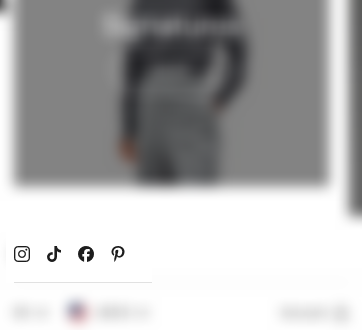
Choosing the icons
The block has no settings. Add or remove profiles in Social theme settings.
- The block shows one icon for each field that has a link.
- The order is fixed: Instagram, TikTok, Facebook, Pinterest, X (Twitter), YouTube, Vimeo, Twitch, Threads, Discord, Snapchat, Wechat, WhatsApp, Email, Phone, then a custom link with your own icon.
- The icons follow the Text alignment of the card that holds them.
- The links open in a new window.
Common use cases
- Footer social links.
- Contact or about sections.
Why are my social icons not showing?
Because no social links are filled in. The block shows nothing until at least one field in Theme settings → Social has a link. Paste the full address of each profile, for example https://instagram.com/yourstore.
Can I add a social network that is not in the list?
Yes, one. In Theme settings → Social → Custom link, upload an Icon (72 x 72 px transparent PNG) and type the Link. Seventh does not support more than one custom network. For more, use Icon blocks with links in a Content group.
All Social icons settings
Every setting in this group, with its type and default.
To setup social profiles, go to Theme settings → Social.
Related pages
- Social theme settings: where the social links are set.
- Footer group: where Social icons blocks are most often used.