Image block
The Image block in Seventh shows an image with its own width, corner radius, link and optional zoom inside a section or card.
Applies to: Seventh 4.0.0 and later. Added in: Seventh 1.0.0. Last checked: 2026-10-12 against Seventh 4.0.0.
The Image block shows one image inside a section or card, with an optional link or an optional zoom that opens the full image in a modal.
Where to find it: select Add block inside a section or card in the theme editor, then choose Image.
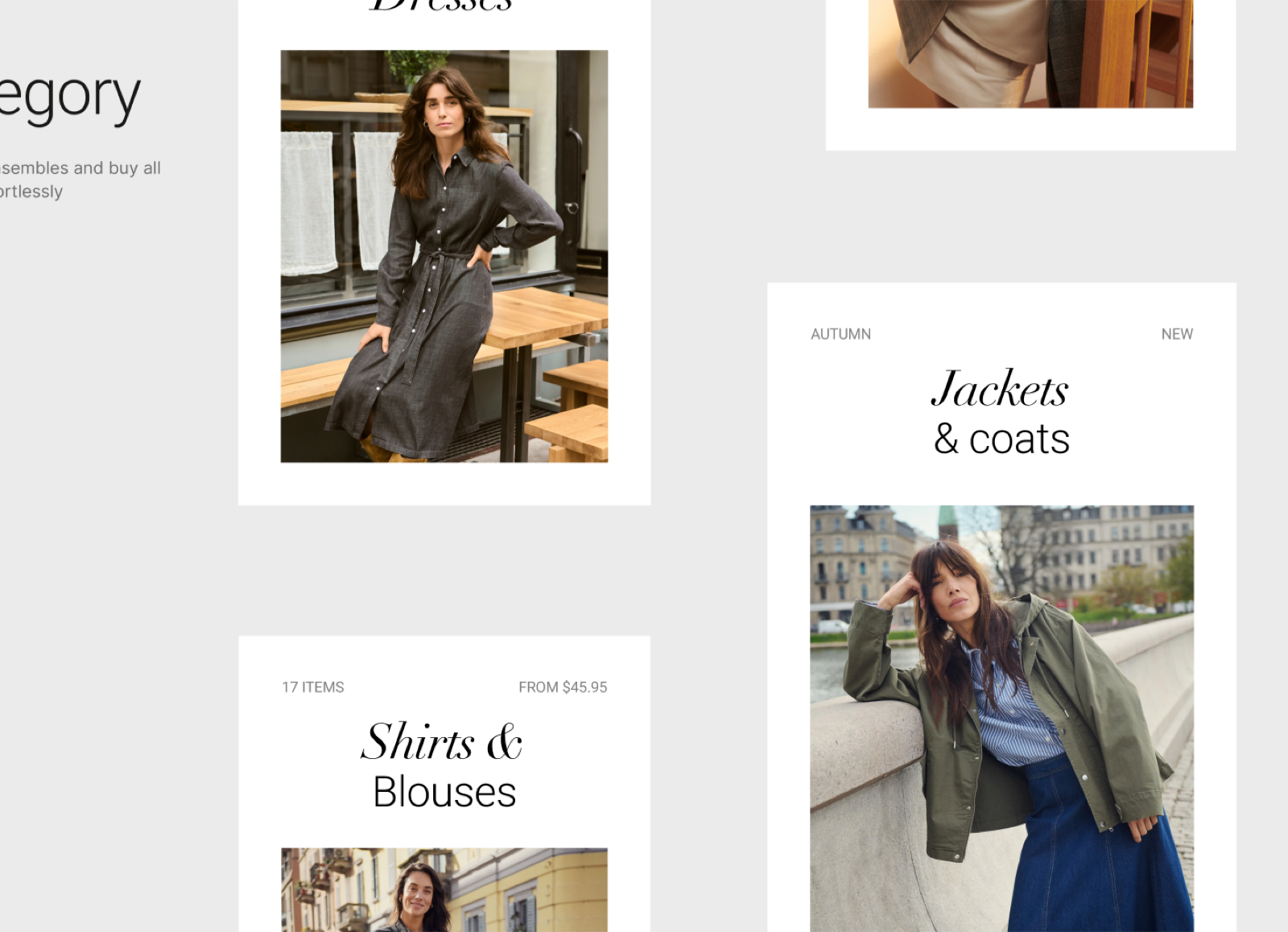
Size and shape
The image keeps its own shape (its natural aspect ratio). There is no aspect ratio setting, so upload images with the same proportions when several should match.
- Image width sets how much of the available width the image takes, from 10 to 100 percent.
- Corner radius rounds its corners.
Both settings exist since Seventh 2.1.0.
Zoom
Turn on Enable image zoom to let customers open the image large in a modal. Zoom works only when Link is empty, because a linked image opens its link instead.
Common use cases
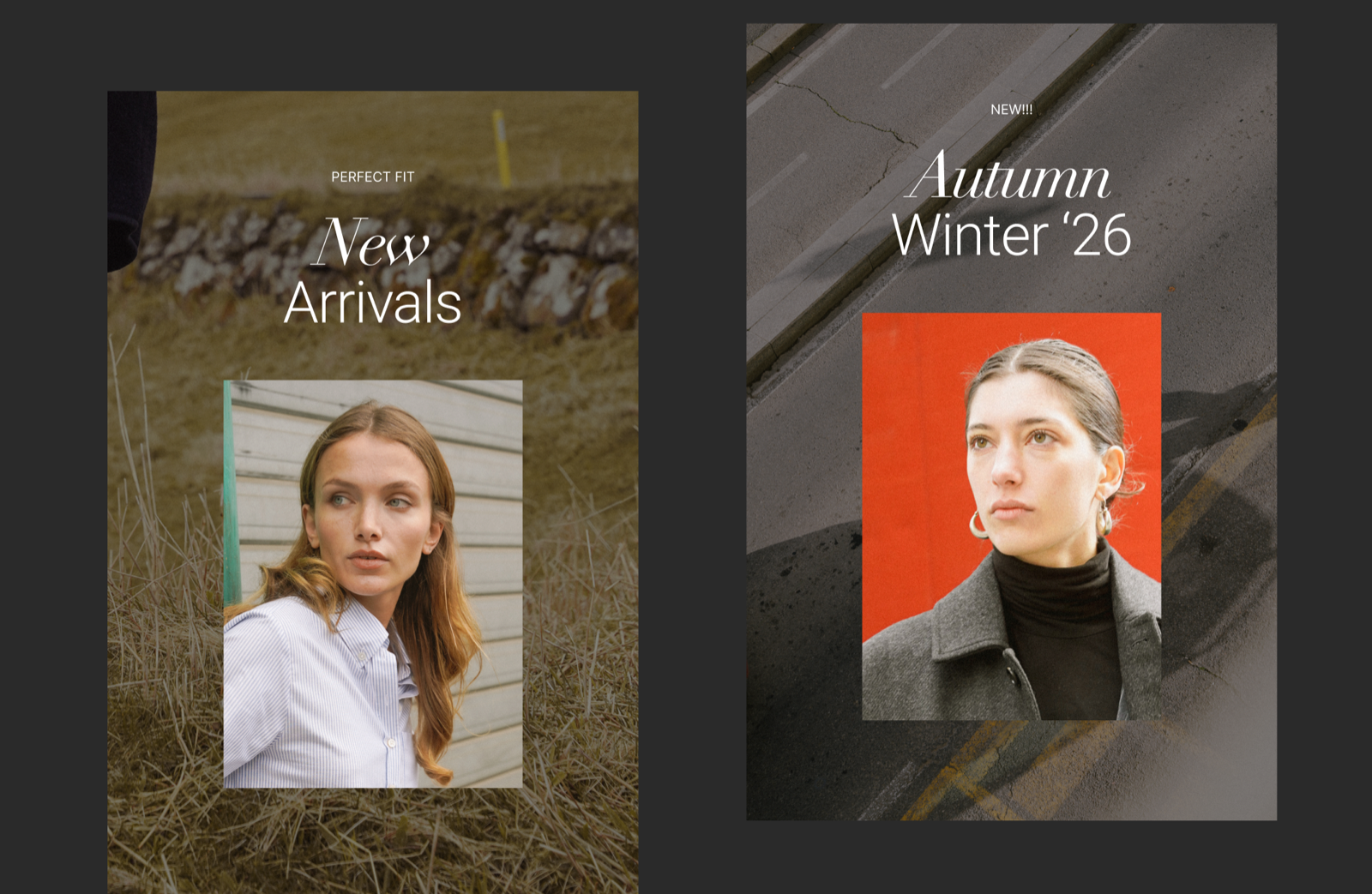
Promotional cards
- Banners for sales or announcements, linked to a collection, product or landing page.
- Marketing visuals for hero sections and homepage highlights.
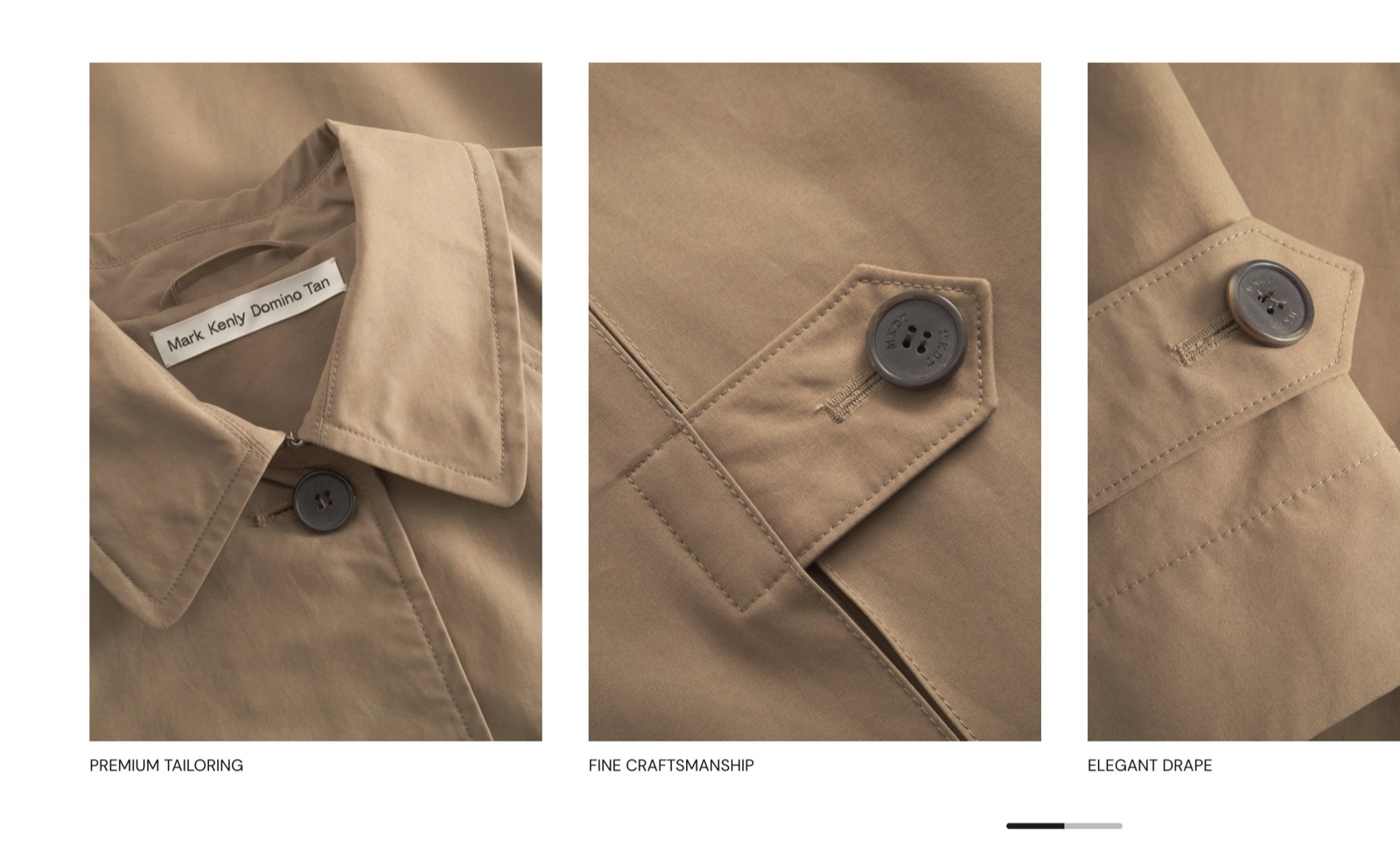
Media galleries
- Image galleries, lookbooks or editorial photography.
- Optionally link each image to a product page.
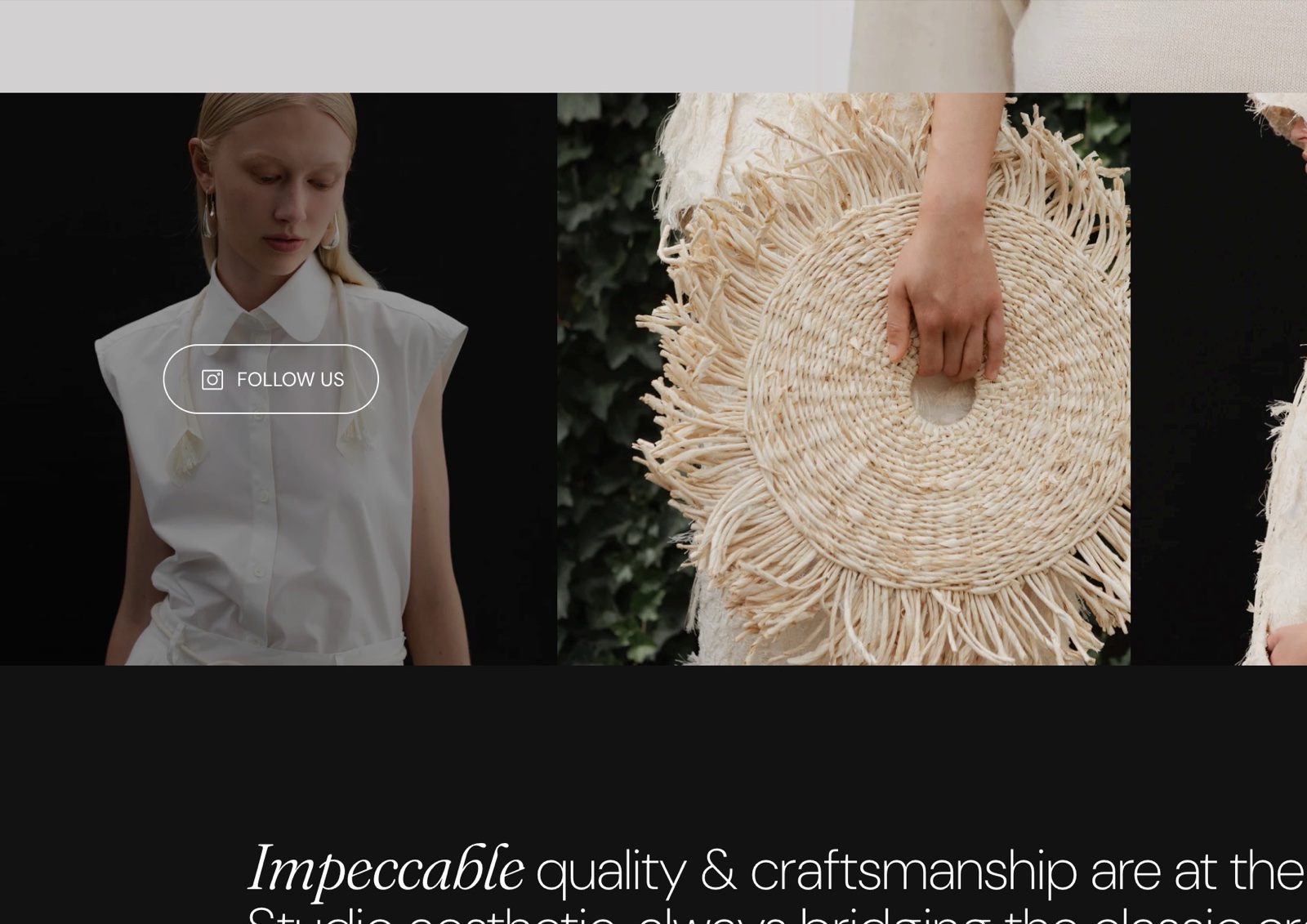
Social proof
- Customer photos from Instagram, TikTok or your community.
- Often paired with a call to action like "Follow us" or "Shop the look".
Tips for success
- Use high-resolution images, optimized for the web.
- Use WebP or JPG for photos, PNG for graphics with transparency.
- Add descriptive alt text when you upload an image.
- Make it clear when an image is clickable, and link it to related content.
Can the Image block show a product or metafield image?
Yes. Connect Image to a dynamic source, for example a product metafield of type file. Turn on Hide block if dynamic content is not present to hide the block when the source is empty; otherwise the block shows a placeholder.
Why does the Image block link not open in a new window?
Because of an issue in Seventh 4.0.0: Open link in a new window has no effect in the Image block, so its link always opens in the same window. To open a link in a new window, put it on a Button block or on the card link of a Card. Open link in a new window works in both.
All Image settings
Every setting in this group, with its type and default.
Image (image).
Link (link): Makes the image a link to a product, collection, page or web address.
Open link in a new window (checkbox, default: off). Shown only when Link is set.
Enable image zoom (checkbox, default: off): Opens the image large in a popup when a customer selects it. Available only when Link is empty. Shown only when Link is empty.
Corner radius (dropdown, default: None): Sets the corner rounding of the image. Options: None, Slighty rounded, Rounded, Fully rounded.
Image width (slider 10 to 100 %, default: 100 %): Sets how much of the available width the image takes.
Image block: Dynamic content
Where to find it: Image → Dynamic content
Hide block if dynamic content is not present (checkbox, default: off): Hides the block when Image is connected to a dynamic source, for example a metafield, that is empty.
Related pages
- Video block: a video in the same place.
- Image section: a Custom grid preset with a single large image.
- Blank card: the Image card preset of the Card block.