Color swatches theme settings
The Color swatches theme settings of Borders turn color options into swatches on product pages, in quick buy and in filters, from names, files or metafields.
Applies to: Borders 3.1.0 and later. Added in: Borders 1.0.0. Last checked: 2026-10-13 against Borders 3.1.0.
Color swatches show product color options as small round color or pattern samples instead of text. Borders shows them in the Variant picker on the product page and in Featured product, in the quick buy card of product cards, and in the collection and search filters.
Where to find it: Theme settings → Color swatches
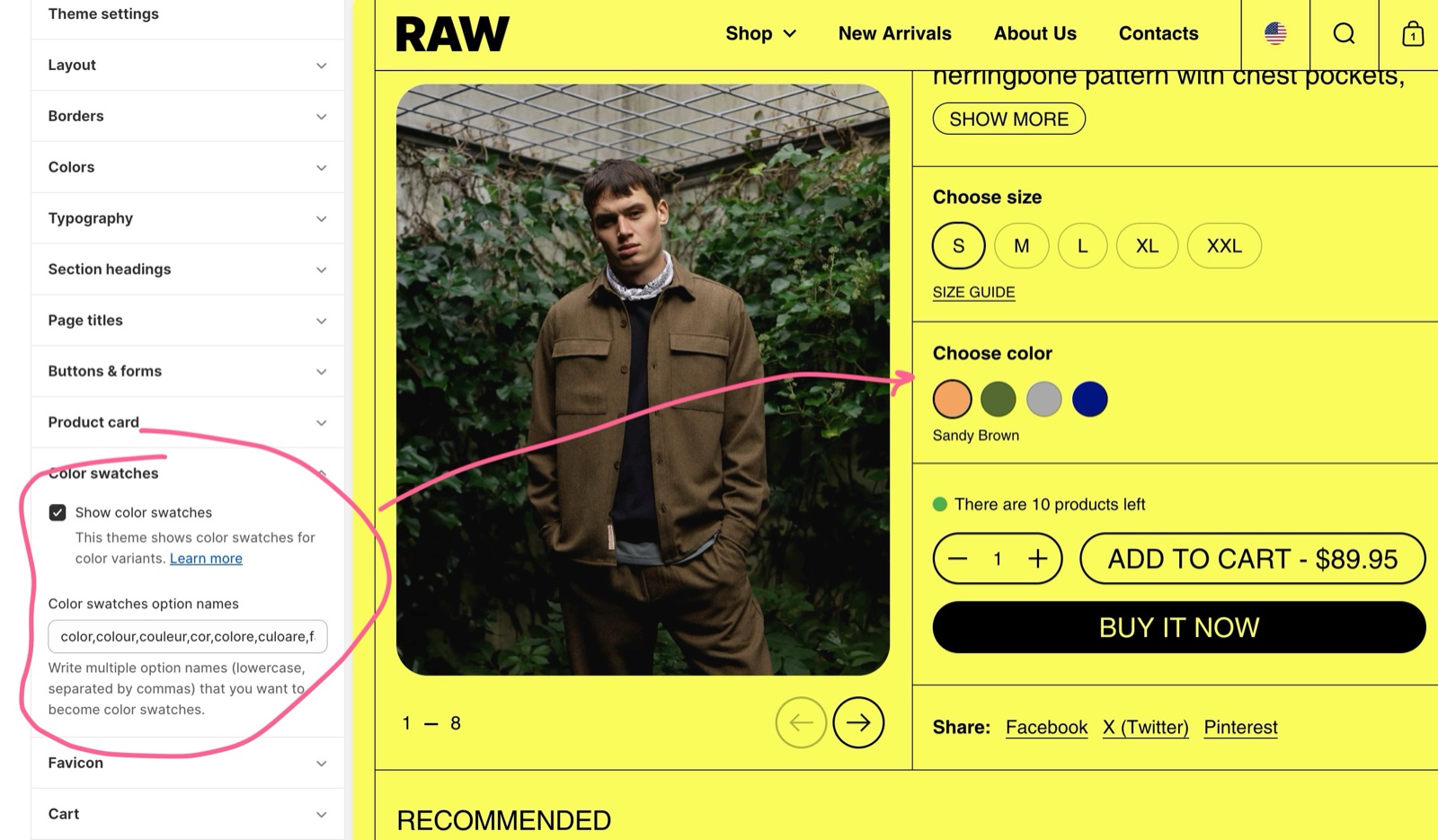
Choose which options become swatches
- Show color swatches turns swatches on for the whole store (default: on).
- Color swatches option names lists the option names that become swatches. The default list holds "color" in 14 languages:
color,colour,couleur,cor,colore,culoare,farbe,색,色,カラー,färg,farve,szín,barva. - If your option is called something else, for example "Shade" or "Finish", add its name to the list.
- Options whose values have Shopify swatch data (category metafields, see below) become swatches even when their name is not in the list.
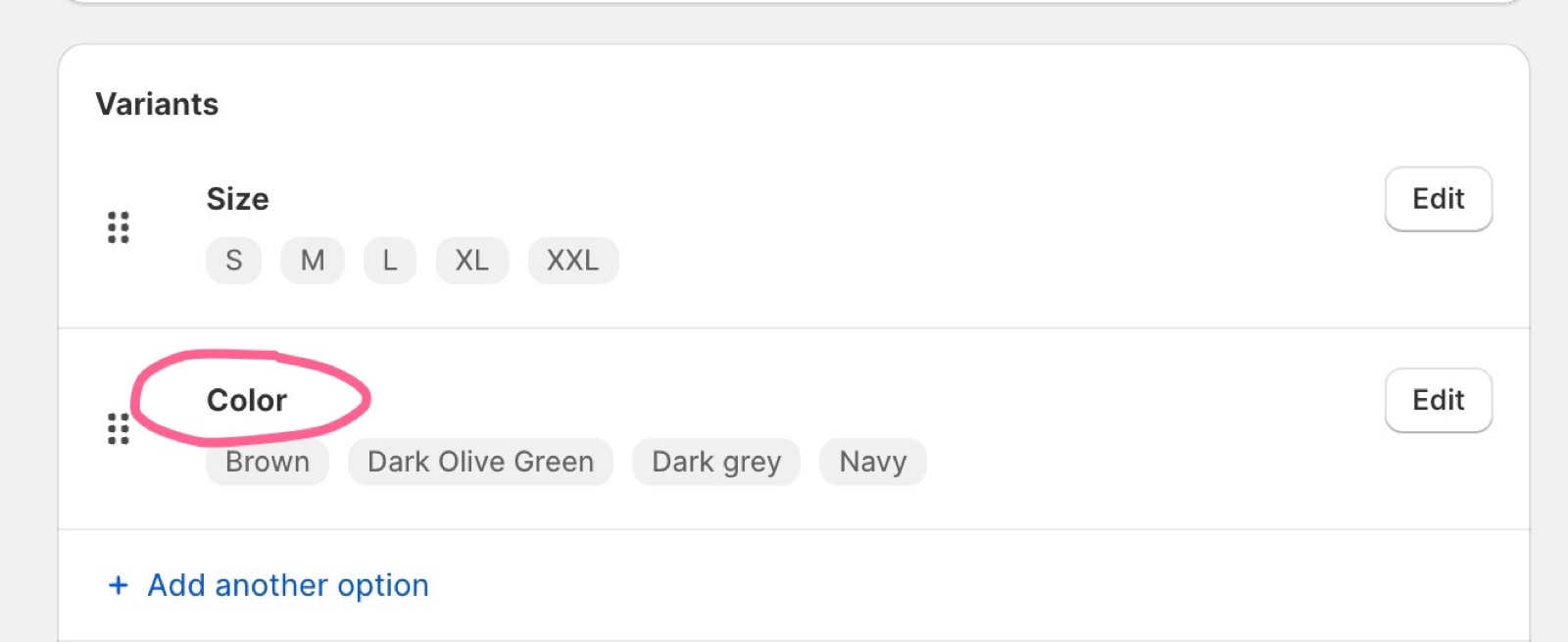
Make sure that you write this in lowercase.
Where swatch colors come from
For each option value, Borders uses the first of these that exists:
- The image of the value's Shopify swatch (category metafield), set in Shopify admin.
- The color of the value's Shopify swatch.
- An image file in Shopify admin → Content → Files named after the value, for example
dark-grey.pngfor "Dark Grey". - The value itself as a web color name: "Navy", "Dark Grey" or "SandyBrown" work because browsers know them as web color names. Spaces are ignored.
Shopify's category metafield swatches are set per product category in Shopify admin; see Shopify's guide to category metafields.
For options that are not colors, such as materials, the Variant picker block can show images or colors from metaobjects (metaobject swatches, Borders 3.0.0 and later). That setup is on the Product page.
Use your own swatch images
Use images for complex colors and patterns (stripes, gradients, prints), when a color name is not enough.
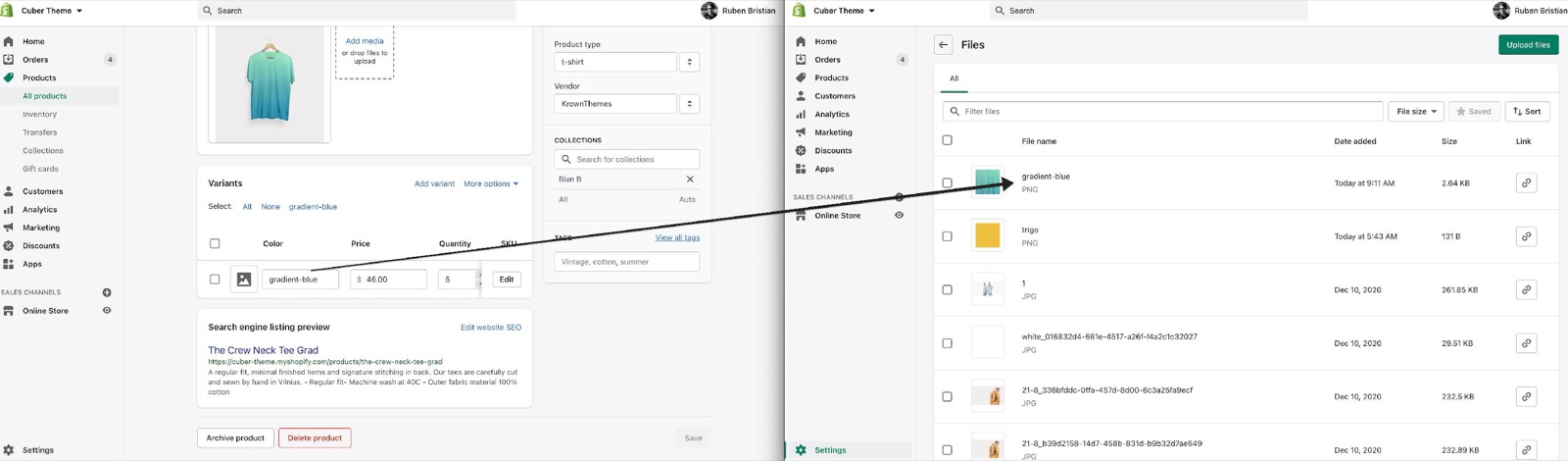
- Make a square PNG of 100 x 100 px for each value.
- Name it after the value's handle: lowercase, spaces become hyphens. "Dark Grey" becomes
dark-grey.png, "Gradient Blue" becomesgradient-blue.png. - Upload the files in Shopify admin → Content → Files.
Setting up color swatches
Turn on swatches
Open Theme settings → Color swatches and turn on Show color swatches.
Check the option name
Make sure the name of your color option (for example "Color" or "Farbe") is in Color swatches option names, in lowercase. Separate names with commas and no spaces.
Use color names or Shopify swatches
For plain colors, name the option values with web color names (Red, Navy, DarkOliveGreen), or set up Shopify's category metafield swatches for the product.
Make image files for patterns
For patterns, create a 100 x 100 px PNG per value, named after the value's handle: "Dark Grey" → dark-grey.png.
Upload the files
Upload the PNG files in Shopify admin → Content → Files.
Check the product page
Wait a few minutes, then open a product with that option. The results are cached, so new files can take some time to appear.
Swatches in collection filters
Filters on a color option (from the Shopify Search & Discovery app) show the same swatches next to each value, when the filter's name is in Color swatches option names.
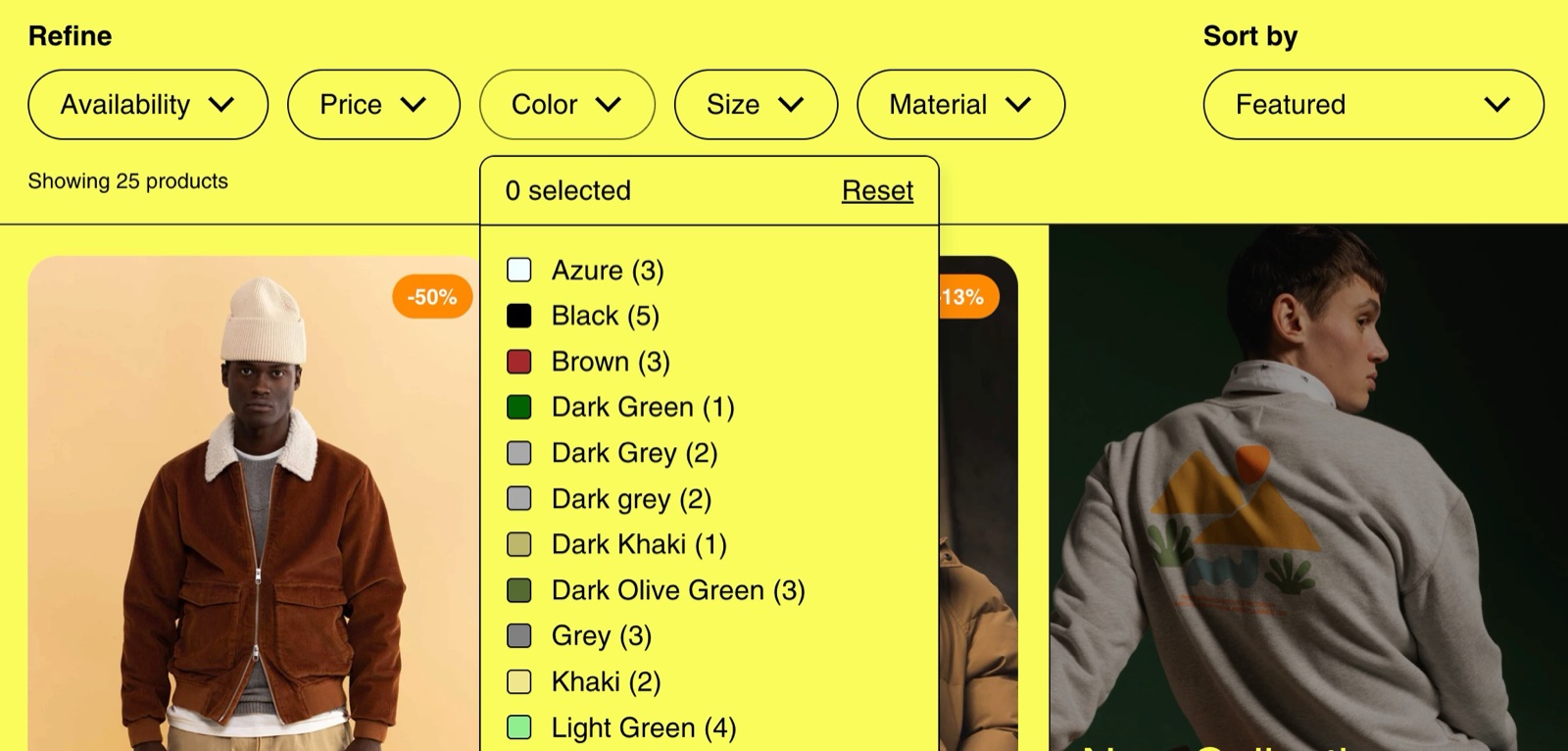
Filters set to Shopify's visual swatch or image presentation show Shopify's own swatches or images instead. The Image filter layout setting of the Collection page section sets their columns. See Collection page.
Please note that this is something different than Shopify's Visual Filters feature. That is a completely different feature which our theme still supports, but it's not using product variants, so it's not something that can be used inside product pages, but something used only for visual filtering. You can use both.
Why are my color options not showing as swatches?
The option name is not in the list, or swatches are off. Check that Show color swatches is on and that the option's name is in Color swatches option names, in lowercase, without a space after the commas. Product cards in grids do not show swatches; only the quick buy card and the product page do.
Why does my swatch show an empty circle?
Borders found no swatch image, no Shopify swatch and no web color with that name. A value such as "Ocean" is not a color name. Upload an ocean.png file to Content → Files, or add Shopify swatch data to the value.
Why does my new swatch image not show yet?
The storefront is cached. After uploading a file, wait a few minutes and reload the product page. Also check the file name: it must be the value's handle plus .png, all lowercase.
All Color swatches settings
Every setting on this page, with its type and default.
Show color swatches (checkbox, default: on): Shows color options as swatches in the Variant picker, Featured product, the quick buy card and collection and search filters. Each swatch uses the Shopify swatch image or color, else a <value-handle>.png file from Content → Files, else the value as a web color name.
This theme also offers support for color swatches created with category metafields. Shopify Help Center.
Color swatches option names (text field, default: "color,colour,couleur,cor,colore,culoare,farbe,색,色,カラー,färg,farve,szín,barva"): The option names that become swatches, in lowercase, separated by commas without spaces. Options with Shopify swatch data become swatches even when their name is not listed.
Related pages
- Product page: Variant picker and metaobject swatches.
- Collection page: filters.
- Product card theme settings: the quick buy card.
Product card theme settings
The Product card theme settings of Borders control product media, captions, the dynamic caption, quick buy, ratings and the product badges in grids.
Cart theme settings
The Cart theme settings of Borders choose drawer or page, notes and discounts, thumbnails, terms checkbox, free shipping bar and gift wrapping.