Product availability blocks
The Product availability blocks in Seventh: Inventory availability, Pickup availability and Back in stock alert on the product page.
Applies to: Seventh 4.0.0 and later. Added in: Seventh 1.0.0. Last checked: 2026-10-12 against Seventh 4.0.0.
The Product availability blocks tell customers whether the selected variant is in stock and where they can pick it up. They also let customers ask to hear when a sold out product returns.
The three blocks are Inventory availability, Pickup availability and Back in stock alert. They sit inside the Product information block of the Product page section.
Where to find it: Products → Default product → Product page → Product information, then select Add block.
Inventory availability
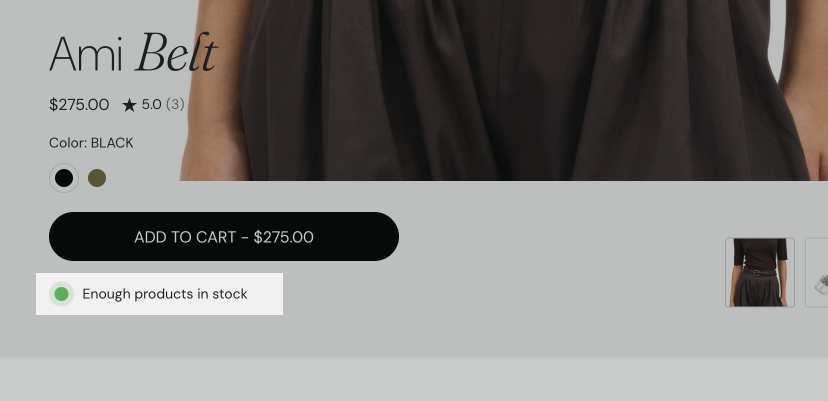
The Inventory availability block shows one message for the selected variant, based on its stock in Shopify:
- "Only one product left!" when one item is left.
- "Low stock! Only N products left" when the stock is at or below Low inventory threshold.
- "There are N products left" when the stock is above the threshold and Inventory notification is Display always.
- "Temporarily out of stock" when the variant is sold out.
- "This product is out of stock, but you can still order it." when the stock is 0 or less and the variant is set to continue selling when out of stock.
The three colors under Colors set the color of the low stock, regular stock and out of stock messages.
It can create urgency for limited stock or clarify when items are unavailable.
Pickup availability
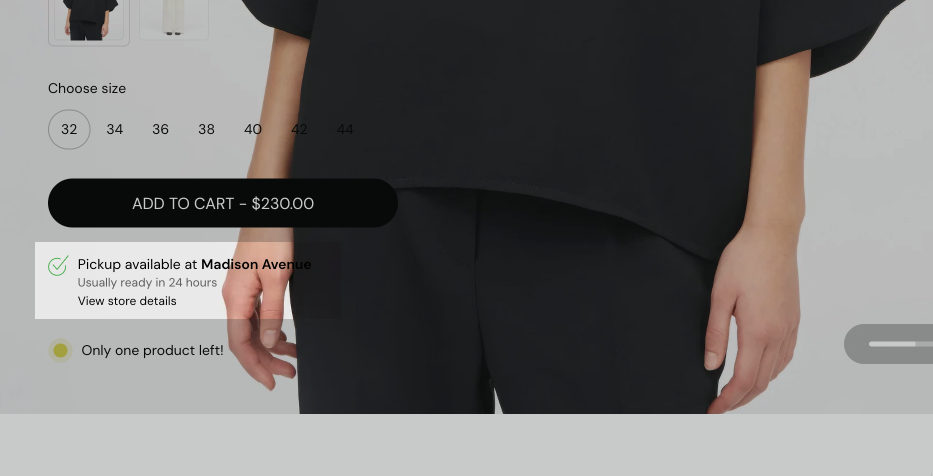
The Pickup availability block shows local pickup on the product page:
- whether the selected variant can be picked up, and at which location,
- a link that opens a drawer with all pickup locations.
The block shows nothing for sold out variants.
Local pickup is controlled by Shopify, not by Seventh. Turn on local pickup for each location in Shopify admin → Settings → Shipping and delivery → Local pickup, and make sure the location stocks the product. See Shopify Help Center: Setting up pickup in store for online orders.
Back in stock alert
The Back in stock alert block shows an email form when the selected variant is sold out. It was added in Seventh 1.1.0. When a customer submits the form:
- Shopify sends you a contact form email with the Email message, the product title, the variant and the product URL.
- The customer sees the Success message on the product page.
- You email the customer yourself when the product is back in stock.
Note: This block does not handle automatic notifications. When a customer submits the form, the store owner receives an email alert and must manually notify the customer once the product is back in stock.
More advanced functionality can only be achieved through third party apps.
Why is the Inventory availability block not showing?
Because Shopify does not track inventory for that variant, or the stock is above the threshold. Check these in order:
- In Shopify admin → Products, open the variant and make sure Track quantity is on. Variants without inventory tracking show no message.
- Inventory notification: with Display only when inventory falls below threshold, the block shows nothing while the stock is above Low inventory threshold.
- Select the first available variant by default in the Product page section: when it is off, the block appears only after the customer selects a variant.
Why can't I see the back in stock form on my product?
Because the form shows on the storefront only for sold out variants. In the theme editor it is always visible, so you can style it.
Where are back in stock requests sent?
To your store's email address. Shopify sends them as it does for every contact form.
All Product availability blocks settings
Every setting on this page, one list per section or block, with its type and default.
Where to find it: Products → Default product → Product page → Product information → Inventory availability. It is also available in: Featured product card.
Displays available inventory from parent product.
Inventory notification (dropdown, default: Display always): Sets when the stock message shows: always, or only when the stock is at or below the low inventory threshold. Variants need inventory tracking turned on in Shopify admin. Options: Display only when inventory falls below threshold, Display always.
Low inventory threshold (slider 1 to 20, default: 5): Sets the stock level, from 1 to 20, at or below which the block shows the low stock message. Shown only when Inventory notification is Display only when inventory falls below threshold.
Inventory availability block: Colors
Where to find it: Products → Default product → Product page → Product information → Inventory availability → Colors
Low inventory (color, default: #CCC746).
Regular stock (color, default: #60AD5B).
Out of stock (color, default: #FF4444).
Inventory availability block: Typography
Where to find it: Products → Default product → Product page → Product information → Inventory availability → Typography
Text size (dropdown, default: Small). Options: XSmall, Small, Medium, Large.
Reduced text opacity (checkbox, default: on): Shows the text at 62 percent opacity (69 percent on dark color schemes), for secondary text such as captions or notes.
Where to find it: Products → Default product → Product page → Product information → Pickup availability. It is also available in: Featured product card.
Displays available local pickup options from parent product.
Pickup availability block: Typography
Where to find it: Products → Default product → Product page → Product information → Pickup availability → Typography
Text size (dropdown, default: Small). Options: Small, Medium, Large.
Where to find it: Products → Default product → Product page → Product information → Back in stock alert. It is also available in: Featured product card.
This back in stock alert form will show up when the product is out of stock.
Store owner will receive an email when a customer fills in this form. Store owner must manually notify the customer once the product is back in stock.
Text (formatted text, default: "Enter your email address below to be notified when this product is back in stock."): Sets the message above the email field.
Button label (text field, default: "Notify me").
Success message (text field, default: "Thanks! We will notify you when this product becomes available!").
Email message (text field, default: "I would like to be notified when this product is back in stock."): Sets the message included in the contact form email you receive. The product title, variant and URL are added automatically.
Back in stock alert block: Typography
Where to find it: Products → Default product → Product page → Product information → Back in stock alert → Typography
Text size (dropdown, default: Small). Options: XXSmall, XSmall, Small, Medium, Large, XLarge.
Case (dropdown, default: Default). Options: Default, Uppercase.
Reduced text opacity (checkbox, default: off): Shows the text at 62 percent opacity (69 percent on dark color schemes), for secondary text such as captions or notes.
Related pages
- Product page: the Product page section and the Product information block.
- Product variants and buy buttons blocks: Handle unavailable variants and the pre-order button label.
- Cart theme settings: store-wide cart and checkout settings.
- Troubleshoot product and collection pages: answers to common product page problems.
Product variants and buy buttons blocks
The Product variants and buy buttons blocks in Seventh: Product variants, Product siblings, Buy buttons and Custom property on the product page.
Complementary products, coupon code, disclosures and variant metafield blocks
The Complementary products, Coupon code, Disclosures and Variant metafield blocks add cross-sells, codes and details to the Seventh product page.