Article page
The Borders article page has three sections: the Article, Article comments and Article navigation with previous and next posts.
Applies to: Borders 3.1.0 and later. Added in: Borders 1.0.0. Last checked: 2026-10-13 against Borders 3.1.0.
The article page shows one blog post. It has three sections: Article (the post itself), Article comments and Article navigation (links to the previous and next posts).
Where to find it: Online Store → Themes → Customize → Blog posts → Default blog post
Article
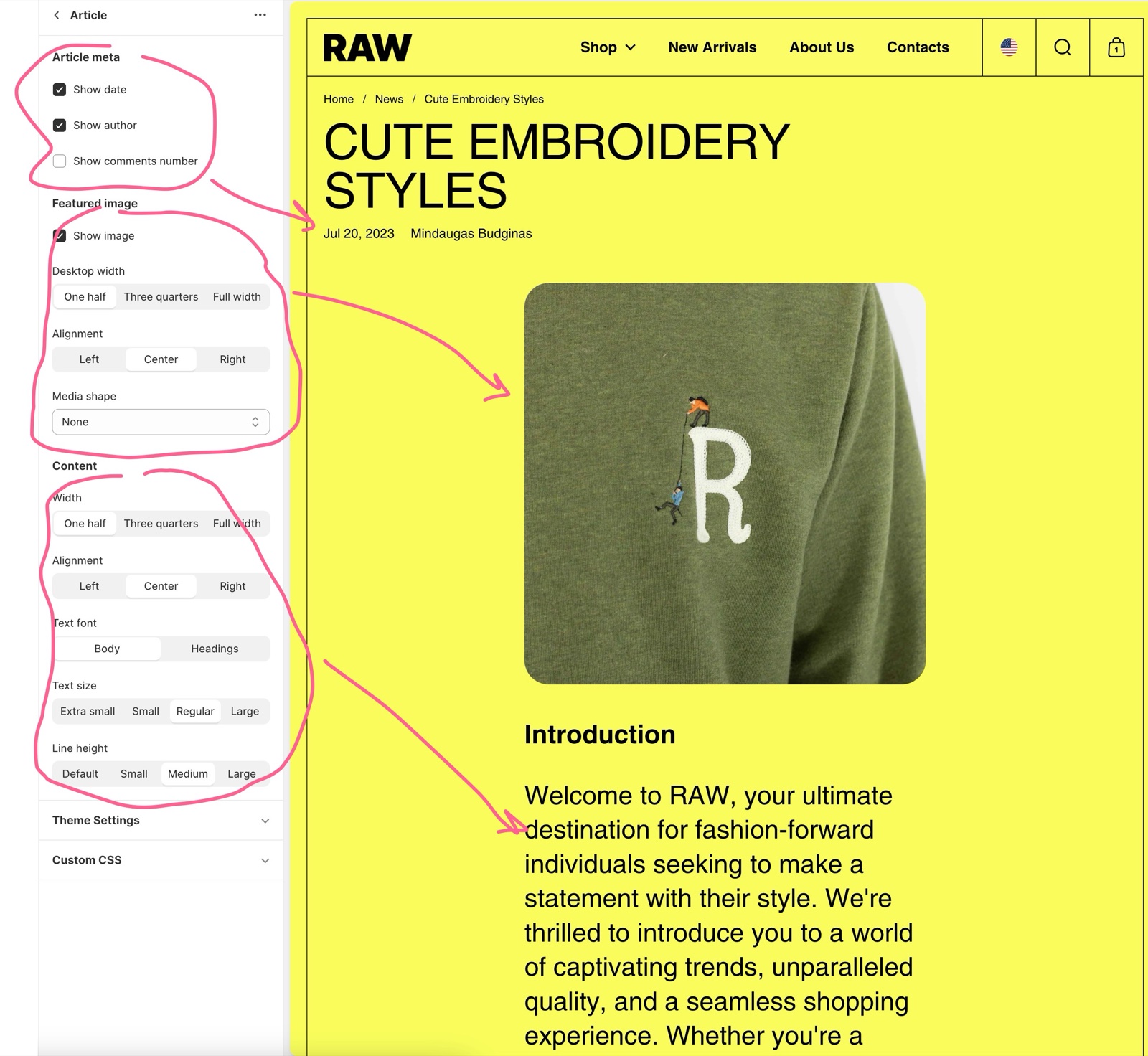
- Article meta: Show date, Show author and Show comments number above the post.
- Featured image: Show image, Desktop width (One half, Three quarters, Full width), Alignment and Media shape.
- Content: Width and Alignment of the text column, Text font, Text size and Line height of the post text.
Article comments
- Shows the approved comments of the post, 10 per page, and the comment form.
- Comment size limit (10 to 50) is the number of words shown of each comment before it is cut with "...".
- Color scheme and Hide section bottom border set the section design.
- Comments must be turned on for the blog in Shopify admin.
Article navigation
- Shows the previous and the next post of the blog as cards, automatically.
- Previous post and Next post replace them with posts you choose. The choice applies to every post that uses this template.
- Show featured image and Media shape set the card images.
Why do comments not show on my articles?
Comments are turned off for the blog, or no comment has been approved yet. In Shopify admin → Content → Blog posts → Manage blogs, open the blog and choose whether comments are allowed and moderated. Moderated comments appear only after you approve them.
Why does every post link to the same next post?
Previous post or Next post is set in the Article navigation section. A chosen post replaces the automatic one on every post of that template. Clear both pickers to go back to the automatic previous and next posts.
All Article page settings
Every setting on this page, one list per section or block, with its type and default.
Where to find it: Blog posts → Default blog post → Article.
Article section: Article meta
Where to find it: Blog posts → Default blog post → Article → Article meta
Show date (checkbox, default: on).
Show author (checkbox, default: on).
Show comments number (checkbox, default: off).
Article section: Featured image
Where to find it: Blog posts → Default blog post → Article → Featured image
Show image (checkbox, default: on).
Desktop width (dropdown, default: One half). Options: One half, Three quarters, Full width.
Alignment (dropdown, default: Center). Options: Left, Center, Right.
Media shape (dropdown, default: None). Options: None, Top rounded, Right rounded, Bottom rounded, Left rounded, Fully rounded.
Article section: Content
Where to find it: Blog posts → Default blog post → Article → Content
Width (dropdown, default: One half). Options: One half, Three quarters, Full width.
Alignment (dropdown, default: Center). Options: Left, Center, Right.
Text font (dropdown, default: Body). Options: Body, Headings.
Text size (dropdown, default: Extra small). Options: Extra small, Small, Regular, Large.
Line height (dropdown, default: Default). Options: Default, Small, Medium, Large.
Where to find it: Blog posts → Default blog post → Article comments.
To enable comments go to your blog settings in Shopify admin.
Comment size limit (slider 10 to 50, default: 30): Sets how many words of each comment show before it is cut with "...".
Article comments section: Section design
Where to find it: Blog posts → Default blog post → Article comments → Section design
Color scheme (color scheme, default: scheme_1).
Hide section bottom border (checkbox, default: off).
Where to find it: Blog posts → Default blog post → Article navigation.
Show featured image (checkbox, default: on).
Media shape (dropdown, default: Fully rounded). Options: None, Top rounded, Right rounded, Bottom rounded, Left rounded, Fully rounded.
Article navigation section: Blog posts
Where to find it: Blog posts → Default blog post → Article navigation → Blog posts
Previous post (article picker): Replaces the automatic previous post with the post you choose, on every post of this template.
Next post (article picker): Replaces the automatic next post with the post you choose, on every post of this template.
Article navigation section: Section design
Where to find it: Blog posts → Default blog post → Article navigation → Section design
Color scheme (color scheme, default: scheme_1).
Hide section bottom border (checkbox, default: off).
Related pages
- Blog page: the list of posts.
- Blog posts section: latest posts on any page.
- Page titles theme settings: the style of the post title.