Dynamic icons list
How the Combine dynamic icons list shows product features as icons in product cards and on the product page, from product metafields.
Applies to: Combine 4.2.0 and later. Added in: Combine 1.0.0. Last checked: 2026-10-13 against Combine 4.2.0.
The dynamic icons list shows product features as small icons with a label, for example "Vegan" or "Free returns", in product cards and on the product page. The icons and labels come from product metafields, so every product can show its own.
Where to find it: Theme settings → Product card → Dynamic icons list (for product cards). The product page has its own Icons list block.
How the icons list works
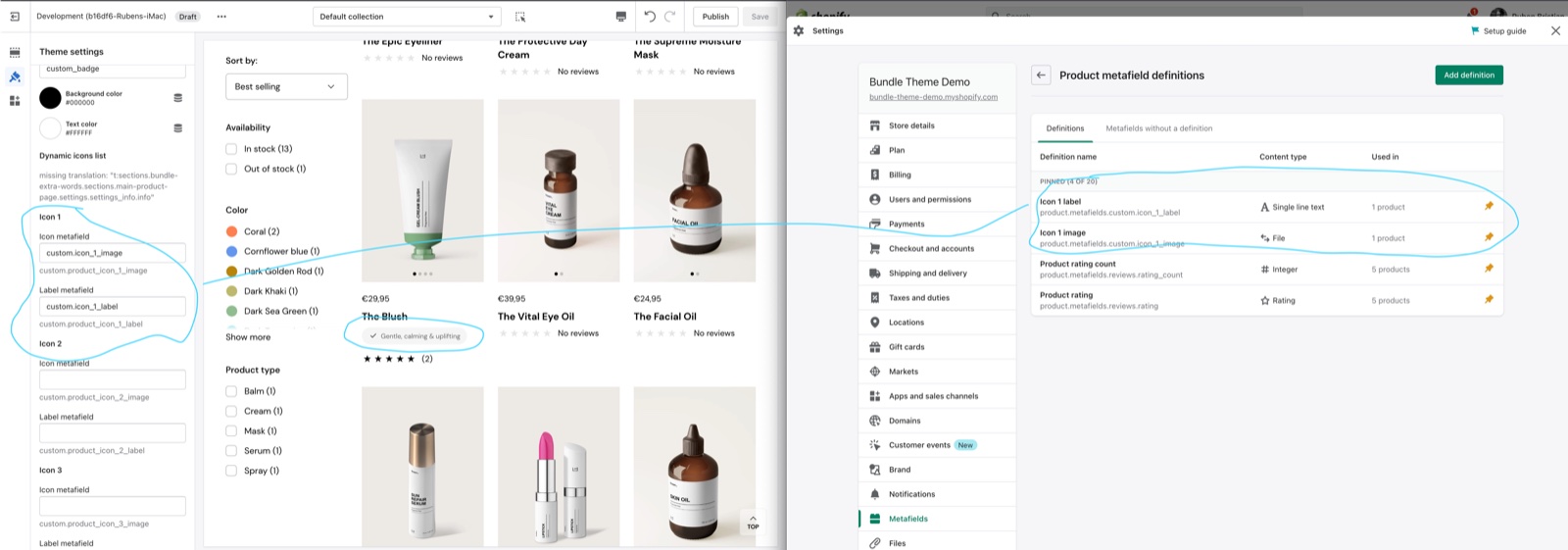
- In product cards, the Icons list block of each product grid shows up to three icons. Theme settings → Product card → Icon 1, Icon 2 and Icon 3 tell it which product metafields hold each icon and its label.
- Each icon has two metafields: Icon metafield (an image) and Label metafield (a text).
- A product shows an icon only when its metafields have a value. Products without values show nothing.
- When a product has a label but no icon image, Combine looks for an image in Shopify admin → Content → Files named after the label (see "Using only label metafields").
Setting up the icon metafields
Create the metafield definitions
In Shopify admin, open Settings → Metafields and metaobjects → Products and select Add definition. For each icon, create two definitions: one of type File (accepting images) for the icon, for example custom.product_icon_1_image, and one of type Single line text for the label, for example custom.product_icon_1_label.
Copy the namespace and key into the theme
Open Theme settings → Product card → Icon 1. Type the namespace.key of the image metafield into Icon metafield and the one of the text metafield into Label metafield. Repeat for Icon 2 and Icon 3 if you use them.
Fill the metafields on your products
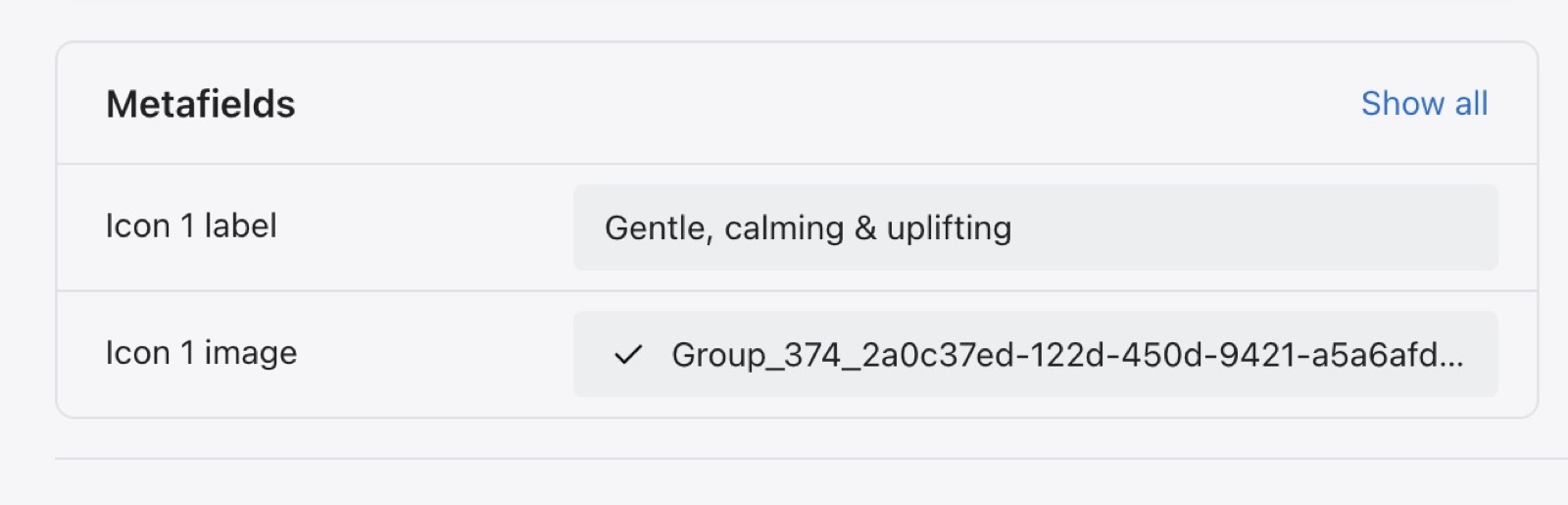
Open a product in Shopify admin. The new metafields appear in its Metafields card: pick the icon image and type the label.
Add the Icons list block to your product grids
In the theme editor, open a section with a product grid, for example Collection page → Product grid or Featured collection. Select Add block → Icons list and drag it where you want it in the card.
The Icon metafield and Label metafield fields are text fields: type the namespace.key by hand. Do not try to connect a dynamic source here; Theme settings are outside the product, so a connected source cannot work.
Using only label metafields
Adding the same icon image to many products takes time. Combine can find the icon from the label instead:
Name the icon file after the label
Turn the label into a handle: lower case, spaces and symbols replaced by hyphens. The label "Gentle calming" becomes gentle-calming.png.
Upload the file
Open Shopify admin → Content → Files and upload the PNG with exactly that name.
Fill only the label
Leave the icon metafield of the products empty and fill the label. Every product with the label "Gentle calming" now shows the gentle-calming.png icon.
Combine always uses the icon metafield first. It looks for a file named after the label only when the product has no icon image.
Icons list block on the product page
The product page has its own Icons list block, with a Title and up to six icons (Icon image and Label each). Add up to two Icons list blocks per product page.
- Pick the icons and labels in the block for icons that every product shares.
- For icons per product, connect each Icon and Label to a product metafield with the dynamic source button in the editor.
- Hide block if dynamic content is not present hides the block on products where the first icon and the first label are empty.
- The file name fallback works here too: a label with no icon looks for
<label-handle>.pngin Files.
See Product page for the other product page blocks.
Why do the icons not show in my product cards?
Usually one link of the chain is missing. Check, in order:
- The product grid section has the Icons list block.
- Icon metafield or Label metafield in Theme settings → Product card → Icon 1 holds the exact
namespace.keyof your metafield, for examplecustom.product_icon_1_label. - The product has a value in that metafield.
- The icon metafield is a File (image) metafield, not a URL or text metafield.
How many icons can a product card show?
Three: Icon 1, Icon 2 and Icon 3 of Theme settings → Product card. The product page Icons list block holds up to six icons, and you can add two such blocks.
All Dynamic icons list settings
Every setting in this group, with its type and default.
Product card theme settings: Dynamic icons list
Where to find it: Theme settings → Product card → Dynamic icons list
Use dynamic sources to highlight unique attributes by creating product metafields for the icon list.
Product card theme settings: Icon 1
Where to find it: Theme settings → Product card → Icon 1
Icon metafield (text field): The product metafield (File, image) that holds the first icon, written as namespace.key, for example custom.product_icon_1_image. Without an image, Combine looks in Content → Files for a PNG named after the label.
Label metafield (text field): The product metafield (Single line text) that holds the first icon's label, written as namespace.key, for example custom.product_icon_1_label.
Product card theme settings: Icon 2
Where to find it: Theme settings → Product card → Icon 2
Icon metafield (text field): The product metafield (File, image) that holds the second icon, written as namespace.key. Without an image, Combine looks in Content → Files for a PNG named after the label.
Label metafield (text field): The product metafield (Single line text) that holds the second icon's label, written as namespace.key.
Product card theme settings: Icon 3
Where to find it: Theme settings → Product card → Icon 3
Icon metafield (text field): The product metafield (File, image) that holds the third icon, written as namespace.key. Without an image, Combine looks in Content → Files for a PNG named after the label.
Label metafield (text field): The product metafield (Single line text) that holds the third icon's label, written as namespace.key.
Related pages
- Product grid blocks: the Icons list block and the other blocks of product cards.
- Product page: the Icons list block on the product page.
- Product card theme settings: the other product card settings.
- Use dynamic sources for unique product pages: connect block settings to metafields.
Color swatches
How Combine shows color swatches: the variant option names it turns into swatches, color names, swatch images in Files, Shopify swatches and metaobjects.
Cart theme settings
The Cart theme settings of Combine set the cart drawer or page, notes, discount codes, terms checkbox, recommendations, free shipping bar and gift wrapping.