Color swatches
How Combine shows color swatches: the variant option names it turns into swatches, color names, swatch images in Files, Shopify swatches and metaobjects.
Applies to: Combine 4.2.0 and later. Added in: Combine 1.0.0. Last checked: 2026-10-13 against Combine 4.2.0.
Color swatches show the colors of a product as small round buttons instead of text. Combine turns an option into swatches when its name is in your list of color labels, or when its values have Shopify swatches. Each swatch takes its color from a Shopify swatch, an image you upload, or the color name.
Where to find it: Theme settings → Product card → Product variants.
Swatches appear in the Quick buy block of product grids, in the Products bundle and Products set sections, and in the Variant picker block of the product page, the Featured product section and the Quick view.
Product variants
- Variants style shows the other options of product grids as Blocks or as a Dropdown. Color options stay swatches in both styles.
- Show color swatches turns swatches on or off in product grids.
- Color swatches labels lists the option names that become swatches, separated by commas.
- Change product image based on selected variant shows the image of the selected variant on the product card.
The product page, Featured product and Quick view have their own Show color swatches in their Variant picker block. They use the same Color swatches labels list.
You can watch a tutorial about custom color swatches in our Combine tutorial: Setting up the theme, at 6:15
Which options become swatches
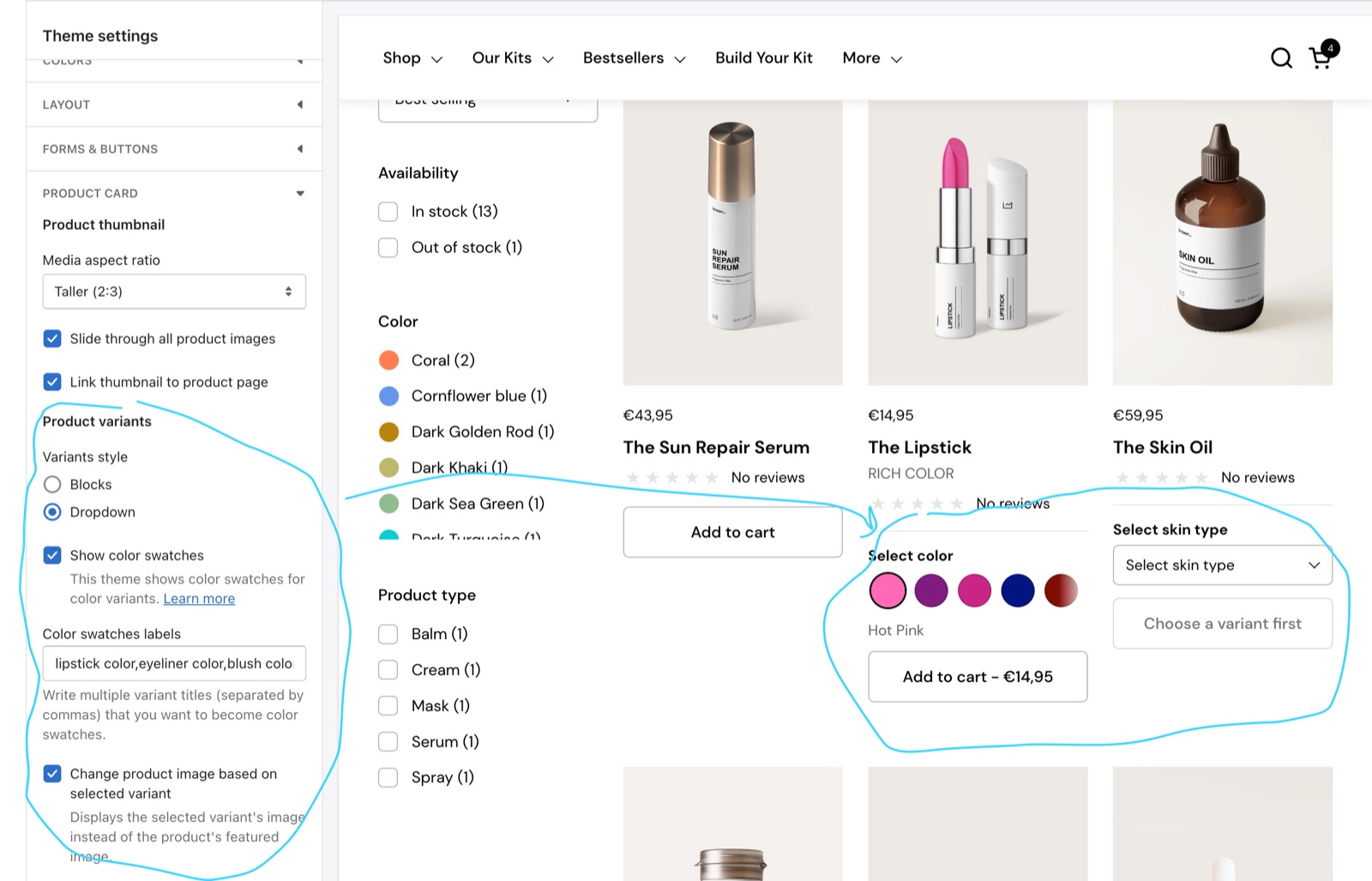
An option becomes swatches when Show color swatches is on and one of these is true:
- Its name, in lower case, is in Color swatches labels. The default list holds "color" in 14 languages:
color,colour,couleur,cor,colore,culoare,farbe,색,色,カラー,färg,farve,szín,barva. - Its values have Shopify swatches (a color or an image set on the option value, since Combine 2.4.2).
For a custom option name, add it to the list. For example, for an option called "Lipstick color", add lipstick color.
Write the labels without spaces after the commas: color,lipstick color. A label written as color, lipstick color starts with a space and never matches.
Where the swatch color comes from
For each value, Combine uses the first of these that exists:
- The Shopify swatch image of the option value.
- The Shopify swatch color of the option value.
- An image in Shopify admin → Content → Files named after the value: the value in lower case, spaces replaced with hyphens, plus
.png. "Dark Grey" usesdark-grey.png. - The value itself as a web color name, for example Red, Navy or LightBlue, with spaces removed.
Web color names are the names browsers know, listed on HTML color names. A value such as "Midnight" or "Oat" is not a web color, so it needs a Shopify swatch or an image.
Setting up swatch images
Use images for patterns, materials or colors with no web name.
Make the image
Create a square PNG of at least 90 x 90 px. The theme shows it at 30 x 30 px and uses the larger size on sharp screens.
Name it after the option value
Name the file after the value in handle form: lower case, spaces replaced with hyphens. For the value "Dark Grey", name it dark-grey.png.
Upload it
In Shopify admin, open Content → Files and upload the image.
Check the theme settings
In Theme settings → Product card → Product variants, turn on Show color swatches and make sure the option name is in Color swatches labels. Check a collection page and a product page.
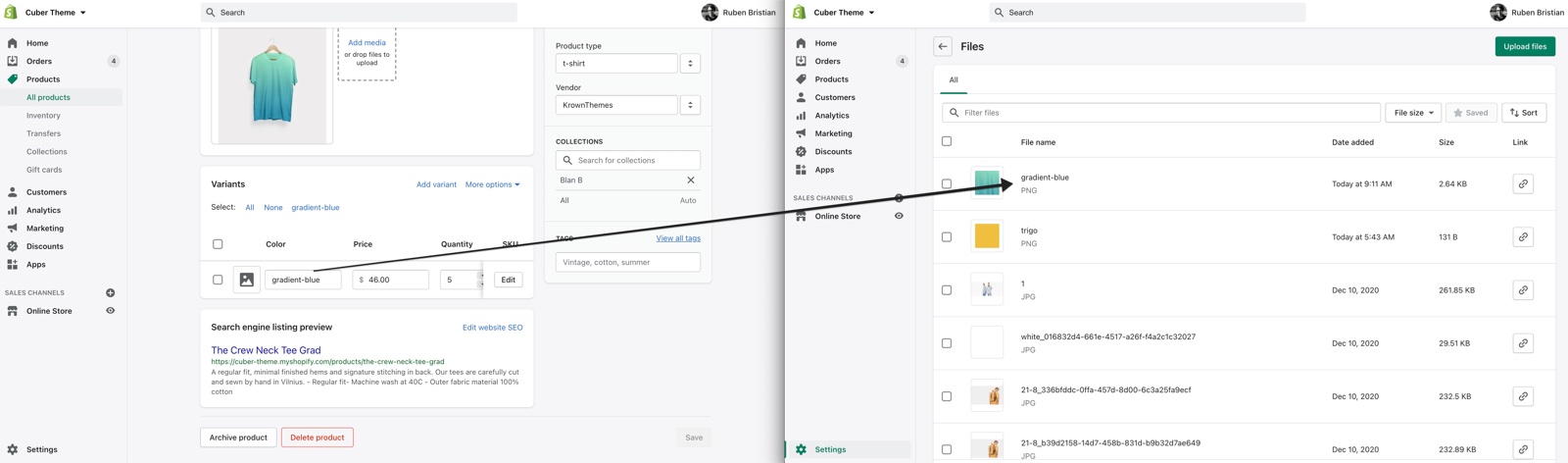
One image serves every product that has this value.
Setting up Shopify color swatches
Shopify swatches are set on the option values in Shopify admin and work with any option name. They come before Files images.
Choose the product category
In Shopify admin, open Products, select the product and choose a category that has a Color attribute, for example Apparel.
Connect the option to the category metafield
In Variants, add or edit the Color option and connect it to the Color category metafield, as Shopify suggests.
Set the swatches
For each color value, set its color or upload an image in Shopify's swatch editor. Save.
This flow belongs to Shopify. See Shopify's help page Using category metafields.
Setting up metaobject swatches on the product page
Since Combine 4.0.0, the Variant picker block can show a small image or color next to values of options that are not colors, for example Material: Oak, Walnut. The swatches come from metaobject entries listed in a product metafield.
Create the metaobject definition
In Shopify admin, open Settings → Metafields and metaobjects → Metaobject definitions → Add definition, for example "Material swatch". Add the fields label (single line text), and image (file) or color (color). The field keys must be exactly label, image and color.
Add one entry per value
In Content → Metaobjects, add an entry for each value. The label must be exactly the option value, for example "Oak", with the same case and spelling.
Create the product metafield
In Settings → Metafields and metaobjects → Products → Add definition, choose the type Metaobject, as a list of entries of your definition. Note its namespace.key, for example custom.materials.
Fill it on each product
Open each product and select the entries of its values in the new metafield.
Connect it in the Variant picker
In the theme editor, open Products → Default product → Product page → Variant picker. Set Variants style to Blocks and type custom.materials into Metaobject swatch metafields. For several metafields, separate them with commas. Repeat in Featured product and Quick view if you use them.
Metaobject swatches show only with Variants style set to Blocks, and only on options that are not color swatches. An entry with an image uses the image; otherwise it uses the color.
Why does my color option show as text instead of a swatch?
Because its name is not in Color swatches labels, or Show color swatches is off. Add the exact option name in lower case to the list, without a space after the comma. On the product page, also check Show color swatches in the Variant picker block.
Why is my swatch empty or the wrong color?
Because Combine found no Shopify swatch, no Files image and no web color for the value. Upload a PNG named after the value (dark-grey.png for "Dark Grey") to Content → Files, or set a Shopify swatch. A Shopify swatch wins over a Files image, so remove it if the image should show instead.
Do color swatches change the product image?
Yes, when Change product image based on selected variant is on and the variant has its own image. The product card then shows the image of the selected color. Swatches and variant images are separate settings: the variant image is set on the variant in Shopify admin → Products.
All Color swatches settings
Every setting in this group, with its type and default.
Product card theme settings: Product variants
Where to find it: Theme settings → Product card → Product variants
Variants style (radio buttons, default: Blocks): Sets how the options of product grids show: Blocks shows buttons, Dropdown a list. Color options show as swatches in both styles. Options: Blocks, Dropdown.
Show color swatches (checkbox, default: on): Shows color options as round swatches in product grids (Quick buy block, Products bundle, Products set). The product page, Featured product and Quick view have their own Show color swatches in the Variant picker block.
Color swatches labels (text field, default: "color,colour,couleur,cor,colore,culoare,farbe,색,色,カラー,färg,farve,szín,barva"): The option names that become swatches, in lower case, separated by commas without spaces (a label after ", " starts with a space and never matches). Options whose values have Shopify swatches become swatches whatever their name. The Variant picker blocks use the same list.
This theme also offers support for color swatches created with category metafields. Shopify Help Center.
Change product image based on selected variant (checkbox, default: on): Shows the image of the selected variant on the product card instead of the featured image, when the variant has an image. Cards that show a product video keep their media.
Related pages
- Product card theme settings: the thumbnails, quick buy popup and rating of product cards.
- Product page: the Variant picker block and its swatch settings.
- Featured product section: another Variant picker with swatches.
- Quick view template: the Variant picker of the quick view.
- Troubleshoot product and collection pages: more swatch and product grid answers.
Product badges theme settings
The Product badges theme settings of Combine set the sold out and discount badges and three custom badges shown by product tag.
Dynamic icons list
How the Combine dynamic icons list shows product features as icons in product cards and on the product page, from product metafields.