Color swatches
How Highlight shows color swatches on product cards, product pages and filters: Shopify swatches, swatch image files or color names.
Applies to: Highlight 4.1.0 and later. Added in: Highlight 1.0.0. Last checked: 2026-10-13 against Highlight 4.1.0.
Color swatches show a product's color values as small circles instead of words. Highlight builds each swatch from Shopify's own swatch, from an image file you upload, or from the color name itself. This page explains the three sources and how to set up each one.
Where to find it: Theme settings → Product card → Show color swatches for product cards; the Variant picker block for the product page.
Where swatches appear
- Product cards: turn on Show color swatches in Product card theme settings. Selecting a swatch shows that variant's image on the card. The product popup of the Popups section follows the same setting.
- Product page and Featured product section: the Variant picker block has its own Show color swatches (on by default). Swatches show only when Variants selector type is Blocks, not Dropdown. See Product page.
- Quick view popup: Variant picker → Show color swatches in the Quick view template.
- Collection and search filters: a filter set to show swatches in the Shopify Search & Discovery app. Filters use Shopify's swatches only, not image files. See Collection page.
Which options become swatches
An option becomes swatches in either of these cases:
- Its name is in Theme settings → Product card → Color swatches labels. The default list holds "color" in 14 languages:
color,colour,couleur,cor,colore,culoare,farbe,색,色,カラー,färg,farve,szín,barva. - Its values have a Shopify swatch, from a category metafield.
Highlight compares the option name in lower case with each entry of the list. Write the entries in lower case and without spaces after the commas, for example color,shade,finish.
Where the swatch color comes from
For each option value, Highlight uses the first of these that exists:
- Shopify's swatch on the value: its image, or else its color. Shopify swatches come from category metafields, supported since Highlight 3.3.1.
- An image file in Shopify admin → Content → Files named after the value: the value in lower case, with spaces and special characters as hyphens, plus
.png. "Dark Grey" becomesdark-grey.png. - The value itself as a color name, in lower case with the spaces removed: "Dark Grey" becomes
darkgrey, which browsers know. A value that is not a web color name, such as "Sand", shows an empty circle.
For plain colors, color names are enough. For patterns, mixed colors or exact shades, use Shopify swatches or image files.
Setting up swatches with Shopify's category metafields
Choose a product category with a color attribute
In Shopify admin, open the product and choose a Category that has a Color attribute, for example a clothing category.
Connect the color option
Under Variants, select Add options like size or color and choose the Color category metafield. The option values fill in from its entries. For an existing Color option, select the option, then the dynamic source icon, and choose the category metafield.
Set each value's swatch
Give each color entry its swatch, a color or an image. To edit an entry later, open the product, select the Color metafield under Category metafields, and select the entry.
Turn on swatches in the theme
Open Theme settings → Product card and turn on Show color swatches. Check that the Variant picker block of the product page has Show color swatches on.
See Using category metafields in the Shopify Help Center.
Setting up swatch image files
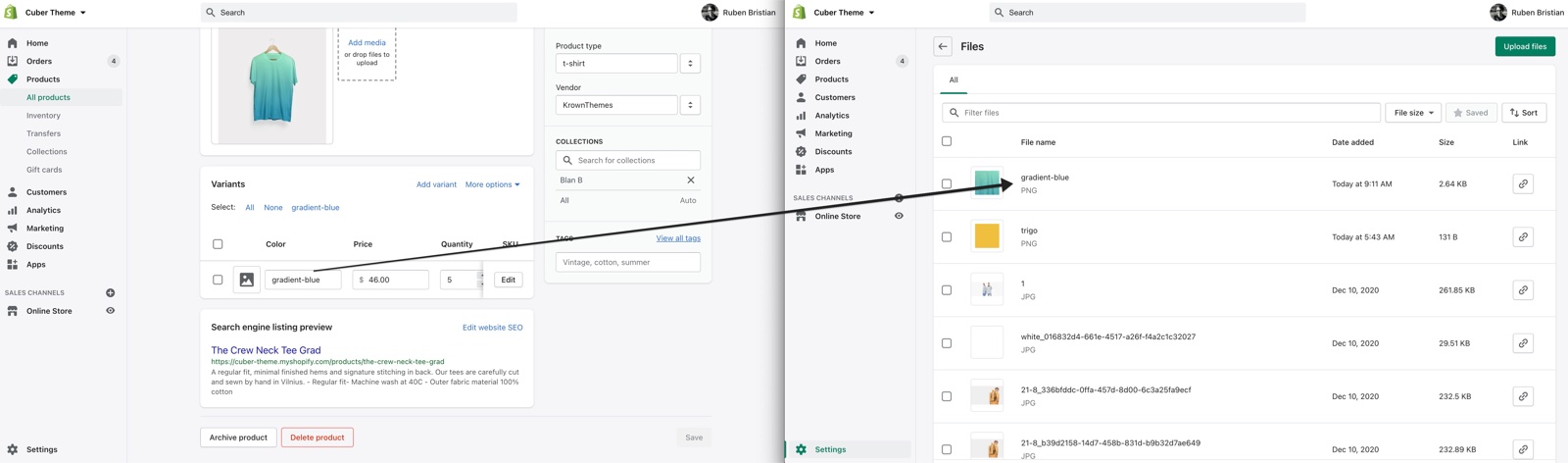
Note the option value
Copy the color value exactly as it is written on the product, for example "Gradient blue".
Make a small square PNG
Create a square PNG of the color or pattern. The old docs used 32 x 32 px; Highlight shows it at up to 34 x 34 px in cards and 56 x 56 px on the product page, so a slightly larger file looks sharper.
Name the file after the value
Write the value in lower case, with spaces and special characters as hyphens, and add .png: "Gradient blue" becomes gradient-blue.png.
Upload it to Files
Upload the file in Shopify admin → Content → Files.
Turn on swatches
Turn on Show color swatches in Theme settings → Product card, and check that the option name is in Color swatches labels.
Wait a few minutes, as the images are cached and will take a bit to show on your site.
Can swatches link to other products?
Yes, with Shopify's combined listings. When a color value belongs to another product of a combined listing, its swatch on the product card is a link to that product instead of switching the image. Combined listings are set up in Shopify's Combined Listings app, available on Shopify Plus; Highlight has no setting for it.
Why does my swatch image not show?
Usually because the file name does not match the value. Check these in order:
- The file is in Shopify admin → Content → Files, not in a product's media.
- The name is the value's handle plus
.png: lower case, hyphens instead of spaces, for exampledark-grey.png, notDark Grey.png. Other file types, such as.jpg, are not read. - The value has no Shopify swatch. A Shopify swatch wins over the file.
- You waited a few minutes after the upload.
Why is an option not shown as swatches?
Because its name is not in Color swatches labels and its values have no Shopify swatch. Add the option name, in lower case, to Color swatches labels, for example shade. On the product page, also check that the Variant picker block uses Variants selector type Blocks; the Dropdown type shows no swatches.
Related pages
- Product card theme settings: Show color swatches and Color swatches labels.
- Product page: the Variant picker block.
- Collection page: swatch filters and Image filter layout.
- Troubleshoot product and collection pages: more swatch answers.
Product card theme settings
The Product card theme settings style Highlight's product cards: media ratio, hover effect, color swatches, sale price color, ratings and quick buy.
Favicon theme settings
The Favicon theme setting uploads the small icon that browsers show next to your Highlight store's name in tabs and bookmarks.