Popovers section
The Popovers section of Borders shows small popovers: the cookies consent popover and text popovers with page visibility, delay and frequency.
Applies to: Borders 3.1.0 and later. Added in: Borders 1.0.0. Last checked: 2026-10-13 against Borders 3.1.0.
The Popovers section shows small boxes that pop up over a corner of the page. It has two kinds of blocks: the Cookies popover, which asks customers for tracking consent, and Text popovers, for discounts or announcements.
Where to find it: Online Store → Themes → Customize → Overlay group → Popovers
Popover style
The section settings style every popover:
- Radius rounds the corners, 0 to 30 px (default 10).
- Show border adds a 1 px line around each popover (on by default).
- Show shadow adds a shadow under each popover.
Several popovers that open at the same time stack one above the other.
Cookies popover
- The Cookies block shows a consent message with an Accept and a Decline button.
- Accept turns on analytics, marketing and preferences tracking for that customer through Shopify's customer privacy tools. Decline turns them off.
- Borders shows the popover to each customer until they accept or decline, then remembers the answer in their browser.
- The block's only setting is Color scheme. The message and button texts are theme texts: change them in Shopify admin → Online Store → Themes → … → Edit default theme content (search for "cookies").
Text popovers
- Visibility sets the pages: All pages, Homepage only, Product pages only, Cart page only, or All pages except the homepage.
- Content is the message. You can make words bold or italic and add links.
- Show popup after sets the delay, 1 to 30 seconds (default 5).
- Popup frequency sets how long the popover stays away after the customer closes it: Show each day, Show each week or Show each month. Show each month currently shows the popover only once per browser.
- Color scheme sets the colors of that popover.
Because of Visibility, you can have one popover per page type, for example a shipping note on product pages and a discount reminder on the cart page.
As with the newsletter popup, any popover which is closed will not appear to the customer a second time unless the set time has passed.
Setting up the cookies popover
Set up consent in Shopify
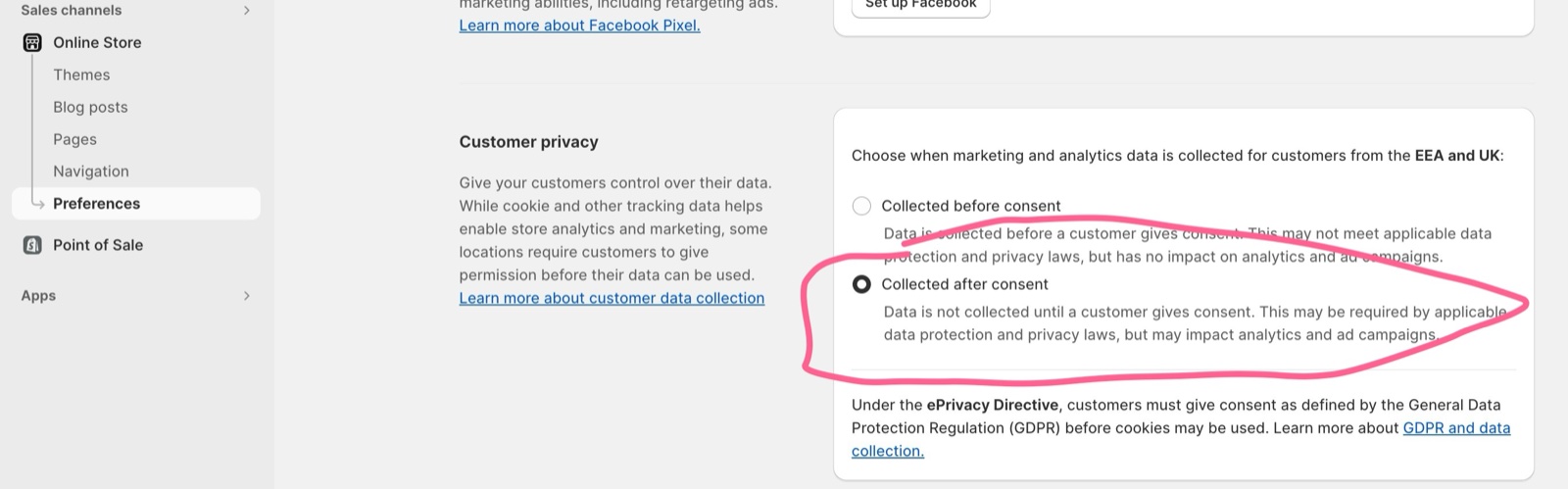
In Shopify admin → Settings → Customer privacy, set up how your store collects data and for which regions consent is needed.
Turn off Shopify's cookie banner
If you use the Borders popover, turn off Shopify's own cookie banner in the same page, so customers do not see two banners.
Add the Cookies block
In the theme editor, open Overlay group → Popovers → Add block → Cookies. Choose its Color scheme.
Change the texts
In Shopify admin → Online Store → Themes → … → Edit default theme content, search for "cookies" and change the message and button labels.
Test in a private window
Save, then open your store in a private window. The popover appears; after Accept or Decline it does not appear again in that browser.
Setting up a discount popover on product pages
Add a Text block
Open Overlay group → Popovers → Add block → Text.
Write the message
Type the discount in Content, for example "Use code WELCOME10 for 10% off your first order".
Choose the pages
Set Visibility to Product pages only.
Set the timing
Set Show popup after and Popup frequency. Choose the Color scheme.
Test it
Save, and open a product page in a private window. Closing the popover hides it for the frequency period.
Why do I see two cookie banners?
Shopify's own cookie banner and the Borders Cookies popover are both on. Keep one: turn off Shopify's banner in Shopify admin → Settings → Customer privacy, or remove the Cookies block from the Popovers section. See Cookie consent popup and Cookie banner apps for GDPR compliance.
How many text popovers can I add?
There is no limit. Show only a few at a time, and give them different Show popup after delays, so they do not all appear at once. Use Visibility to spread them across page types.
All Popovers settings
Every setting on this page, with its type and default.
Accepts these blocks: Cookies and Text.
Radius (slider 0 to 30 px, default: 10 px): Sets the corner radius of every popover, 0 to 30 px.
Show border (checkbox, default: on): Adds a 1 px line around every popover.
Show shadow (checkbox, default: off): Adds a shadow under every popover.
Cookies block
Where to find it: Overlay group → Popovers → Add block → Cookies
One Cookies block per section.
The cookies popover will only be visible if it customer data is set to be collected after consent. See Overlay group.
Color scheme (color scheme, default: scheme_1): Sets the colors of the cookies popover. The popover shows until the customer selects Accept or Decline.
Text block
Where to find it: Overlay group → Popovers → Add block → Text
Visibility (dropdown, default: All pages): Sets the pages that show this popover. Options: All pages, Homepage only, Product pages only, Cart page only, All pages except the homepage.
Text block: Content
Where to find it: Overlay group → Popovers → Add block → Text → Content
Content (formatted text, default: "Introduce various discounts or make new product announcements.").
Show popup after (slider 1 to 30 s, default: 5 s): Sets the delay before the popover opens, 1 to 30 seconds.
Popup frequency (dropdown, default: Show each week): Sets how long the popover stays away after the customer closes it. Show each month currently shows it only once per browser. Options: Show each day, Show each week, Show each month.
Text block: Design
Where to find it: Overlay group → Popovers → Add block → Text → Design
Color scheme (color scheme, default: scheme_1).
Related pages
- Overlay group: how often popups show.
- Newsletter popup section: the sign-up popup.
- Troubleshoot popups and overlays: common problems.
- Cookie consent popup: consent in Shopify.
Newsletter popup
The Newsletter popup section of Borders shows a sign-up form with image and text after a delay, and repeats it each day, week or less often.
Rotating badges
The Rotating badges section of Borders floats round, spinning text badges with an icon over the page, each with its own position and visibility.