Newsletter popup section
The Newsletter popup section of Borders shows a sign-up form with image and text after a delay, and repeats it each day, week or less often.
Applies to: Borders 3.1.0 and later. Added in: Borders 1.0.0. Last checked: 2026-10-13 against Borders 3.1.0.
The Newsletter section of the Overlay group is a sign-up popup. It opens a few seconds after a customer arrives, with an email field and, if you want, a heading, a text and an image.
Where to find it: Online Store → Themes → Customize → Overlay group → Newsletter
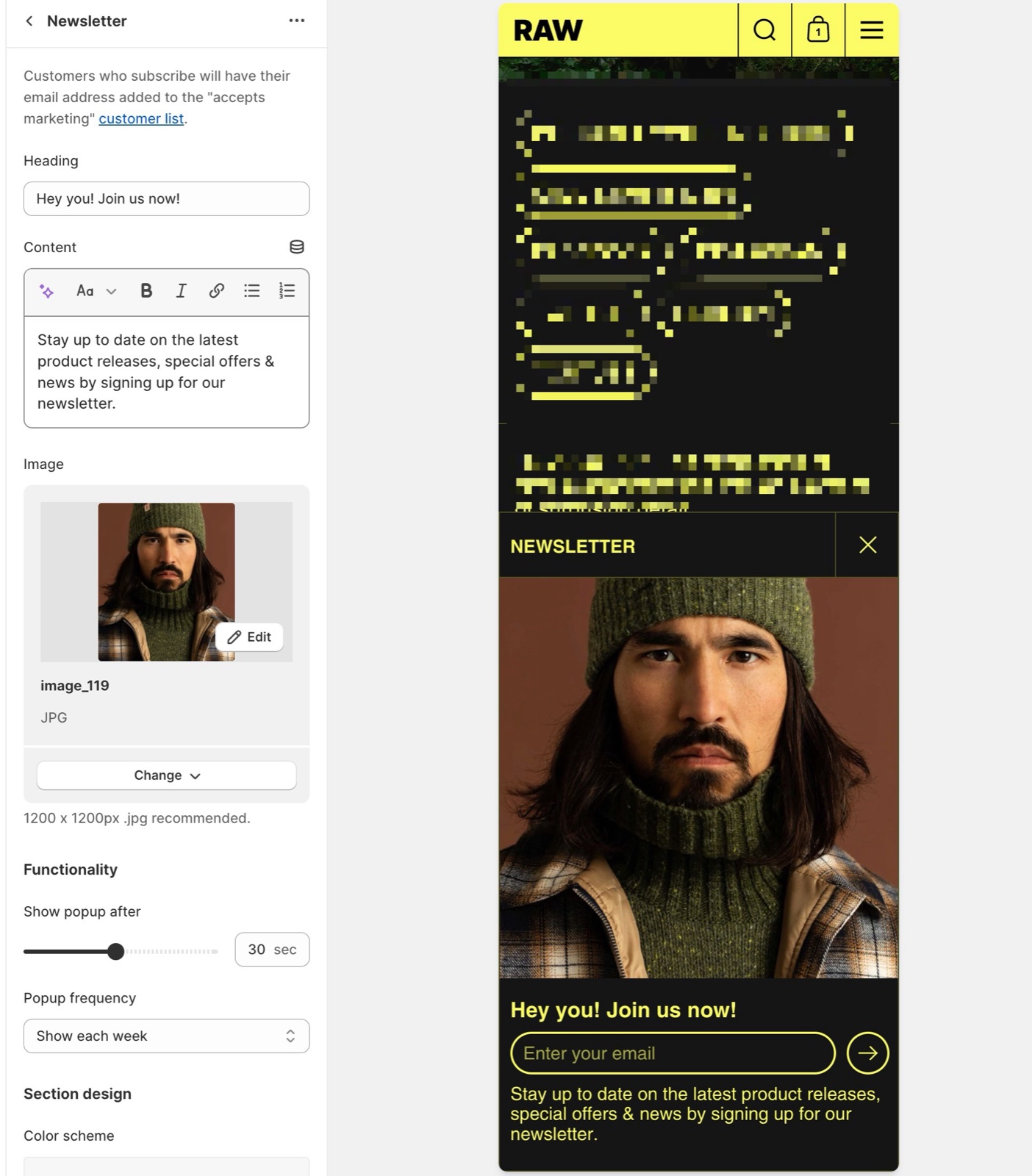
Newsletter content
- Heading shows in large bold text above the form.
- Content is the text under the heading, for example what customers get and a link to your privacy policy.
- Image shows a square image at the top of the popup; 1200 x 1200 px JPG is recommended.
- Leave all three empty to show only the sign-up form.
- Color scheme sets the popup colors. Hide borders removes the popup's outer border.
Collected addresses are saved inside your Shopify admin, under the Customers section. If you want to integrate with Mailchimp, see Connect Mailchimp.
Functionality
- Show popup after sets the delay before the popup opens, 3 to 60 seconds (default 6).
- Popup frequency sets how long the popup stays away after the customer closes it: Show each day, Show each week (the default) or Show each month.
- Until the customer closes the popup, it opens again on every page they visit.
- Show each month currently shows the popup only once per browser.
Once a customer closes the popup, they will not see it again in the timeframe (frequency) that you set in the settings.
Set up the newsletter popup
Select the section
In the theme editor, open Overlay group → Newsletter. The preview opens the popup.
Write the content
Write the Heading and Content, and add an Image if you want one.
Set the timing
Set Show popup after, and Popup frequency to Show each day or Show each week.
Test it
Select Save, then open your store in a private window. Wait for the delay: the popup opens. Sign up with a test address and check it in Shopify admin → Customers.
To turn the popup off, hide the Newsletter section with the eye icon next to its name in the sidebar.
Where do subscribers go?
To your customer list in Shopify admin → Customers. Each address is saved as a customer who accepts email marketing, with the tag "newsletter". Send emails to them with Shopify Email or an email marketing app.
Why does the popup not show again after I closed it?
Your browser remembers that you closed it, for the Popup frequency period. Open the store in a private window to see it again. In the theme editor, select the Newsletter section to open it.
All Newsletter popup settings
Every setting on this page, with its type and default.
Customers who subscribe will have their email address added to the "accepts marketing" customer list in Shopify admin.
Heading (text field, default: "Subscribe to our newsletter"): Sets the large bold text above the sign-up form.
Content (rich text, default: "Stay up to date on the latest product releases, special offers & news by signing up for our newslet…"): Sets the text under the heading.
Image (image): Sets a square image at the top of the popup.
Newsletter section: Functionality
Where to find it: Overlay group → Newsletter → Functionality
Show popup after (slider 3 to 60 s, default: 6 s): Sets the delay before the popup opens, 3 to 60 seconds.
Popup frequency (dropdown, default: Show each week): Sets how long the popup stays away after the customer closes it. Show each month currently shows it only once per browser. Options: Show each day, Show each week, Show each month.
Newsletter section: Section design
Where to find it: Overlay group → Newsletter → Section design
Color scheme (color scheme, default: scheme_1).
Hide borders (checkbox, default: off): Removes the outer border of the popup.
Related pages
- Overlay group: how often popups show.
- Email signup section: a sign-up form inside a page instead of a popup.
- Exit intent popup section: a popup when customers leave.
- Troubleshoot popups and overlays: common problems.
Overlay group
The Overlay group of Borders holds the popups and floating elements: newsletter popup, popovers, rotating badges, exit intent, age verification, go to top.
Popovers
The Popovers section of Borders shows small popovers: the cookies consent popover and text popovers with page visibility, delay and frequency.