Heading block
The Heading block of Combine adds a title with its own size, line height, color and SEO heading tag inside flex sections.
Applies to: Combine 4.2.0 and later. Added in: Combine 3.1.0. Last checked: 2026-10-13 against Combine 4.2.0.
The Heading block adds a title inside a slide, card or column of a flex section, with its own size, line height, color and SEO heading tag.
Where to find it: in a Flex slideshow, Flex grid, Flex cards or Flex columns section, select Add block inside a slide, card or column, then choose Heading.
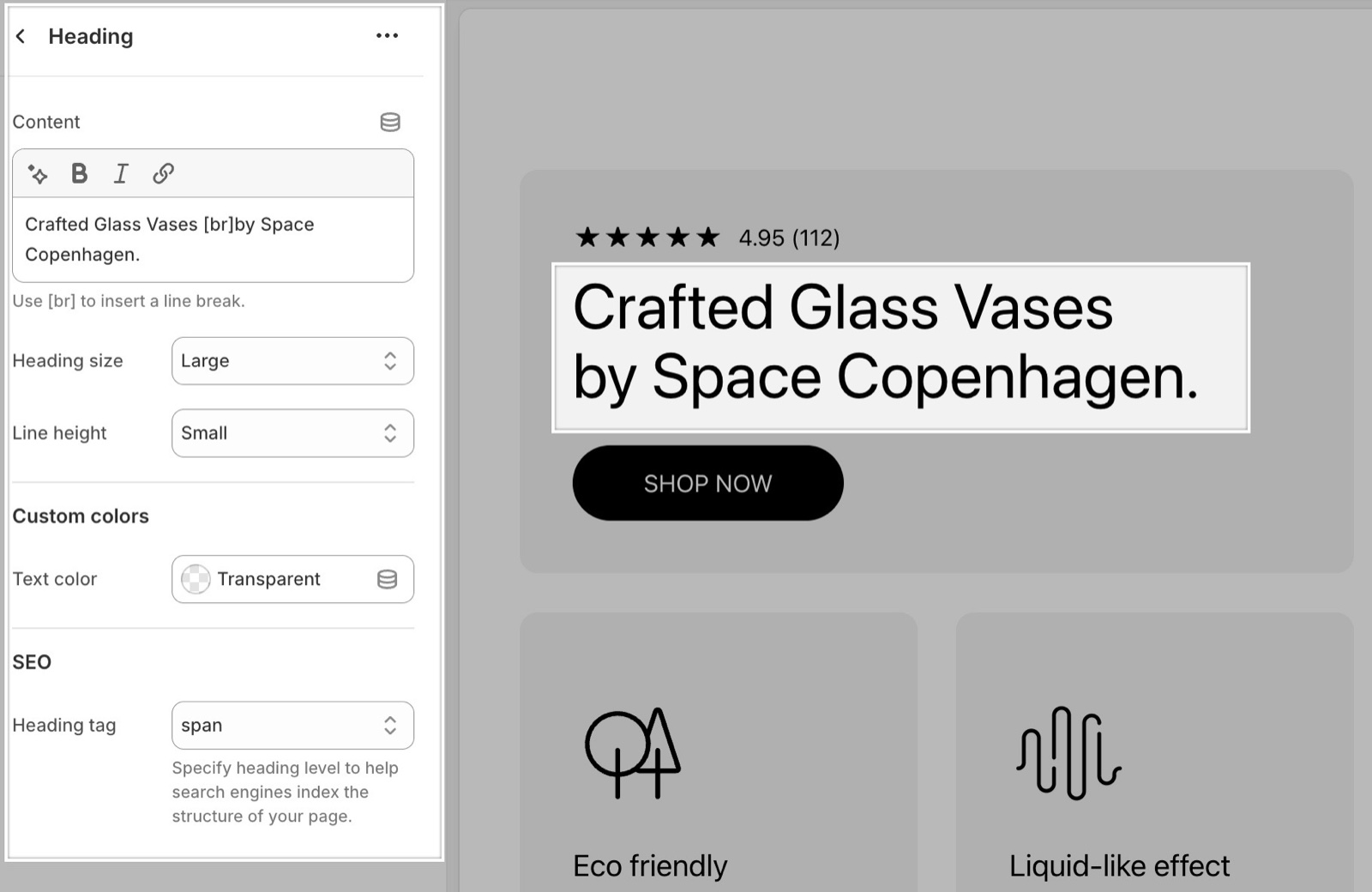
Writing the heading
- Type the text in Content. It takes bold, italic and links.
- Type
[br]where a new line should start, for exampleCrafted Glass Vases[br]by Space Copenhagen. - A Heading block with empty Content shows nothing.
Size and line height
- Heading size sets how big the heading looks: Small, Regular, Large (the default) or Extra large. The sizes follow the Headings font and base size of Typography theme settings.
- Line height sets the space between the lines of a long heading: Default, Small (tighter, 1.1) or Medium (1.25). Use Small for big headings on two or three lines.
- Text color under Custom colors sets the heading color. Leave it transparent to use the text color of the card or slide.
Heading tag and SEO
Heading tag sets the level that search engines read: H1 to H5, or span for a heading with no level. The default is H3. It does not change how big the heading looks; Heading size does.
Use H1 once per page, for the first heading of the first section on the home page. Use H2 for section titles and H3 for headings inside a section. See General section styling for a heading structure that works.
Does Heading size change the heading level?
No. Heading size sets only the look, and Heading tag sets the level. A Large heading can be an H3, and an Extra large one can be a span.
How do I break a heading onto two lines?
Type [br] in Content where the new line should start. Combine turns it into a line break on every screen size. Do not use spaces or Enter for this; they do not force a break.
All Heading settings
Every setting of this block, with its type and default.
Content (formatted text, default: "Heading"): Sets the heading text. Supports bold, italic and links. Type [br] to start a new line.
Heading size (dropdown, default: Large): Sets how big the heading looks, from the Headings font of Theme settings → Typography. It does not change the heading tag. Options: Small, Regular, Large, Extra large.
Line height (dropdown, default: Default): Sets the space between the lines of a long heading: Small is 1.1, Medium is 1.25. Options: Default, Small, Medium.
Heading block: Custom colors
Where to find it: Heading → Custom colors
Text color (color, default: transparent): Sets the heading color. Leave it transparent to use the text color of the card or slide.
Heading block: SEO
Where to find it: Heading → SEO
Heading tag (dropdown, default: H3): Sets the HTML heading level for search engines; span gives the heading no level. It does not change the size; Heading size does. Options: H1, H2, H3, H4, H5, span.
Related pages
- Flex sections: the sections that accept theme blocks.
- Caption block: a short line above or below a heading.
- Text block: paragraphs under a heading.
- General section styling: section headings and the page's heading structure.
- Typography theme settings: the heading font and base size.