Image block
The Image block of Combine adds an image with a height and an optional link inside flex sections, cards and content groups.
Applies to: Combine 4.2.0 and later. Added in: Combine 3.1.0. Last checked: 2026-10-13 against Combine 4.2.0.
The Image block shows a small image at a fixed height inside a slide, card or column, with an optional link. Use it for an icon above a heading, a badge, a signature or a row of brand logos.
Where to find it: in a Flex slideshow, Flex grid, Flex cards or Flex columns section, select Add block inside a slide, card or column, then choose Image. You can also add it inside a Content group block.
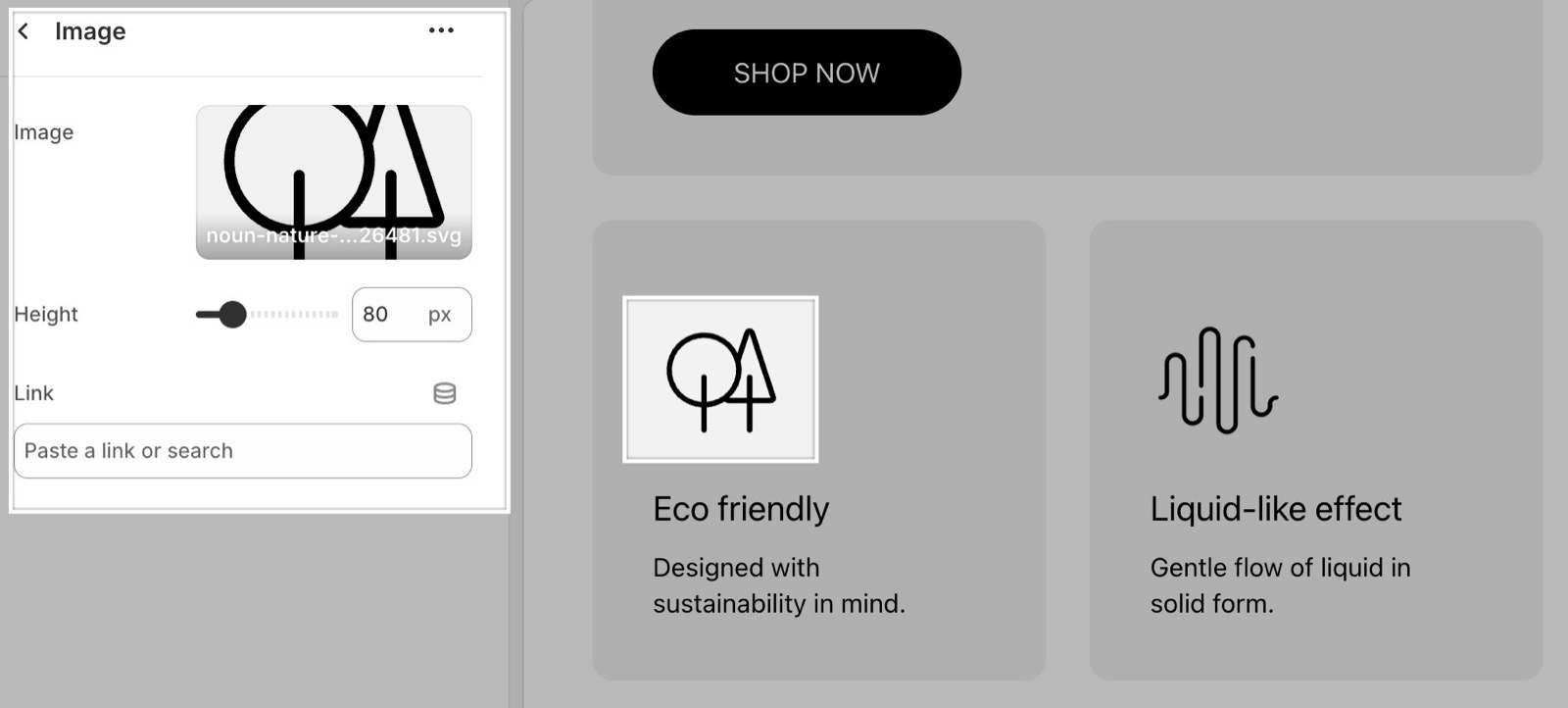
Image and height
- Image is the picture. It keeps its own proportions and is never cropped.
- Height sets the image height on desktop, 40 to 240 px (default 80 px). The width follows the image's proportions.
- On smaller screens the image gets shorter: three quarters of Height below 768 px (at least 60 px) and half below 475 px (at least 40 px).
- The image follows the text alignment of the section or card: left, center or right.
Link
- Link makes the image clickable, for example a brand logo that opens the brand's collection.
- Open link in a new window appears once a link is set.
- If the card around the image has its own link, the image link does not work.
How do I make a row of logos?
Put the Image blocks inside a Content group block. Blocks outside a content group stack one under the other. Give every logo the same Height so the row lines up.
Can I use the Image block as a full-width background?
No. The Image block is for small images at a fixed height. For a background, use the media of the slide or card itself: Image on an Image slide, Card or Text card, or a Media card in Flex grid.
All Image settings
Every setting of this block, with its type and default.
Image (image): Sets the image. It keeps its proportions and is never cropped.
Height (slider 40 to 240 px, step 2, default: 80 px): Sets the image height on desktop; the width follows the image proportions. Below 768 px the image is three quarters of this height, below 475 px half.
Link (link): Makes the image a link. It does not work when the card or slide around the image has its own Link.
Open link in a new window (checkbox, default: off). Shown only when Link is set.
Related pages
- Flex sections: the sections that accept theme blocks.
- Content group block: images side by side.
- Flex grid section: media cards for large images.
- Image section: one large image as its own section.