Navigation drawer section
The Navigation drawer section of Borders is the mobile and minimal menu: menu blocks, country and language selectors, social links and a promotion.
Applies to: Borders 3.1.0 and later. Added in: Borders 1.0.0. Last checked: 2026-10-13 against Borders 3.1.0.
The Navigation drawer section is the menu that slides in from the side. Customers see it on mobile, and on desktop when the Header section uses the minimal (drawer) menu or the classic menu does not fit.
Where to find it: Online Store → Themes → Customize → Drawers group → Navigation drawer
The navigation drawer controls the mobile / minimal navigation, so make sure that you edit it, because this is what your mobile customers will see instead of the main header navigation.
Menus
Each Menu block shows one Shopify menu. Add several blocks to show several menus, for example a main menu and a small help menu. A drawer holds up to 8 Menu blocks.
- Menu is the Shopify menu to show. Menus support three levels: links with sub-links open a second and third level inside the drawer.
- Text size (Regular, Large) and Text weight (bold) style the links of that menu.
- Menu title adds a title above the menu, with its own Menu title size and Menu title weight. Leave it empty for no title.
The drawer does not use the Menu of the Header section. Without a Menu block, the drawer has no links.
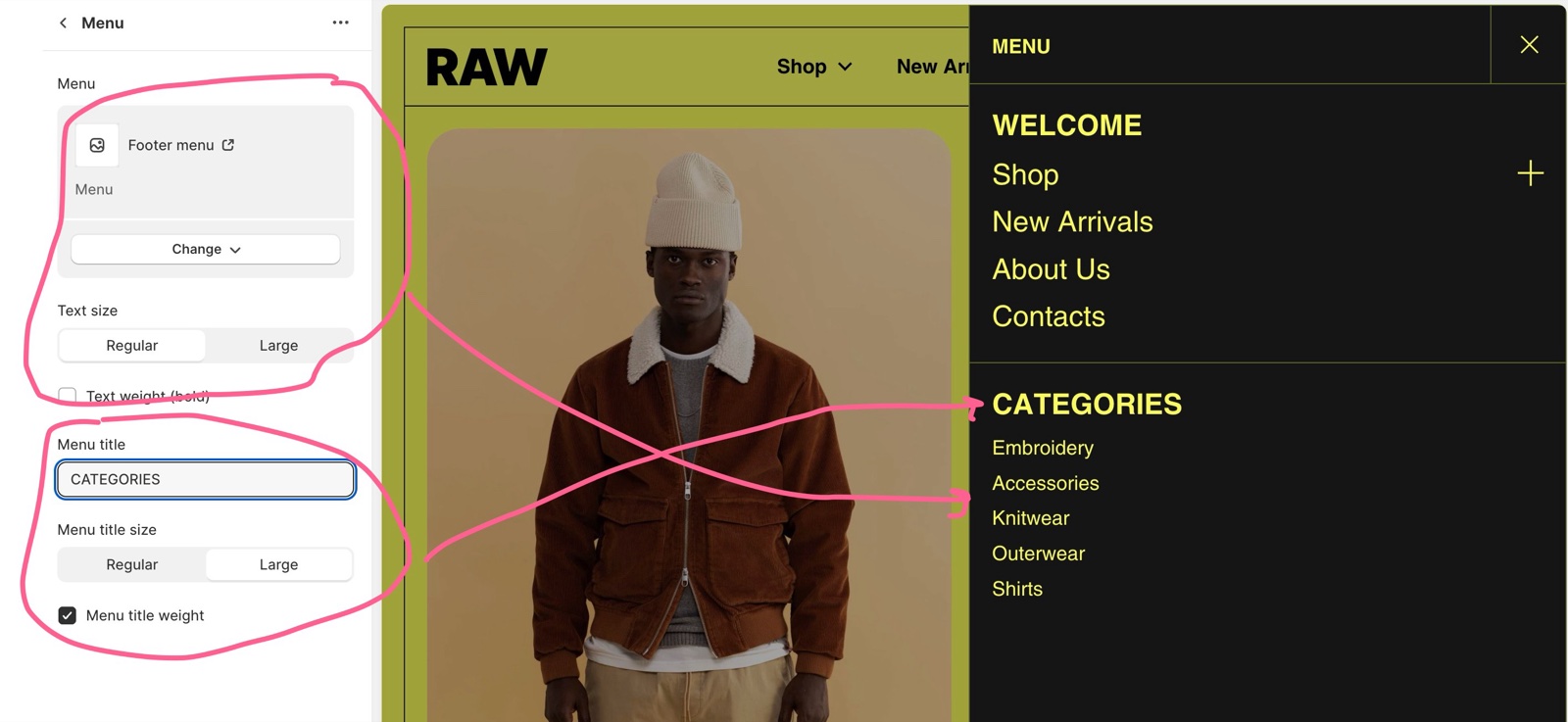
Links, selectors and promotion
The section settings add elements at the bottom of the drawer:
- Show country/region selector needs more than one country or region in Shopify admin → Settings → Markets.
- Show language selector needs more than one published language in Shopify admin → Settings → Languages.
- Show social links shows the profiles set in Theme settings → Social.
- Show promotion adds one promotion, for a new product, a sale or an announcement: Image, Promotion image link, Text, Button label, Button link and Open link in a new window. Each part is optional.
The country, region and language settings are Shopify settings, not theme settings. If you need help setting them up, contact Shopify Support.
Setting up the mobile menu
Add a Menu block
Select Navigation drawer, then Add block → Menu. Choose the Menu to show.
Style the menu
Set Text size and Text weight (bold). To add a title, type a Menu title and set Menu title size and Menu title weight.
Add secondary menus
Add more Menu blocks for other menus, for example a "Help" menu with Regular text under a main menu with Large text.
Turn on the selectors and social links
Turn on Show country/region selector, Show language selector and Show social links. The header hides the selectors on mobile, so this is where mobile customers find them.
Add a promotion
Optionally turn on Show promotion and set Image, Promotion image link, Text, Button label and Button link.
Why is the account link not in the drawer?
Since Borders 2.2.0, the account is a button in the header, not a link in the drawer. Turn on Show account in the Header section. It stays visible in the header on mobile.
Why does the language selector not show?
The store has only one published language, or Show language selector is off. Publish a second language in Shopify admin → Settings → Languages, then turn on Show language selector. The country/region selector works the same way with the countries and regions in Shopify admin → Settings → Markets.
All Navigation drawer settings
Every setting on this page, with its type and default.
Accepts these blocks: Menu (up to 8 blocks in the section).
Configure the contents of the menu that appears on mobile devices or when set up accordingly.
Navigation drawer section: Content
Where to find it: Drawers group → Navigation drawer → Content
Show country/region selector (checkbox, default: off): Shows the country/region selector at the bottom of the drawer. Needs more than one country or region in Shopify admin → Settings → Markets.
Show language selector (checkbox, default: off): Shows the language selector at the bottom of the drawer. Needs more than one published language.
Show social links (checkbox, default: off): Shows links to the profiles set in Theme settings → Social at the bottom of the drawer.
Navigation drawer section: Promotion block
Where to find it: Drawers group → Navigation drawer → Promotion block
Show promotion (checkbox, default: off): Shows one promotion (image, text and button) at the bottom of the drawer.
Image (image).
Promotion image link (link): Makes the promotion image a link.
Text (text field, default: "Lead customers to your best offers"): Sets the large text under the promotion image.
Button label (text field): Sets the label of an outline button under the text. Without a label, no button shows.
Button link (link).
Open link in a new window (checkbox, default: off).
Menu block
Where to find it: Drawers group → Navigation drawer → Add block → Menu
Menu (menu picker): Sets the Shopify menu this block shows. Up to three levels open inside the drawer.
Text size (dropdown, default: Regular): Sets the size of the links of this menu. Options: Regular, Large.
Text weight (bold) (checkbox, default: off): Makes the links of this menu bold.
Menu title (text field): Adds a title above this menu. Leave it empty for no title.
Menu title size (dropdown, default: Large): Sets the size of the menu title. Options: Regular, Large.
Menu title weight (checkbox, default: on): Makes the menu title bold.
Related pages
- Header section: the desktop menu and the account button.
- Drawers group: the drawers' colors and borders.
- Social theme settings: the social profiles shown in the drawer.
- Troubleshoot the header, menus and drawers: common problems.