Cart drawer section
The Cart drawer section of Borders sets the drawer's View cart and Checkout buttons, sticky actions and one recommended product.
Applies to: Borders 3.1.0 and later. Added in: Borders 1.0.0. Last checked: 2026-10-13 against Borders 3.1.0.
The Cart drawer section is the cart that slides in from the side when a customer adds a product or selects the cart button. Customers see their items, the subtotal and the buttons to the cart page or the checkout.
Where to find it: Online Store → Themes → Customize → Drawers group → Cart drawer
Cart drawer and the cart type
With Theme settings → Cart → Cart type set to Page, the cart button and add to cart go to the cart page instead. The cart drawer never opens on the cart page itself.
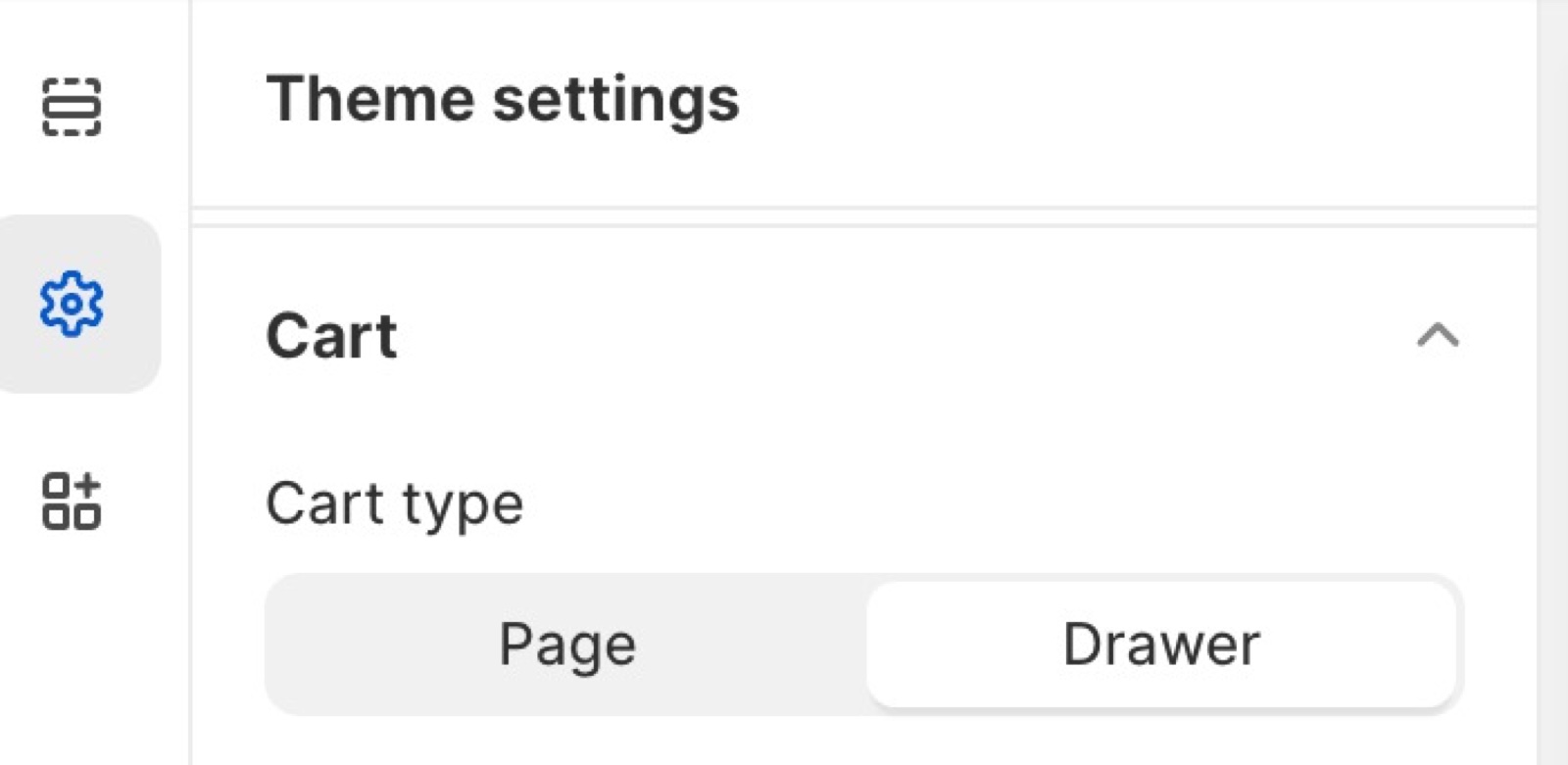
Remember that it only works if the cart type is set to drawer in the Theme settings.
Notes, discounts, the terms checkbox, the free shipping bar and gift wrapping show in the drawer too. They are set in Cart theme settings, for the drawer and the cart page together.
Action buttons
- Drawer cart actions chooses the buttons under the subtotal: Show "view cart" button, Show "checkout" button, or Show both (the default).
- Show only "view cart" when customers need the cart page, for example for apps or extra steps there. Show only "checkout" for the fastest checkout.
- Stick action buttons at the bottom of the cart drawer keeps the subtotal and buttons at the bottom of the drawer while the item list scrolls.
Individual product recommendation
- Product adds one recommended product under the cart items, for example an accessory. It shows only while the cart has items.
- Heading sets the line above it. The default is "Recommended product".
Products that have a single variant will show up a "Buy now" button, that allows your customers to add that product directly into the cart, while products that have multiple variants will show up a "View product" button, that will redirect your customers to the respective product page.
Set up the cart drawer
Choose the drawer as cart type
Open Theme settings → Cart and set Cart type to Drawer.
Open the cart drawer
In the theme editor sidebar, open Drawers group → Cart drawer. The preview opens the drawer.
Choose the buttons
Set Drawer cart actions, and turn on Stick action buttons at the bottom of the cart drawer if your carts often hold many items.
Add a recommended product
Under Individual product recommendation, choose a Product and write the Heading.
Add the cart extras
In Theme settings → Cart, turn on the notes, discounts, terms checkbox, free shipping bar or gift wrapping you need. See Cart theme settings.
Why does my cart drawer not open?
Theme settings → Cart → Cart type is set to Page. Set it to Drawer. On the cart page itself the drawer does not open, because the cart is already on screen.
Why does the recommended product show View product instead of Buy now?
The product has more than one variant. Only a product with a single variant can be added directly from the drawer. A product with variants links to its product page, where the customer chooses the variant. A sold-out product shows no button.
All Cart drawer settings
Every setting on this page, with its type and default.
Cart drawer will only appear to your customers if you have set the cart type to Drawer in the theme settings.
Drawer cart actions (dropdown, default: Show both): Sets the buttons under the subtotal: the button to the cart page, the checkout button, or both. Options: Show "view cart" button, Show "checkout" button, Show both.
Stick action buttons at the bottom of the cart drawer (checkbox, default: off): Keeps the subtotal and action buttons at the bottom of the drawer while the cart items scroll.
Cart drawer section: Individual product recommendation
Where to find it: Drawers group → Cart drawer → Individual product recommendation
Heading (text field, default: "Recommended product"): Sets the line above the recommended product.
Product (product picker): Sets one product recommended under the cart items, shown while the cart has items. Single-variant products get a Buy now button; others get a View product link.
Related pages
- Cart theme settings: cart type, notes, discounts, terms, free shipping bar and gift wrapping.
- Cart page: the cart when Cart type is Page.
- Drawers group: the drawers' colors and borders.
Navigation drawer
The Navigation drawer section of Borders is the mobile and minimal menu: menu blocks, country and language selectors, social links and a promotion.
Search drawer
The Search drawer section of Borders shows live search results as customers type, and a menu of featured links before they type.