Edit the theme code
Open Shopify's code editor for your theme, what the theme folders contain, and how to undo a change. For developers and confident store owners.
Applies to: All Krown themes. Last checked: 2026-10-13.
Krown support does not help with code edits. This page is for developers and store owners who are confident with HTML, CSS and Liquid.
Krown themes have many settings in the theme editor. When a setting cannot make the change you want, you can edit the theme code in Shopify's code editor.
Where to find it: Shopify admin → Online Store → Themes → … → Edit code
Before you edit the code
- Check first whether a theme setting already does what you want, or whether a few lines in Theme settings → Custom CSS are enough.
- Duplicate the theme (Online Store → Themes → … → Duplicate) and edit the copy, so your live store keeps working.
- Keep a list of every change: the file, what you changed and why. You need it when you update the theme.
Open the code editor
Open your themes
In Shopify admin, open Online Store → Themes.
Open the code editor
Select the … menu next to Customize on the theme you want to edit, then Edit code.
Open a file
The folders of the theme are on the left. Select a file to open it in the editor; you can open several files at once. Select Save after each change.
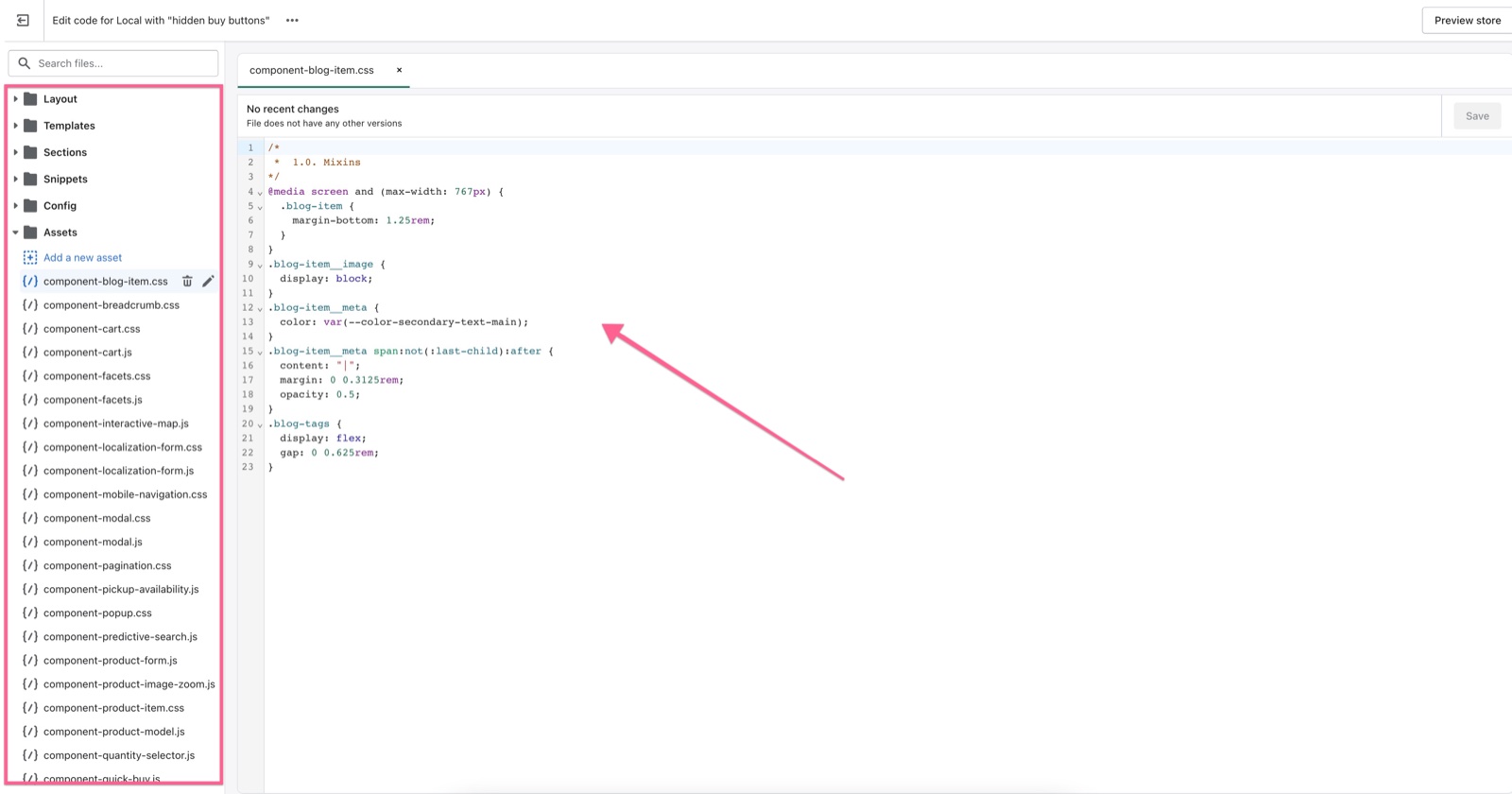
What the theme folders contain
- Layout: the page frame around every page, such as
theme.liquid. - Templates: the layout of each page type, such as the product or blog page.
- Sections: the sections you add in the theme editor.
- Blocks: theme blocks, reusable blocks used inside sections. Seventh builds almost everything from them; the other Krown themes use them in some sections.
- Snippets: small pieces of code that other files reuse.
- Assets: images, fonts, scripts and stylesheets.
- Config: the theme settings and their saved values.
- Locales: the theme's texts in each language.
How do I undo a code change?
Restore an older version of the file from its Timeline.
Open the file's Timeline
In the code editor, open the file and open its Timeline.
Compare an older version
Select an older entry to compare it with the current code.
Restore it
Right-click the entry and choose Restore contents.
This works one file at a time. It does not work for files in the Assets folder or for deleted files. See Shopify's Edit theme code help page.
If you duplicated the theme before you started, you can also publish the untouched copy instead.
Related pages
- Custom work: what Krown support does not do, and who can help.
- Update your Shopify theme: what happens to code edits when you update.
- Troubleshoot store issues: first steps: find out whether a code edit causes a problem.
Custom work
What Krown support helps with (theme settings and theme bugs) and what needs custom work by a developer, such as Vevol Media, Krown's recommended agency.
Remove the Powered by Shopify credit
Hide the "Powered by Shopify" link in the footer of your Krown theme: a setting in Seventh, one line of CSS in the other themes.