Replace the Twitter icon with the X logo
Krown themes show the X logo since their November 2023 updates. For an older version, replace the Twitter icon in social-icons.liquid.
Applies to: All Krown themes. Last checked: 2026-10-13.
Krown support does not help with code edits. This page is for developers and store owners who are confident editing theme files.
Current versions of every Krown theme show the X logo for your X (Twitter) link. Only an older theme version still shows the Twitter bird; update the theme, or replace the icon in the code.
Where to find it: Theme settings → Social → X (Twitter) (the link); Shopify admin → Online Store → Themes → … → Edit code → snippets/social-icons.liquid (the icon)
Which theme versions already show the X logo?
These versions and every later one show the X logo:
| Theme | First version with the X logo |
|---|---|
| Local | 2.3.0 (2023-11-06) |
| Combine | 2.3.0 (2023-11-13) |
| Split | 4.2.0 (2023-11-13) |
| Highlight | 3.2.0 (2023-11-13) |
| Kingdom | 5.2.0 (2023-11-13) |
| Borders | every version (launched 2024-01-03) |
| Seventh | every version |
The best fix is to update your theme, see Update your Shopify theme. Your theme version is shown under the theme name in Online Store → Themes.
Replace the icon in an older version
Duplicate your theme before you edit it (Online Store → Themes → … → Duplicate), so you can go back.
Open social-icons.liquid
Open the code editor (see Edit the theme code) and open snippets/social-icons.liquid.
Find the Twitter icon
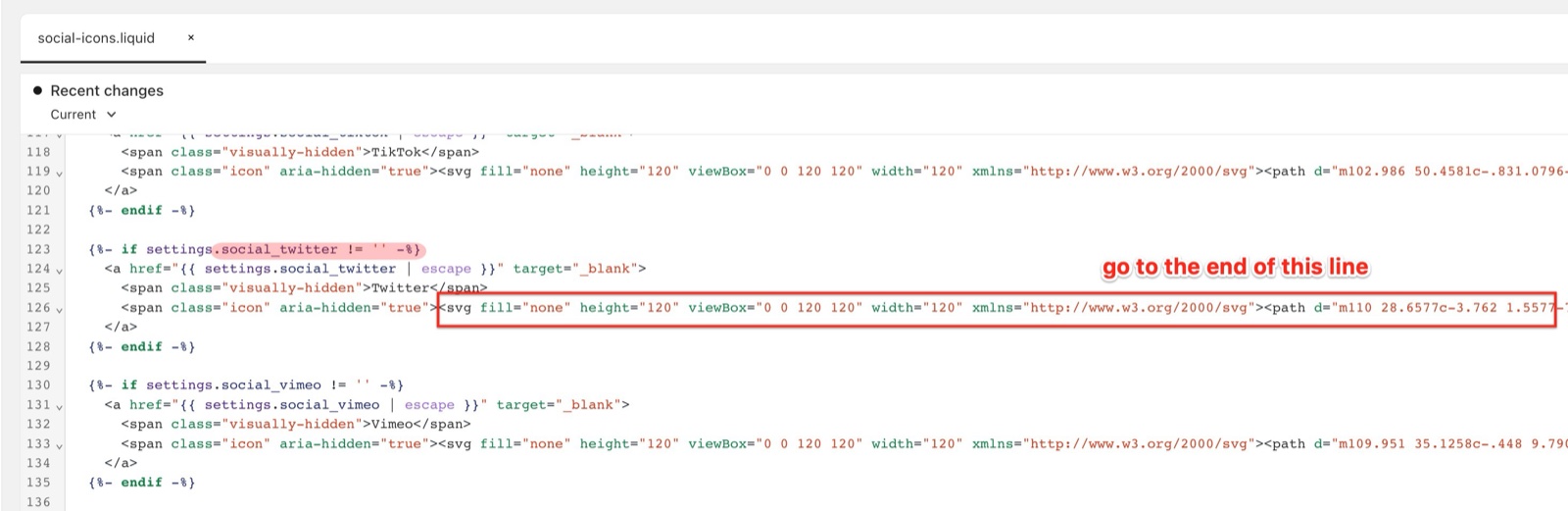
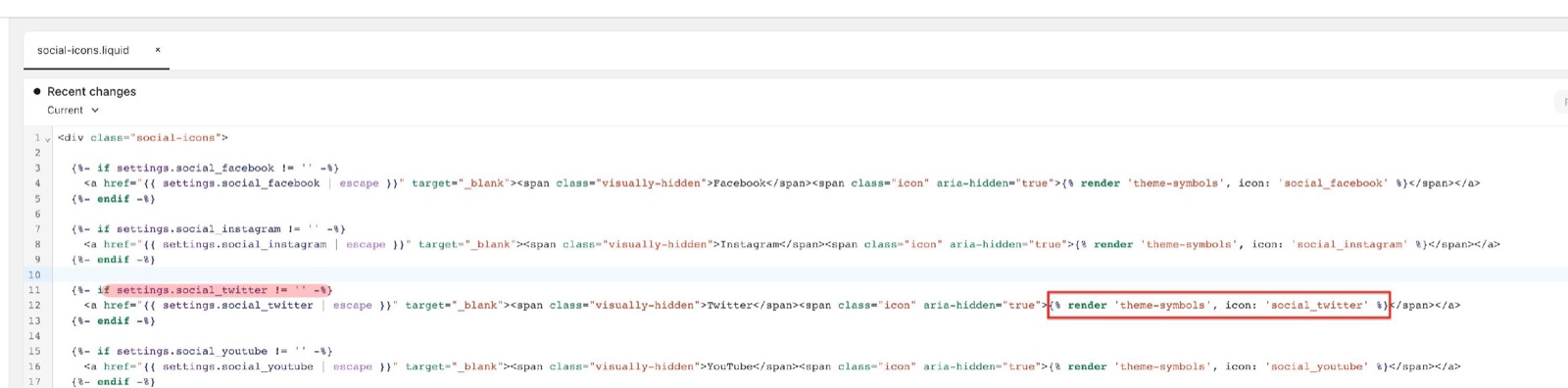
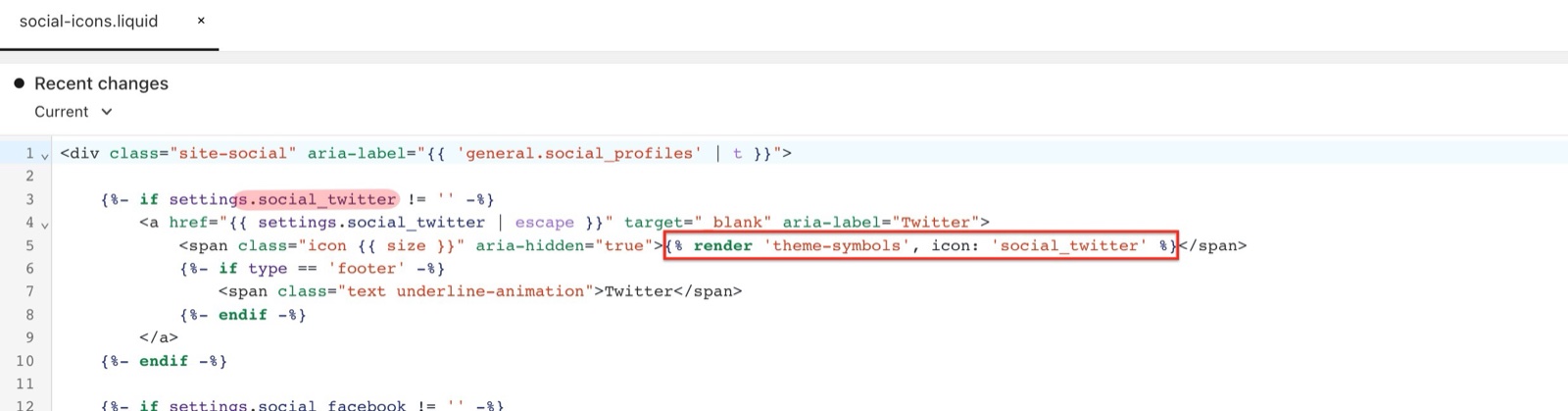
Search the file for social_twitter. Inside that link, the icon is either a snippet tag, render 'theme-symbols', icon: 'social_twitter', or an inline <svg …>…</svg> code.
Replace the icon
Replace the snippet tag or the whole inline SVG (the part marked in the screenshots below) with this code, then select Save.
<svg width="100" height="100" viewBox="0 0 300 300" version="1.1" xmlns="http://www.w3.org/2000/svg"><path d="M178.57 127.15 290.27 0h-26.46l-97.03 110.38L89.34 0H0l117.13 166.93L0 300.25h26.46l102.4-116.59 81.8 116.59h89.34M36.01 19.54H76.66l187.13 262.13h-40.66"/></svg>The code you replace depends on the theme:
- Local and Combine: the inline Twitter SVG at the end of the
social_twitterline. - Highlight, Kingdom and Split: the
render 'theme-symbols', icon: 'social_twitter'tag.
Why does my store still show the Twitter bird?
Your theme is older than the versions in the table. Update the theme to get the X logo with no code edit. An update also replaces the old icon code, so the code edit is not needed after it.
Related pages
- Update your Shopify theme: the better fix.
- Edit the theme code: open social-icons.liquid and undo a change.
Remove the Powered by Shopify credit
Hide the "Powered by Shopify" link in the footer of your Krown theme: a setting in Seventh, one line of CSS in the other themes.
Add jQuery for apps that need it
Krown themes do not load jQuery. If an app breaks because it expects jQuery, ask the app developer first, or load jQuery in theme.liquid.