Add jQuery for apps that need it
Krown themes do not load jQuery. If an app breaks because it expects jQuery, ask the app developer first, or load jQuery in theme.liquid.
Applies to: All Krown themes. Last checked: 2026-10-13.
Krown support does not help with code edits. This page is for developers and store owners who are confident editing theme files.
Krown themes are written in plain JavaScript and do not load the jQuery library. A few apps assume that jQuery is already on the page and stop working without it. This page shows how to load jQuery for those apps.
Where to find it: Shopify admin → Online Store → Themes → … → Edit code → layout/theme.liquid
Why do Krown themes not load jQuery?
Because the themes do not need it, and every library slows the page down. None of the released Krown themes loads jQuery in its layout or assets. An app that needs jQuery should load it itself; many apps do, and some assume the theme does it for them.
Add jQuery to the theme
Duplicate your theme before you edit it (Online Store → Themes → … → Duplicate), so you can go back.
Open theme.liquid
Open the code editor (see Edit the theme code) and open layout/theme.liquid.
Find content_for_header
Search the file for {{ content_for_header }}. It is inside the <head> part, near the top.
Paste the script and save
Paste this code on the line just above {{ content_for_header }}, then select Save.
<script
  src="https://code.jquery.com/jquery-3.5.1.min.js"
  integrity="sha256-9/aliU8dGd2tb6OSsuzixeV4y/faTqgFtohetphbbj0="
  crossorigin="anonymous"></script>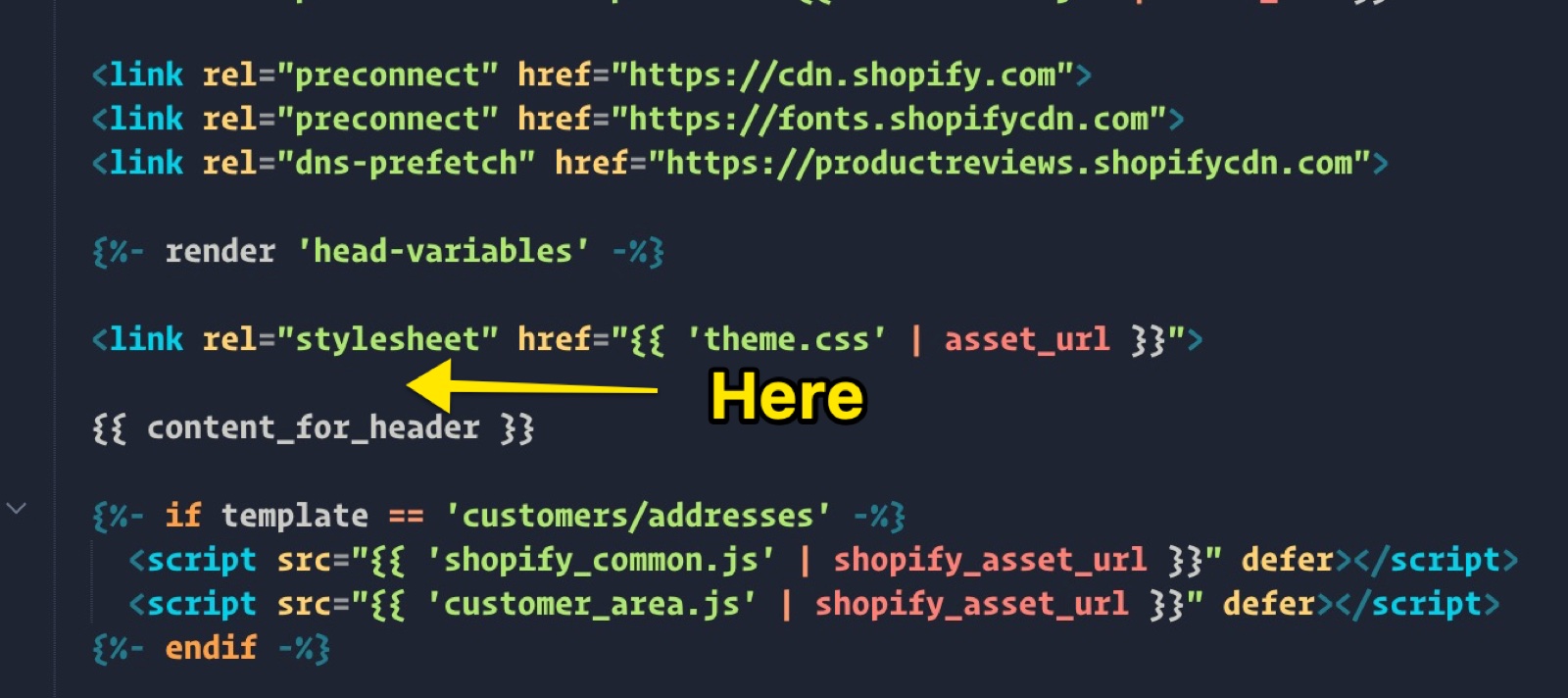
When you update the theme, check that the script is still in the new version: Shopify copies a code edit only when it does not conflict with the new files. See Update your Shopify theme.
Is there a better fix than adding jQuery?
Yes: ask the app developer. A well-built app checks whether jQuery is loaded and loads it when it is missing. The app's support can usually turn that on or fix it for your store. Add jQuery to the theme only when the app cannot, because it makes every page of your store load more code.
Related pages
- Edit the theme code: open theme.liquid and undo a change.
- Insert code into your store's head: add a script with an app instead of a code edit.
- Troubleshoot store issues: first steps: find out whether an app causes a problem.
Replace the Twitter icon with the X logo
Krown themes show the X logo since their November 2023 updates. For an older version, replace the Twitter icon in social-icons.liquid.
Fix the accelerated checkout buttons design
Shopify changed the accelerated checkout buttons in September 2024. Update your theme, or paste the CSS fix for your theme into Custom CSS.